AI clothes color changer New

Change clothing colour with AI, keep everything else

Photograph one colour and let Garmo make the others. Pick a swatch or type a hex code and the garment changes colour while the model, the pose, the light and the sheen of the fabric stay exactly as they were. One listing image per variant, from one shoot.

  • 3 images free
  • No credit card
  • Commercial rights
Pick a colourSee all examples
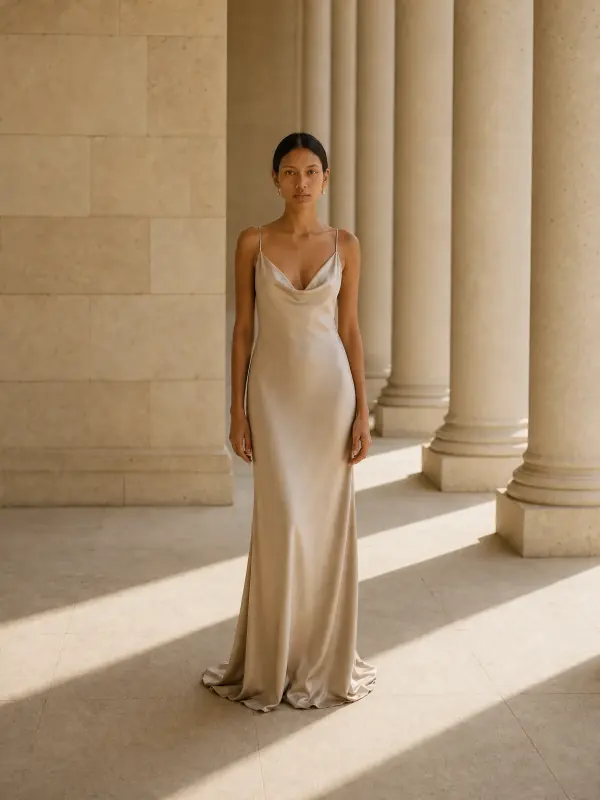
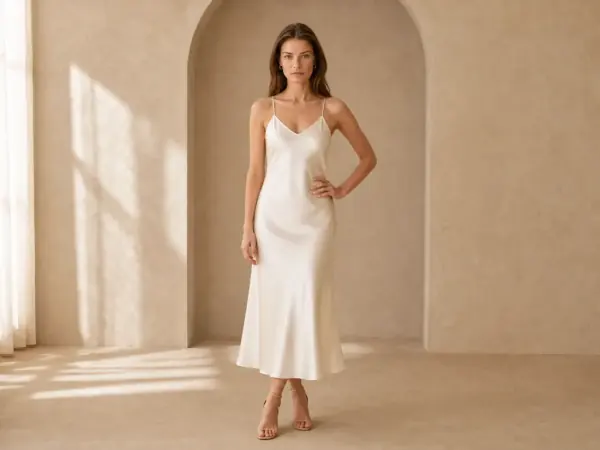
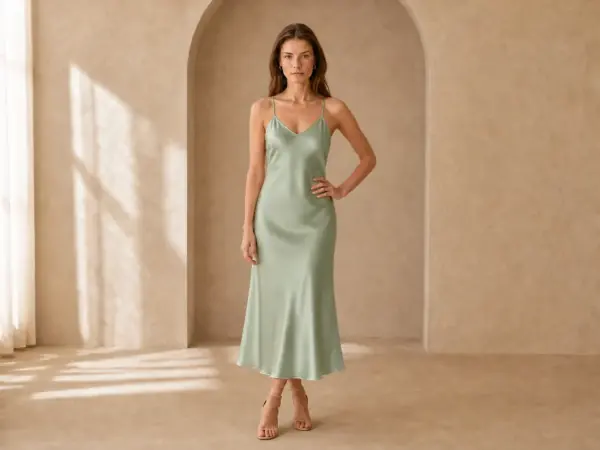
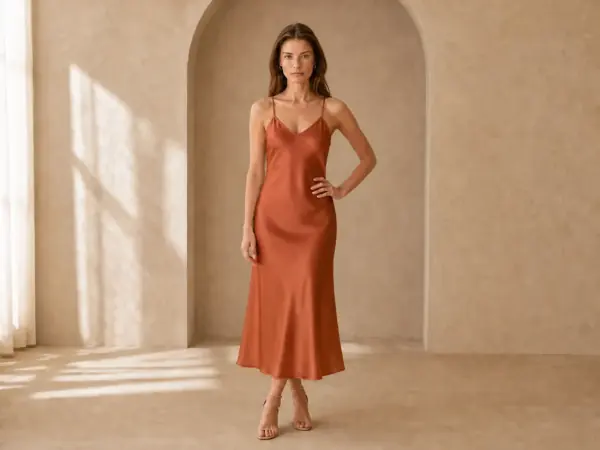
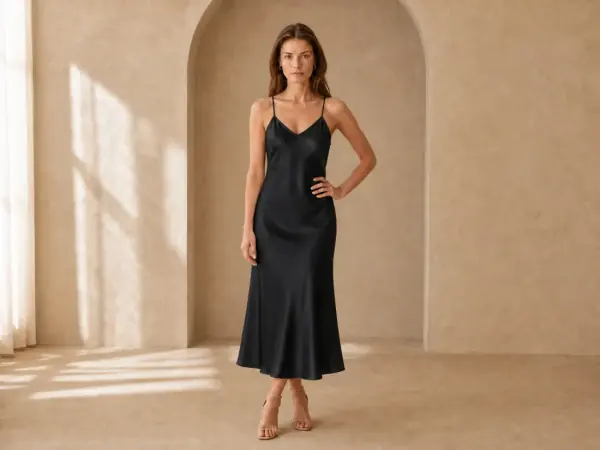
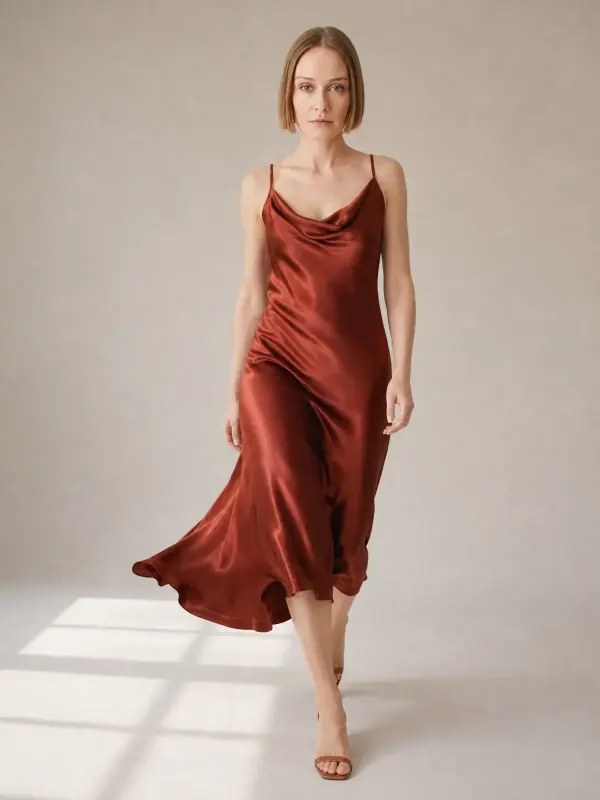
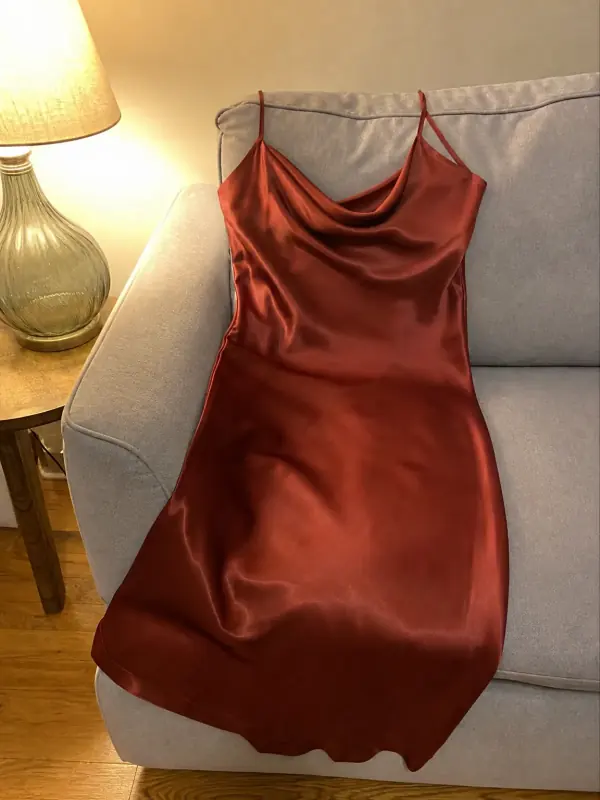
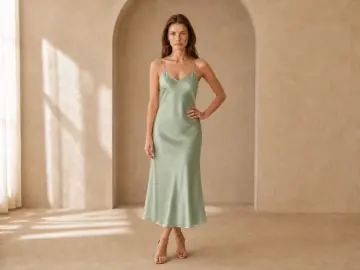
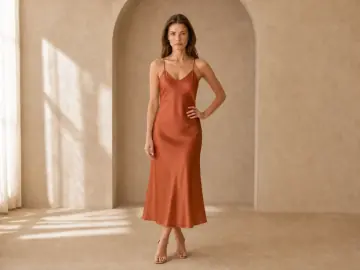
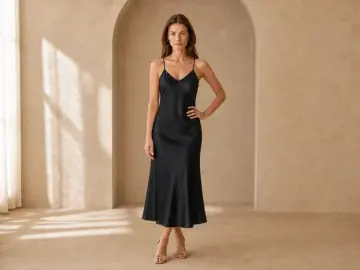
Model Odette in an ivory satin slip dress in an arched plaster roomThe same photo with the satin slip dress in sage greenThe same photo with the satin slip dress in terracottaThe same photo with the satin slip dress in black
Ivory
01

Upload one photoThe colour you already have.

02

Pick the coloursA swatch or the exact hex code.

03

Download every variantOne image per colour, same everything else.

One shoot, every variant

Colorway examples

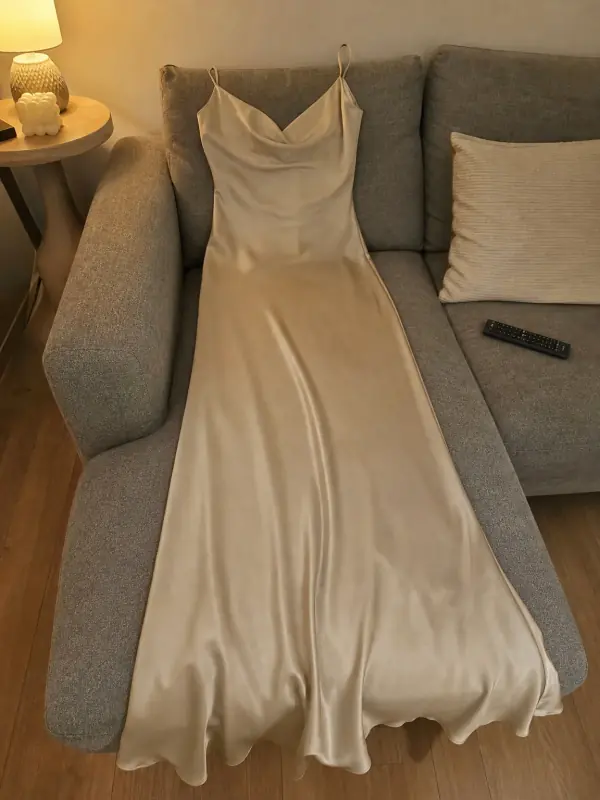
One satin slip dress, photographed once in ivory. The three other colours were made from that photo: the model, the arched room, the window light and the satin's sheen are untouched.

Example

Satin slip dress in four colours

Satin is one of the hardest fabrics to recolour, because the highlights and folds have to follow the new colour. The bias-cut drape and the thin straps stay the same in every variant.

Try it with your own photo
The original: Odette in the ivory satin slip dressYour photo
Original
Colorway: the slip dress in sage
Sage
Colorway: the slip dress in terracotta
Terracotta
Colorway: the slip dress in black
Black

02 / 03

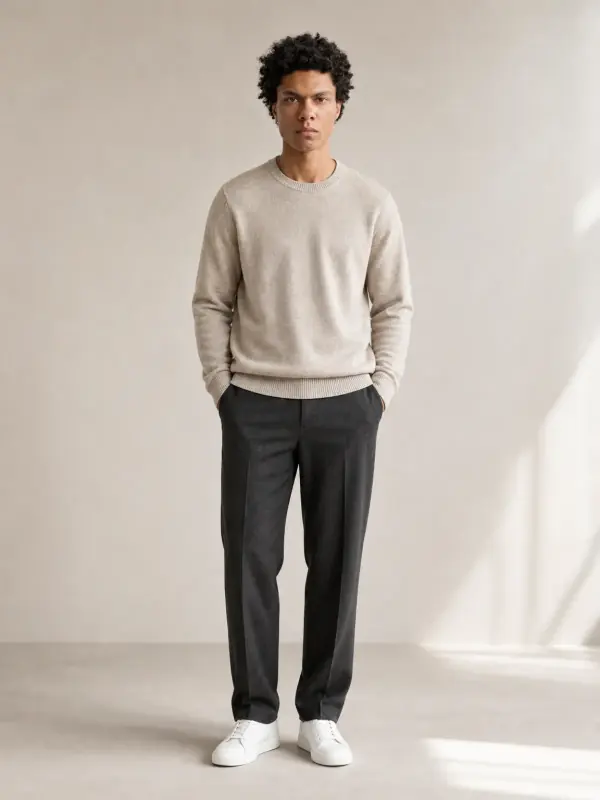
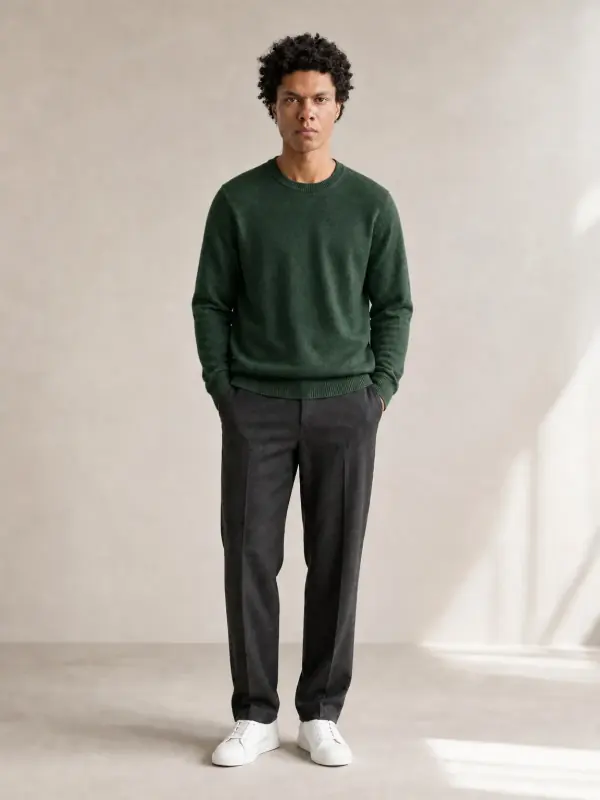
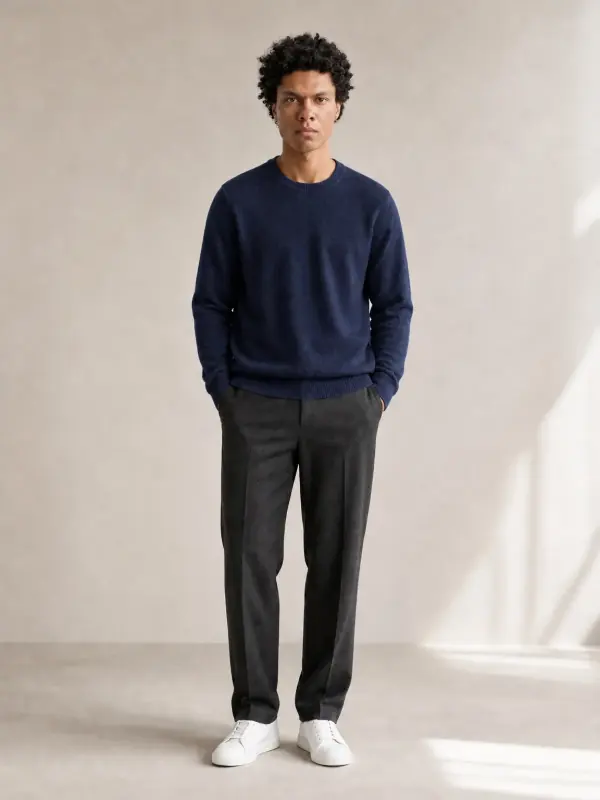
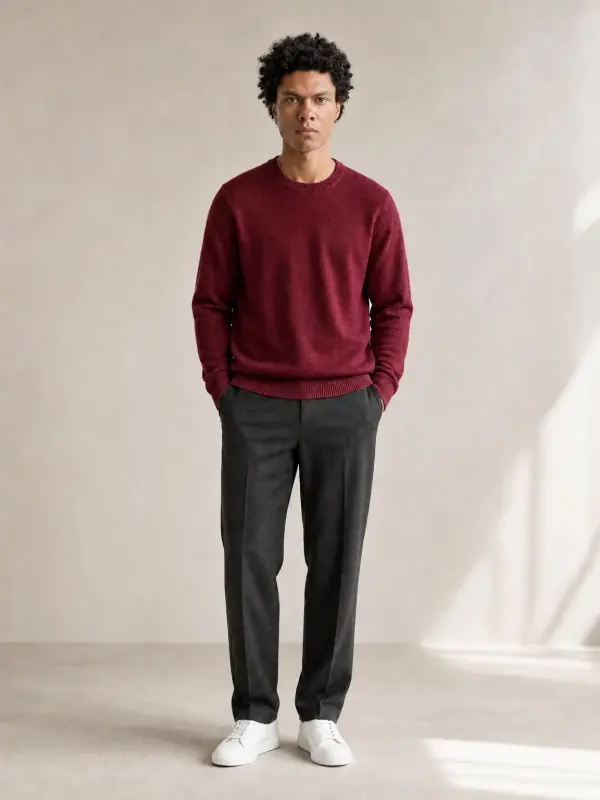
Merino sweater in four colours

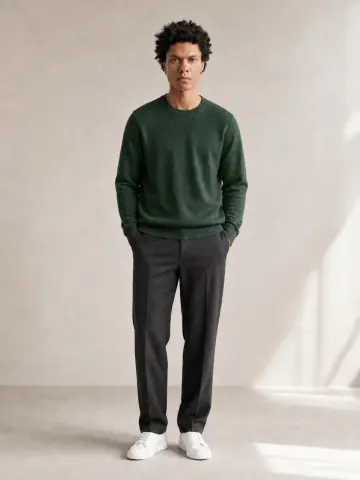
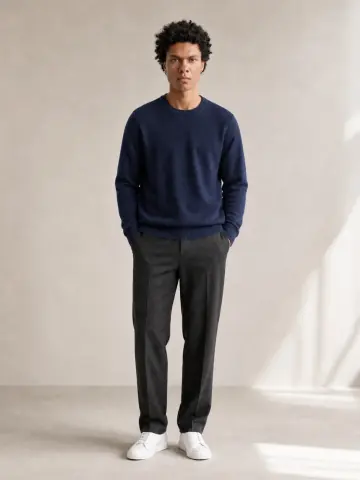
One oatmeal sweater on Kai, then forest green, navy and burgundy. The knit ribs and the folds at the elbows are rebuilt for each colour; the charcoal trousers and the sneakers are untouched.

Try it with your own photo
The original: Kai in an oatmeal merino crewneck sweater and charcoal trousers in a studioYour photo
Original
Colorway: the same sweater in forest green
Forest green
Colorway: the same sweater in navy
Navy
Colorway: the same sweater in burgundy
Burgundy

03 / 03

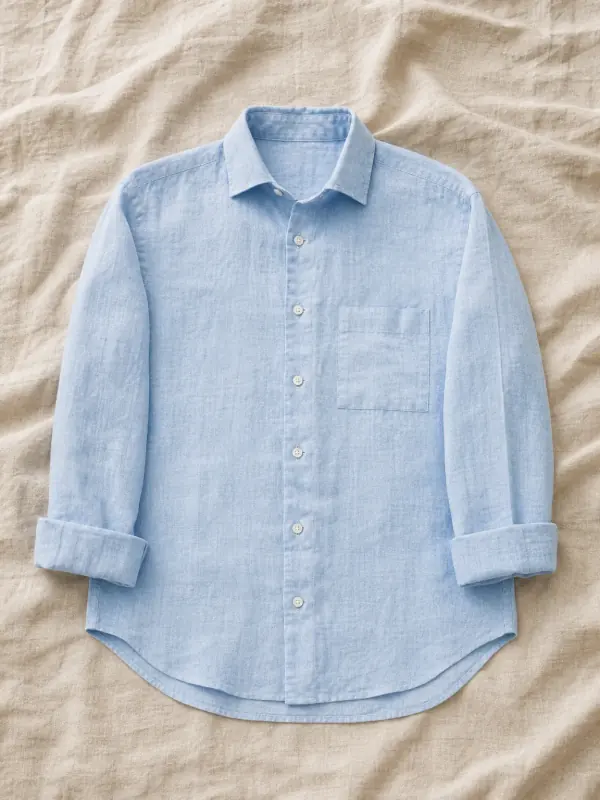
Linen shirt as a flat lay

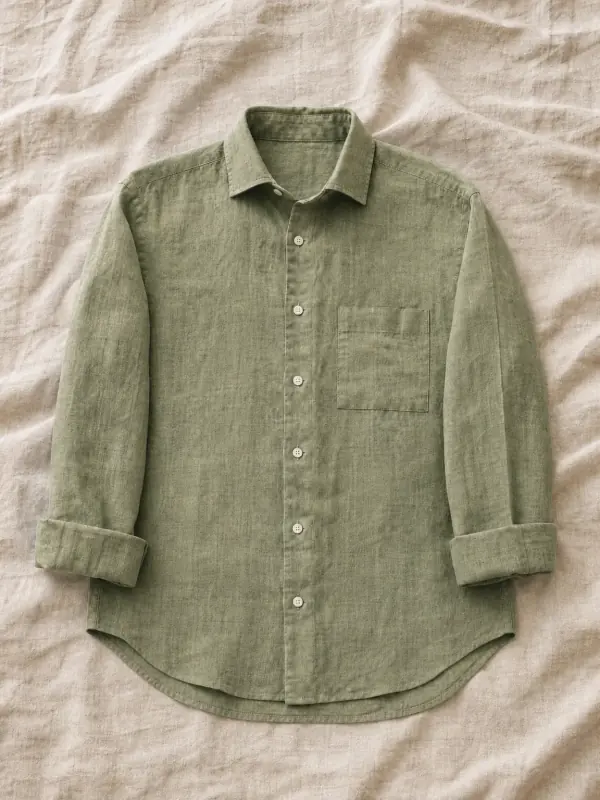
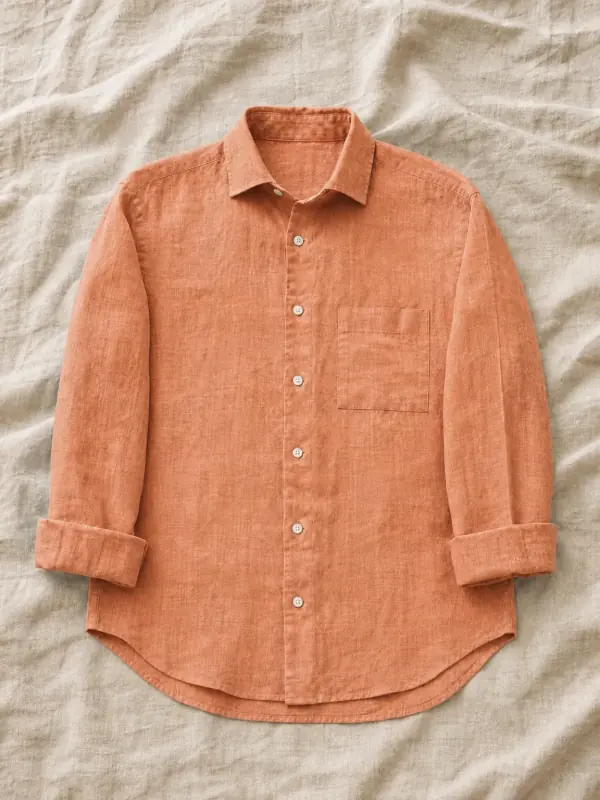
Colorways work without a model too. A sky-blue linen shirt on a linen sheet becomes olive and terracotta; the white buttons and the slub of the linen stay as they are.

Try it with your own photo
The original: a sky-blue linen shirt laid flat on an oatmeal linen sheetYour photo
Original
Colorway: the linen shirt flat lay in olive green
Olive
Colorway: the linen shirt flat lay in terracotta
Terracotta

Only the colour moves

What changes and what stays the same

Stays the same

  • The model, face and pose
  • Light, shadows and background
  • Fabric texture, sheen and drape
  • Seams, buttons and trims

Changes

  • The colour of the garment you choose
  • Highlights and shadows re-tinted to match
  • One new image per colour
  • Nothing else in the frame

From one shoot to a full range

How the AI clothes color changer works

  1. 01

    Upload one photo of the garment in any colour you have. It can be a Garmo on-model image (made with put clothes on an AI model), a photo from your own shoot, a flat lay or a hanger photo.

  2. 02

    Choose the colours. Pick from swatches or enter the exact hex code from your colour card, so the image matches the product you ship. Add as many colours as the garment comes in.

  3. 03

    Garmo recolours only the garment. The AI finds the garment, changes its colour and rebuilds the highlights and shadows for the new shade, so black looks like black satin and not a dark filter on ivory.

  4. 04

    Download one image per variant. Every colour comes out with the same framing, so your colour swatches on the product page switch between images that line up exactly. For a different angle of each colour, use the AI pose changer on any of them.

When colour is the variant

Who uses colorways

For true-to-life colour

Tips for accurate colorways

Works well

  • Use your hex codes

    Enter the colour from your swatch card or tech pack instead of picking by eye.

  • Start from a mid colour

    A light or mid-tone original keeps the most texture when it becomes darker.

  • Check against the real fabric

    Compare one variant with a sample in daylight before you recolour the whole range.

Avoid

  • Multicolour prints

    Changing one colour inside a print is harder than recolouring a solid garment.

  • Very dark to very light

    Turning black into white loses detail; start from the lightest colour you have.

  • Two garments the same colour

    Say which garment to change, so the top doesn't recolour the trousers too.

Your product comes first

Check the colour before you publish

  • Shade
  • Texture
  • Edges

A screen and a fabric never match perfectly, and dyes behave differently on different fabrics. Compare each variant with a real sample in daylight before you publish (our AI product image accuracy test shows what to look for), especially for colours customers choose carefully, such as wedding guest dresses or suiting.

Look at the edges where the garment meets skin, hair or a second garment: these are the places where a colour change is most likely to spill or stop short. If it does, generate again.

If a colour does not exist yet, say so on the product page. A colorway image is a presentation of the product, and your customers should get what they see.

Pricing

Your first 3 images are on us.

No credit card. Commercial rights included.

  • Starter

    $9/ month

    50 images a month

    from $0.18 per image

  • Most popularCollection

    $19/ month

    200 images a month

    from $0.10 per image

  • Studio

    $39/ month

    500 images a month

    from $0.08 per image

Start with 3 free images, no card needed. Then pick a plan; each image or edit uses one credit and yearly billing gives you two months free.

Start with 3 free imagesSee all plans

FAQ

A few things you might ask.

Ready to try yours?

Can I change the colour of clothes in a photo with AI?

Yes. Upload a photo, choose a new colour and Garmo recolours the garment only, keeping the model, pose, light and fabric texture the same.

Can I enter an exact colour?

Yes. Pick a swatch or type a hex code, so the image matches the colour on your swatch card or tech pack.

Does it work on patterned fabric?

Solid colours work best. On prints and stripes you can change the main colour, but check the result closely, because small pattern details are the hardest part.

Can I recolour a photo from my own shoot?

Yes. It works on Garmo images and on photos you already have, on a model or as a flat lay or hanger photo.

Will the texture and shine stay?

Yes. The highlights, folds and texture are rebuilt for the new colour, so satin stays shiny and knitwear keeps its stitches.

Is it free?

Your first 3 images are free and you do not need a credit card. After that, each colour you create uses one credit from your plan.

Can I sell with these images?

Yes. Every image you create, including the free ones, comes with commercial rights. Only show colours you actually sell.

Guides for better product photos

Practical posts from the Garmo blog that go with this tool.

Every colour, from one photo.

3 free images · no credit card · commercial rights included

Create my colorways

Updated

3 images freeNo credit card Try it free