The three image sizes WooCommerce creates
You upload one image per photo; WooCommerce makes the smaller versions it needs. These are the defaults in the WooCommerce image sizes documentation, checked on 6 November 2026. Your theme can change all of them.
Catalog: woocommerce_thumbnail
Used in product grids such as the shop and category pages. Defaults to 300 px wide and is square cropped so the grid looks neat.
Single: woocommerce_single
The main image on the product page. Defaults to 600 px wide and is uncropped: the full image, as uploaded.
Gallery: woocommerce_gallery_thumbnail
The small images below the main one that switch the gallery. Always square cropped, 100 × 100 px by default.
Full size
Your original upload. The zoom and the full-screen gallery use it, so it has to be sharp itself.
What size should you upload? At least 800 × 800
WooCommerce's answer is simple: upload images that are at least 800 × 800 pixels. Its product images guide says that size renders well as the single product image, the catalog image and the thumbnail. The blurry-images guide repeats it as the minimum for most themes.
Treat 800 as the floor, not the target. If your theme shows the main image at 800 px wide on a desktop, a high-density phone or laptop screen needs about twice that to look crisp. WooCommerce itself suggests setting thumbnails to double the size your theme renders, for example 160 × 160 for an 80 × 80 slot, and warns that bigger images cost page speed.
A practical rule for a clothing shop: export the original at 1600 to 2000 px on the long edge, as JPEG or WebP, compressed to a few hundred kilobytes. That covers zoom and sharp screens without making the shop slow. And never upscale a small photo to reach a number: in WooCommerce's own words, a larger size cannot add detail to a smaller original.
Where the WooCommerce product image size settings are
The settings live in the Customizer: go to Appearance › Customize › WooCommerce › Product Images. Depending on your theme you see the main image width, the thumbnail width and the thumbnail cropping. Change them, check the preview, then select Publish; until you publish, shoppers see nothing new.
If some fields are missing, your theme has set the sizes itself. Since WooCommerce 3.3, a theme can declare its image widths, and then, as the developer documentation puts it, the store owner can no longer change them: the width fields are hidden and only the crop option stays. In that case the theme's own settings or its documentation decide the size, and the right move is to match your photos to the theme, not to fight it.
Block themes and the Product Gallery block can show images differently again, and any theme can resize images with CSS. So after every change, look at the real shop page and a product page on a phone and on a laptop, not just at the numbers.
Cropping: 1:1, custom or uncropped for clothing?
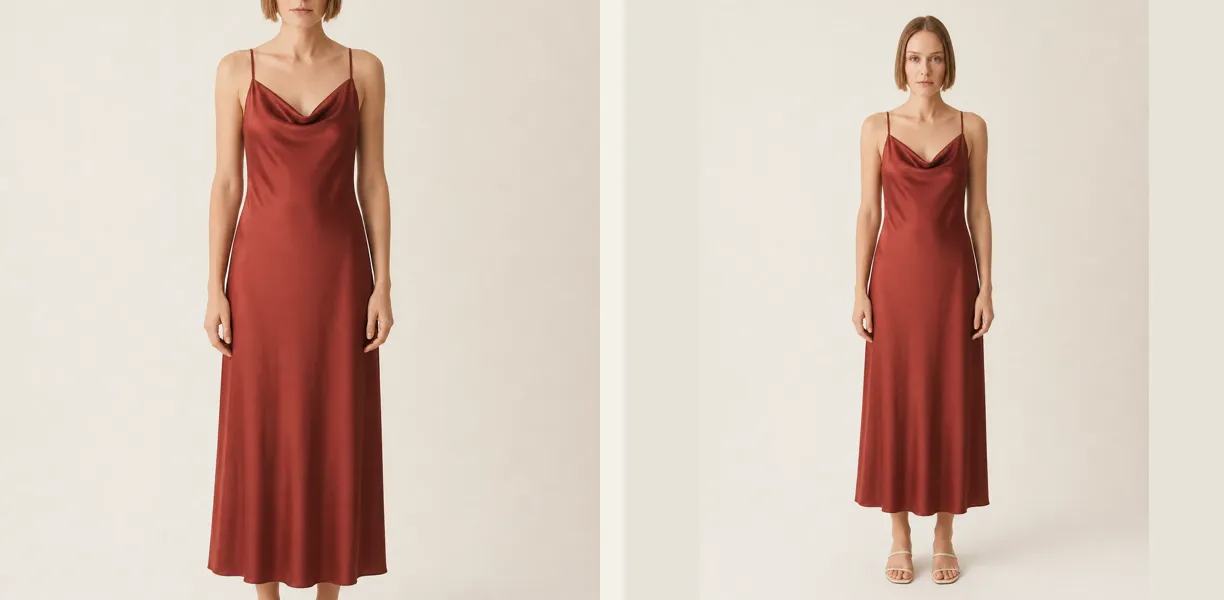
Thumbnail cropping has three options. 1:1 makes every catalog image a square. Custom lets you enter a ratio, such as 3:4 for portrait. Uncropped shows each image as it is, which can make the grid uneven if your photos have different shapes.
For fashion, the crop decides whether heads and shoes survive. A 3:4 model photo cut to a square loses the top of the head and the feet, because WooCommerce crops from the centre. Pick one of two systems: shoot or export every lead image in exactly the ratio you set, or keep 1:1 and leave room above the head and below the shoes so the square has the whole body.
Whatever you choose, use it for every product's first image. One square product next to three portrait ones is what makes a category page look broken. For the same decision on the other big platform, see Shopify product image size.
Regenerate thumbnails after any change
New settings only apply to new uploads. Images already in the media library keep their old sizes until you regenerate them.
Publish the new settings
In Appearance › Customize › WooCommerce › Product Images, set the widths and the crop, then select Publish.
Open the tools
Go to WooCommerce › Status › Tools and find Regenerate shop thumbnails.
Run it
Select Regenerate. On a large catalog it runs in the background; give it time before you judge the result.
Do it again after a theme change
WooCommerce says to regenerate whenever you activate a new theme or change image dimensions.
Check on real screens
Clear any caching plugin, then open a category page and a product page on a phone and on a laptop.
Why WooCommerce product images look blurry or too big
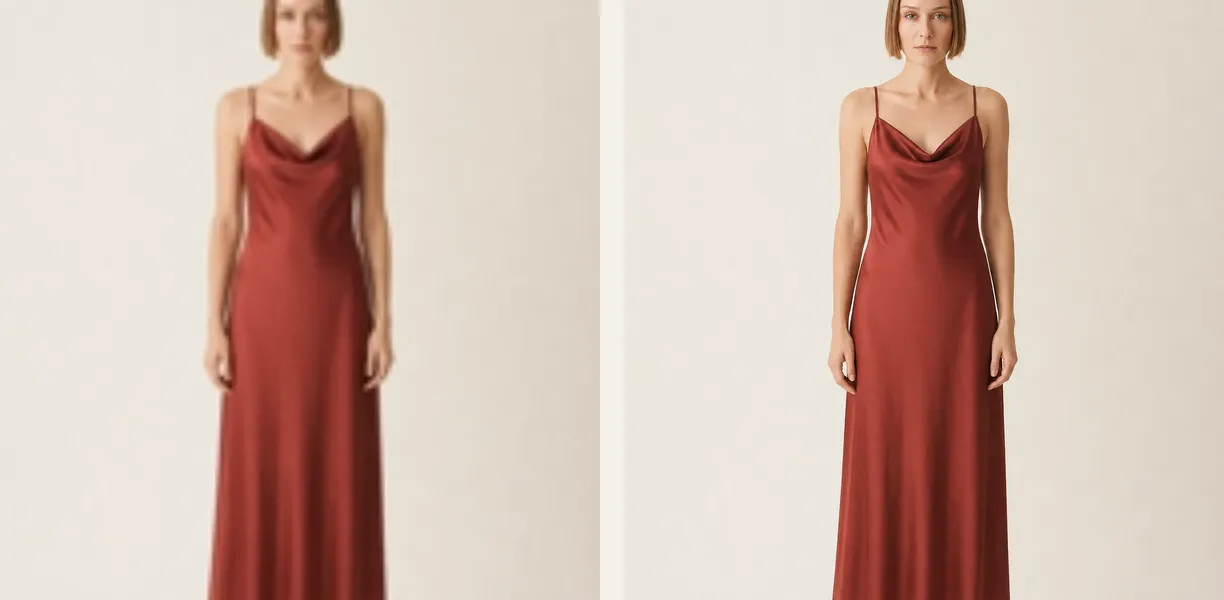
Blurry usually has one of three causes, according to WooCommerce's guide to blurry product images: the uploaded file is too small, the size settings are lower than what the theme shows, or the thumbnails were not regenerated after a change. The fix is the same order: upload a bigger original, set the main image width to at least the width your theme renders, then regenerate.
Too big means one of two things. If the image fills the screen or pushes the text down, the theme's CSS decides the display size; that is a theme setting, not a WooCommerce one. If the page is slow, the files are heavy: a 6 MB photo straight from the phone is far more than any product page needs. Resize and compress before uploading.
Also keep the backgrounds and the light consistent, so the grid looks like one shop even when the sizes are right. Our guide to product photography backgrounds covers that part.
Make every photo fit the same ratio with Garmo
The hardest part of a tidy WooCommerce grid is not the setting; it is getting every product into the same frame. Flat lays, hanger shots and photos from suppliers all have different shapes. With AI product photography with models, you upload one phone photo and choose the ratio before you render: 3:4, 2:3, 1:1, 4:5 or 9:16. The result is cut to that exact ratio, so a 1:1 shop gets squares and a 3:4 custom crop gets 3:4.
Garmo puts the garment on one of 42 ready models (22 women and 20 men) in a studio, street or editorial setting, and a set of three is ready in about a minute. For a whole outfit photographed together, use put clothes on an AI model; for clothes photographed from above, flat lay to model works from any top-down photo.
Check the pixel size of each download before uploading, keep your own photo of the real product in the gallery next to the model photo, and compare colour and details with the garment. The full phone workflow is in how to take product photos with a phone.
From a phone photo to a consistent shop image
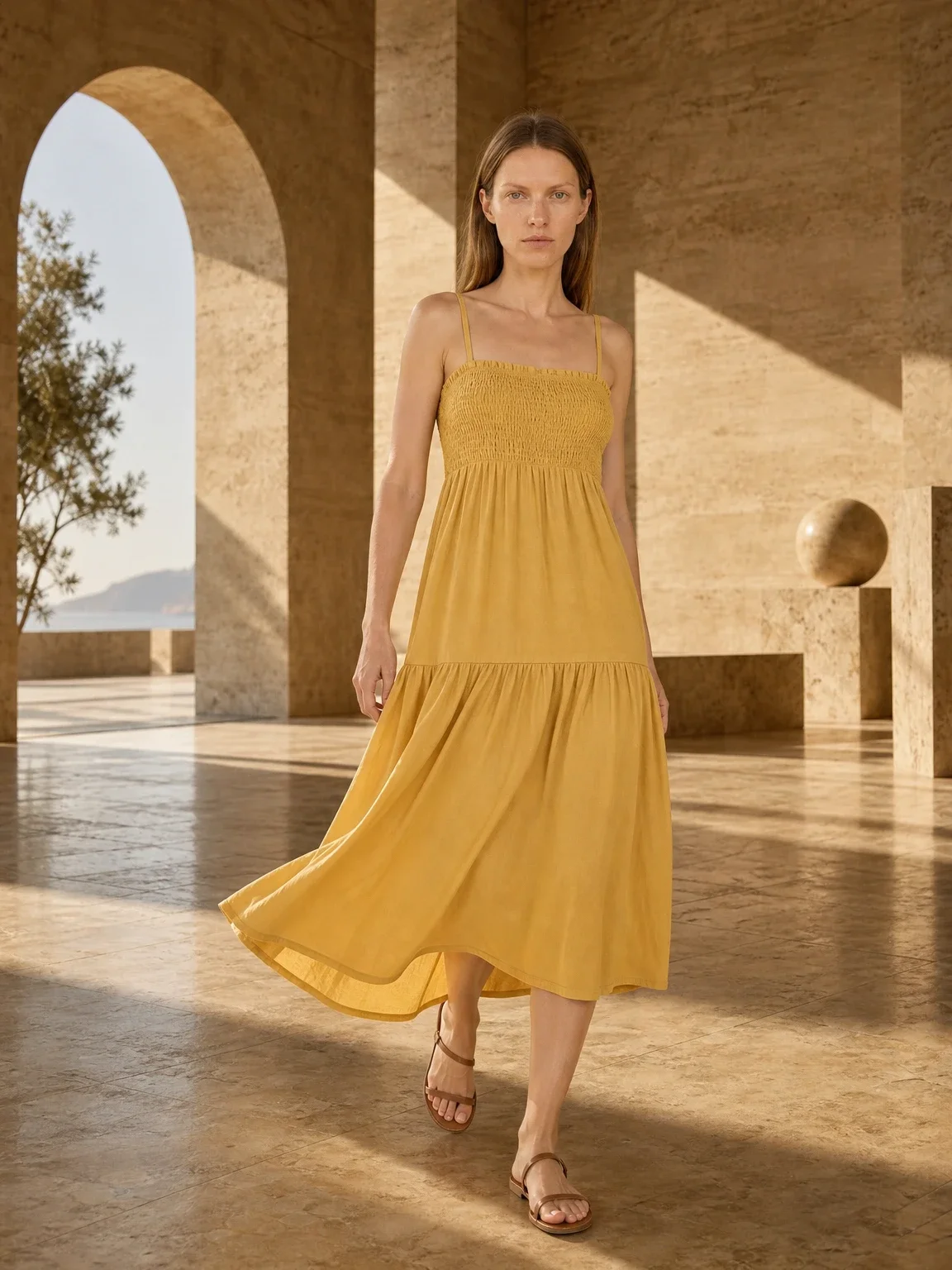
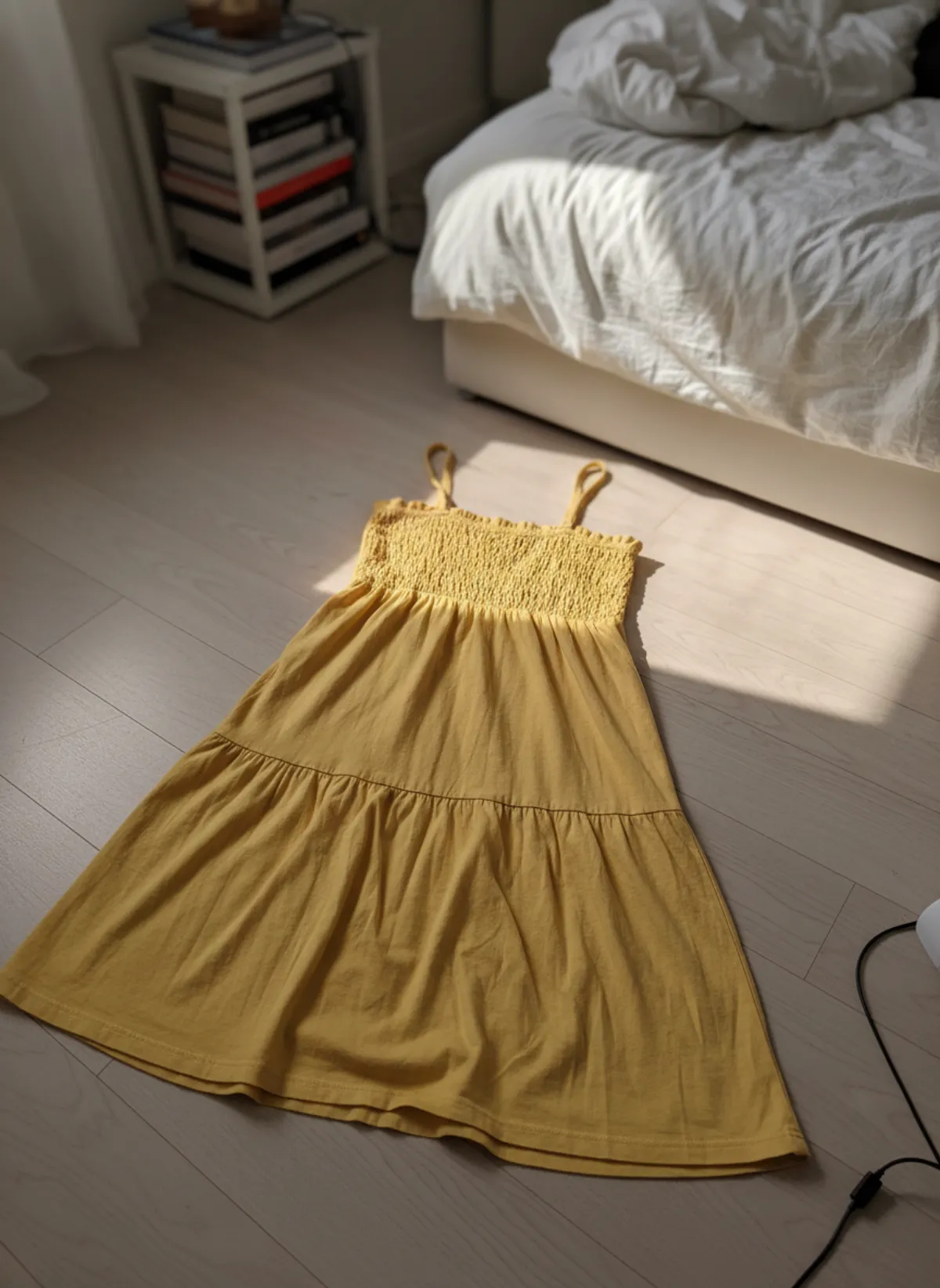
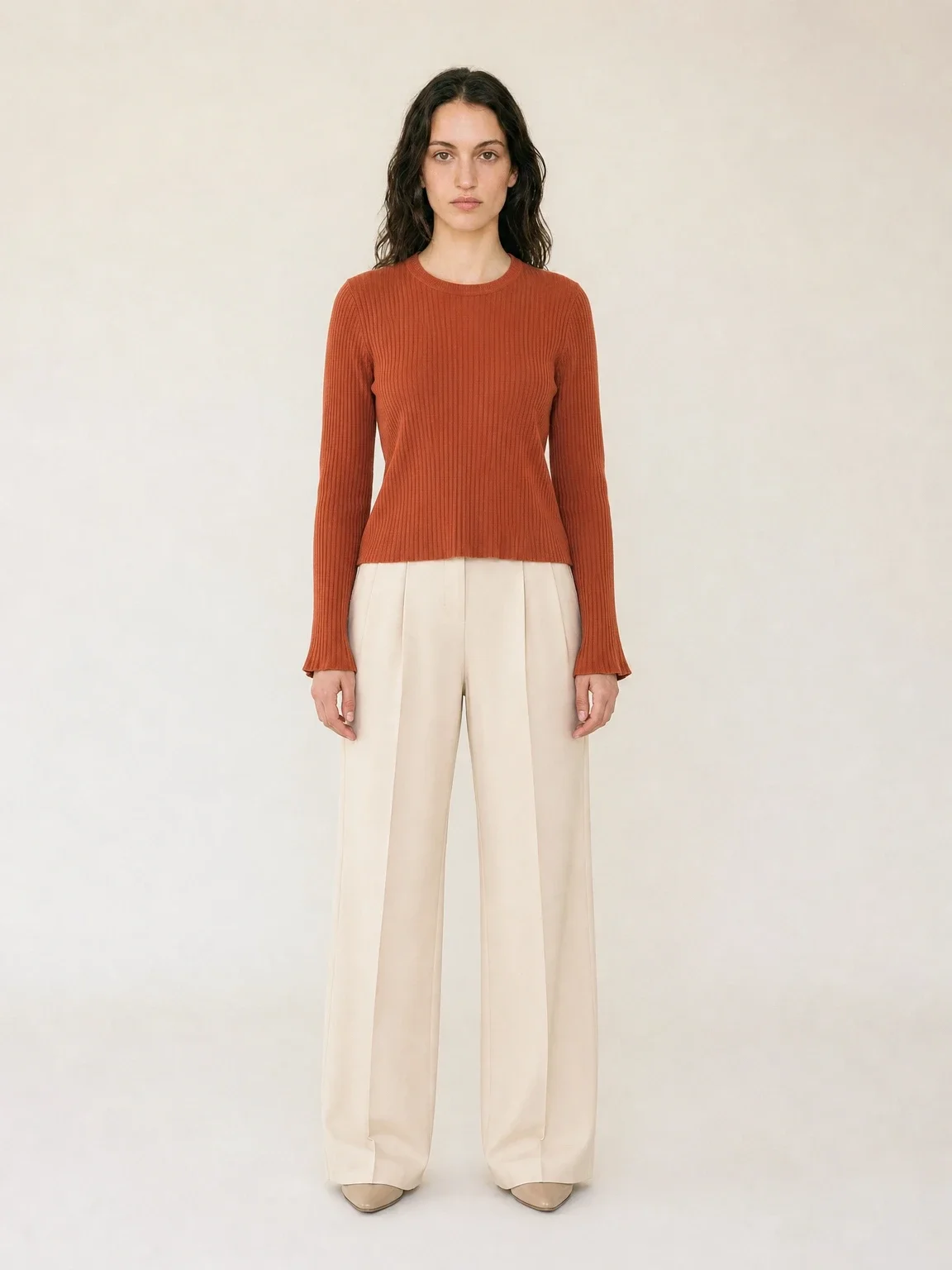
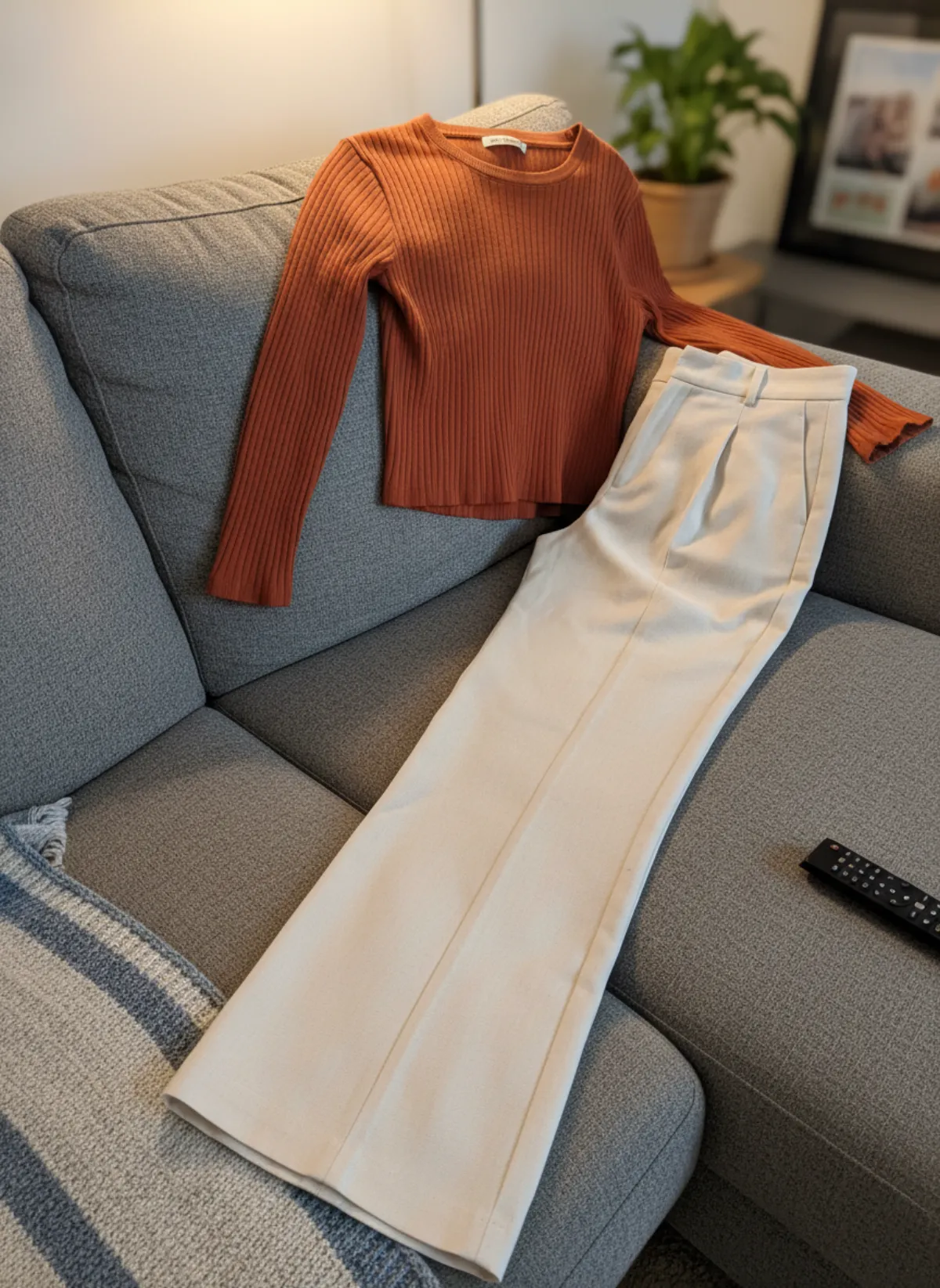
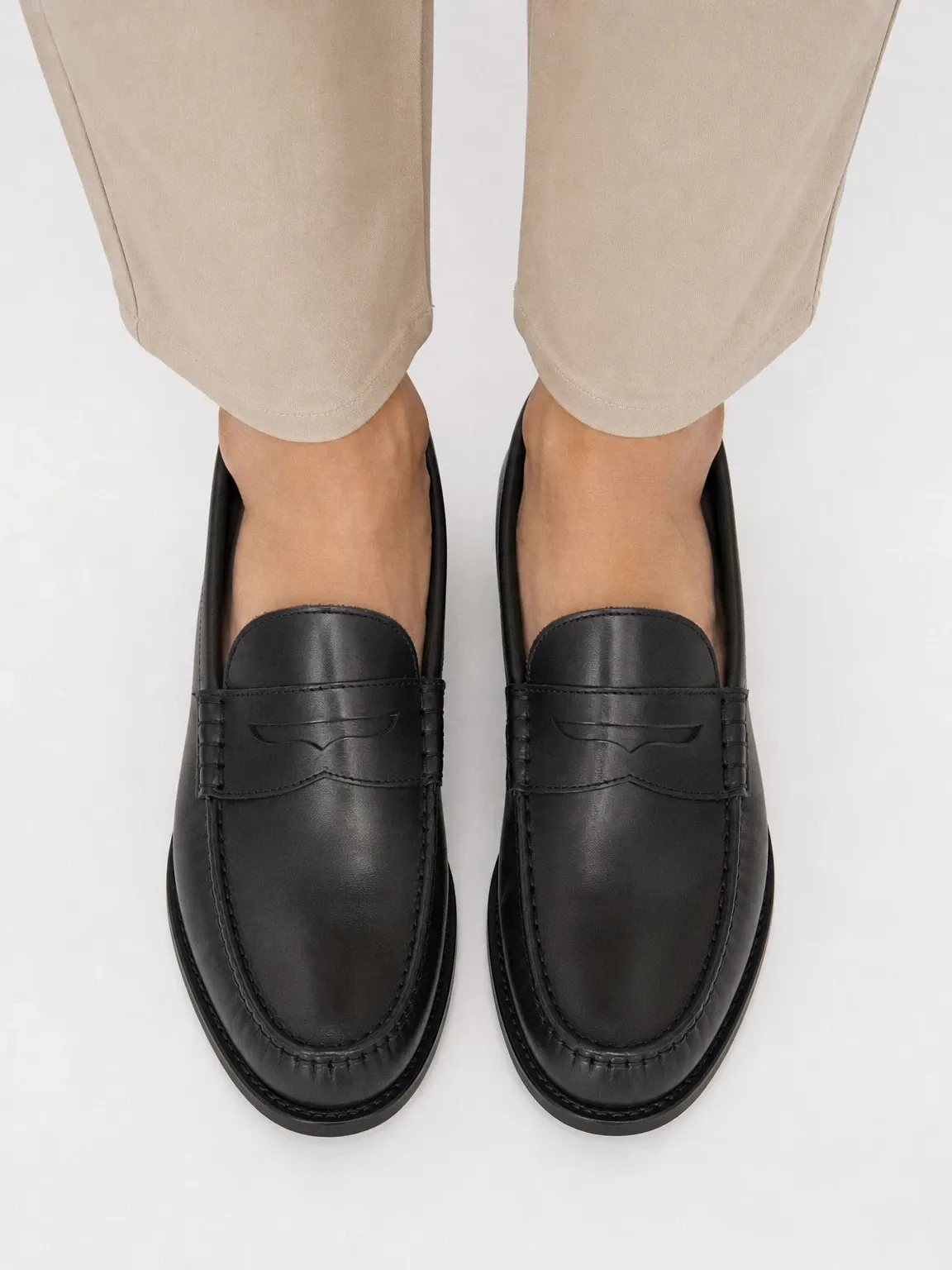
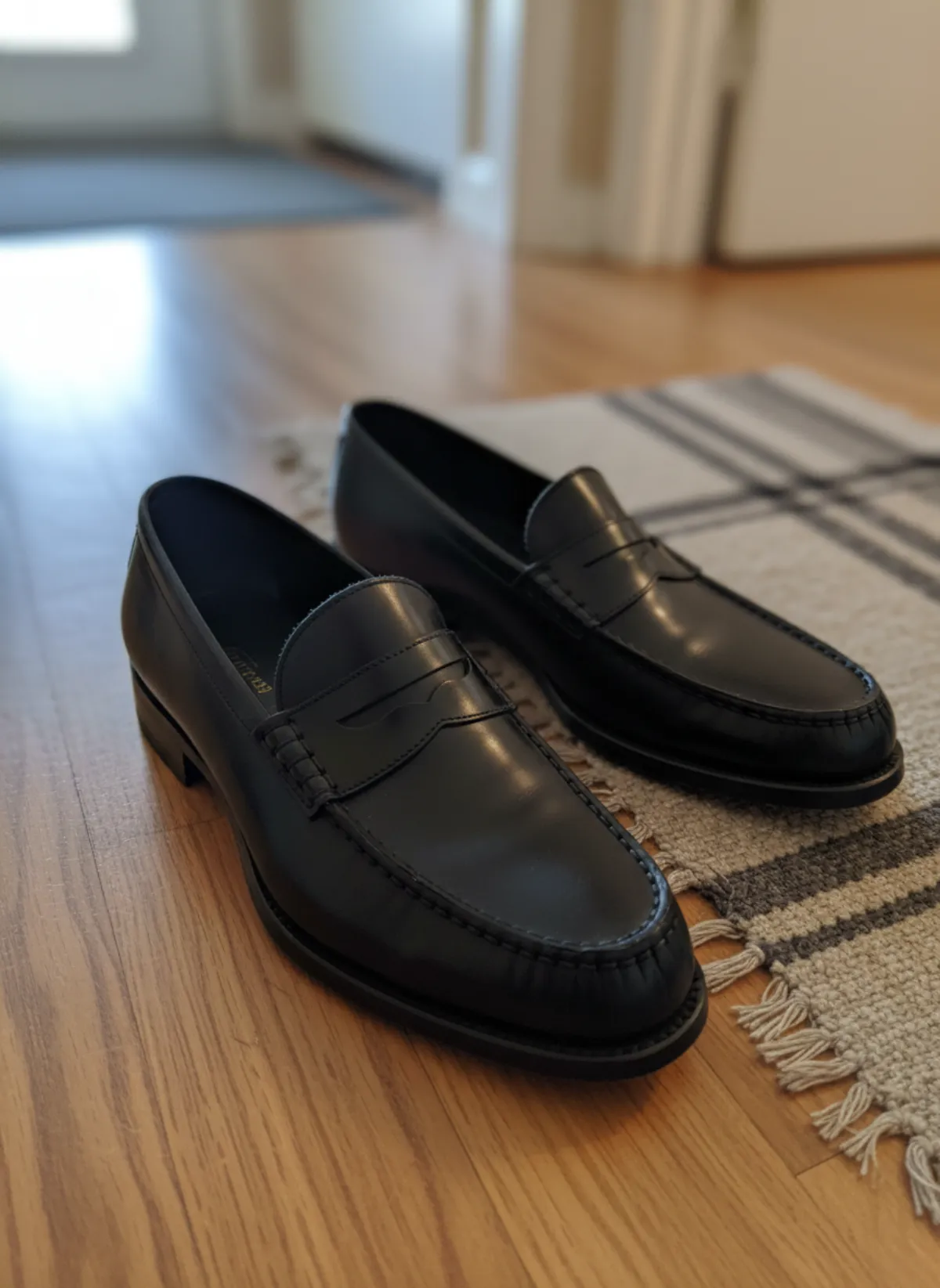
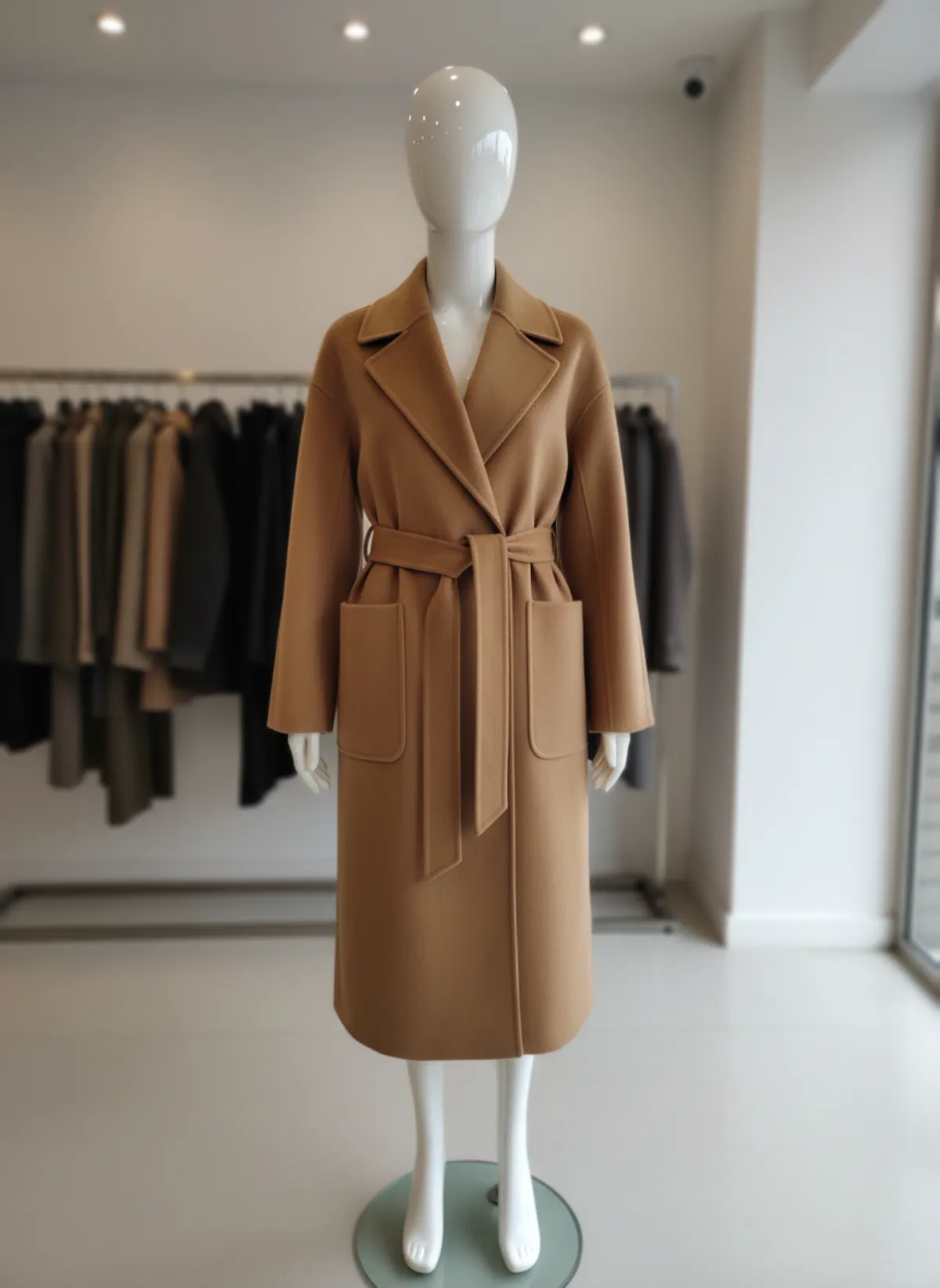
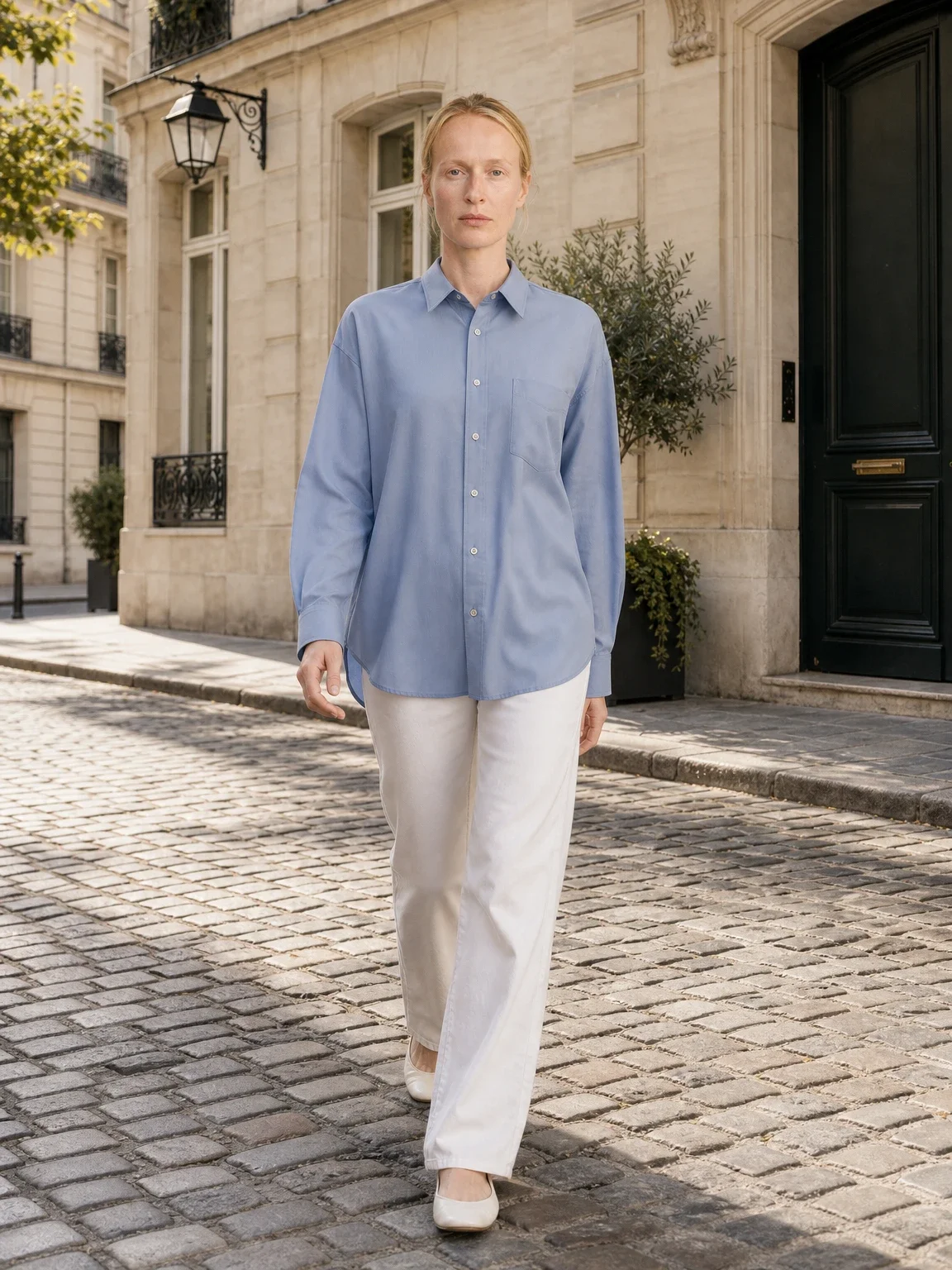
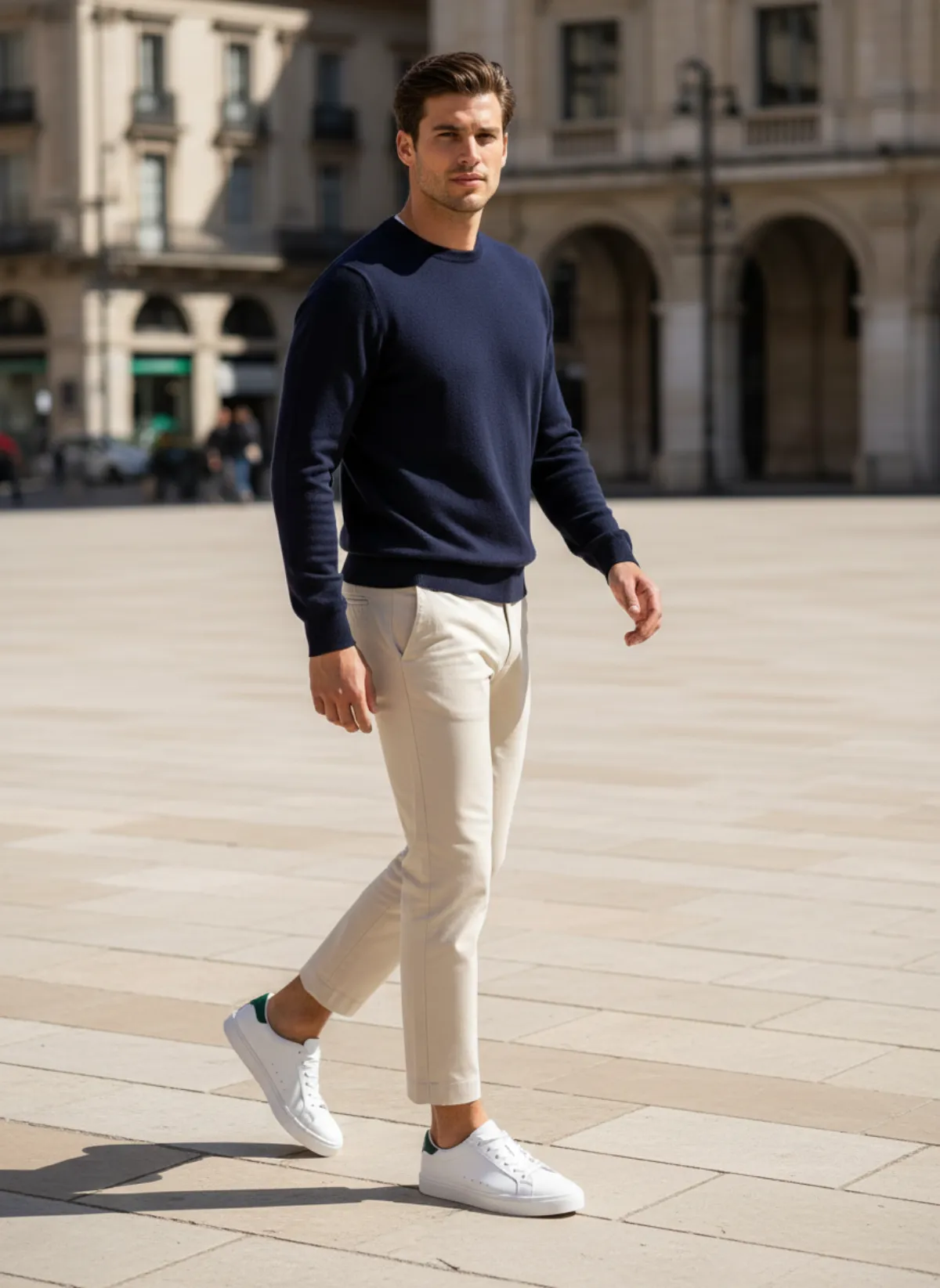
Two phone photos with nothing in common, a dress on an unmade bed and sneakers on a doormat, come out in the same clean framing.
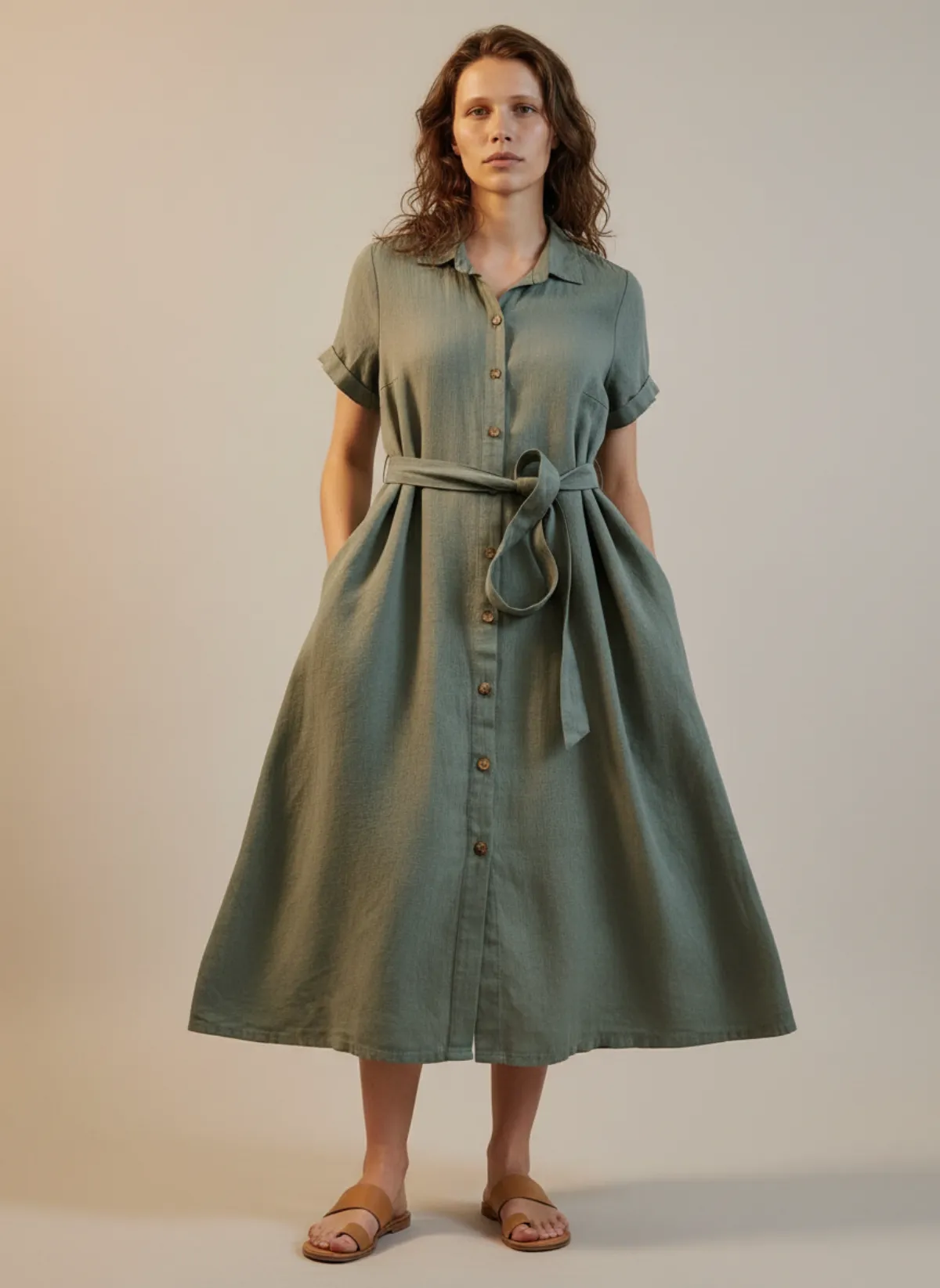
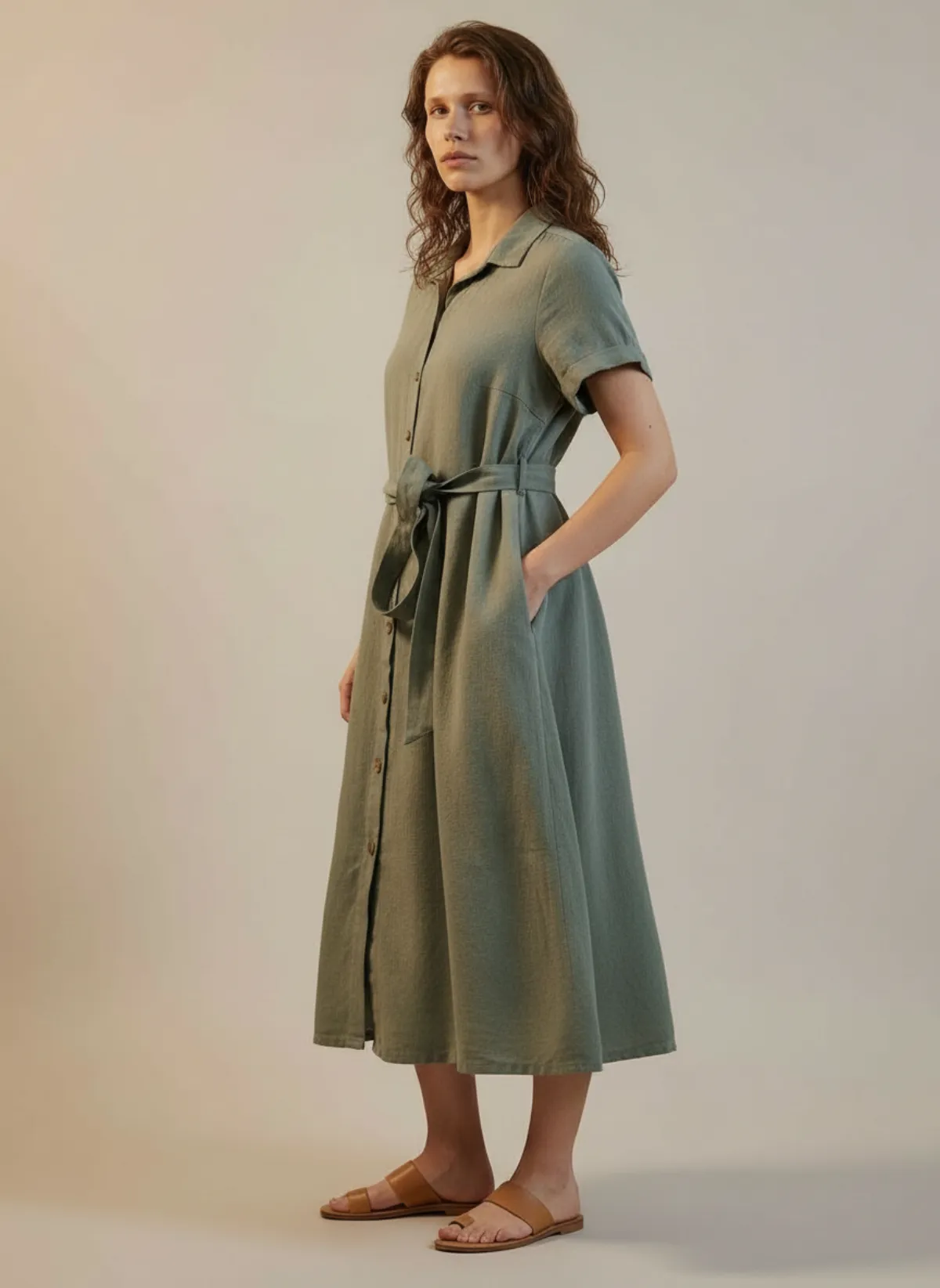
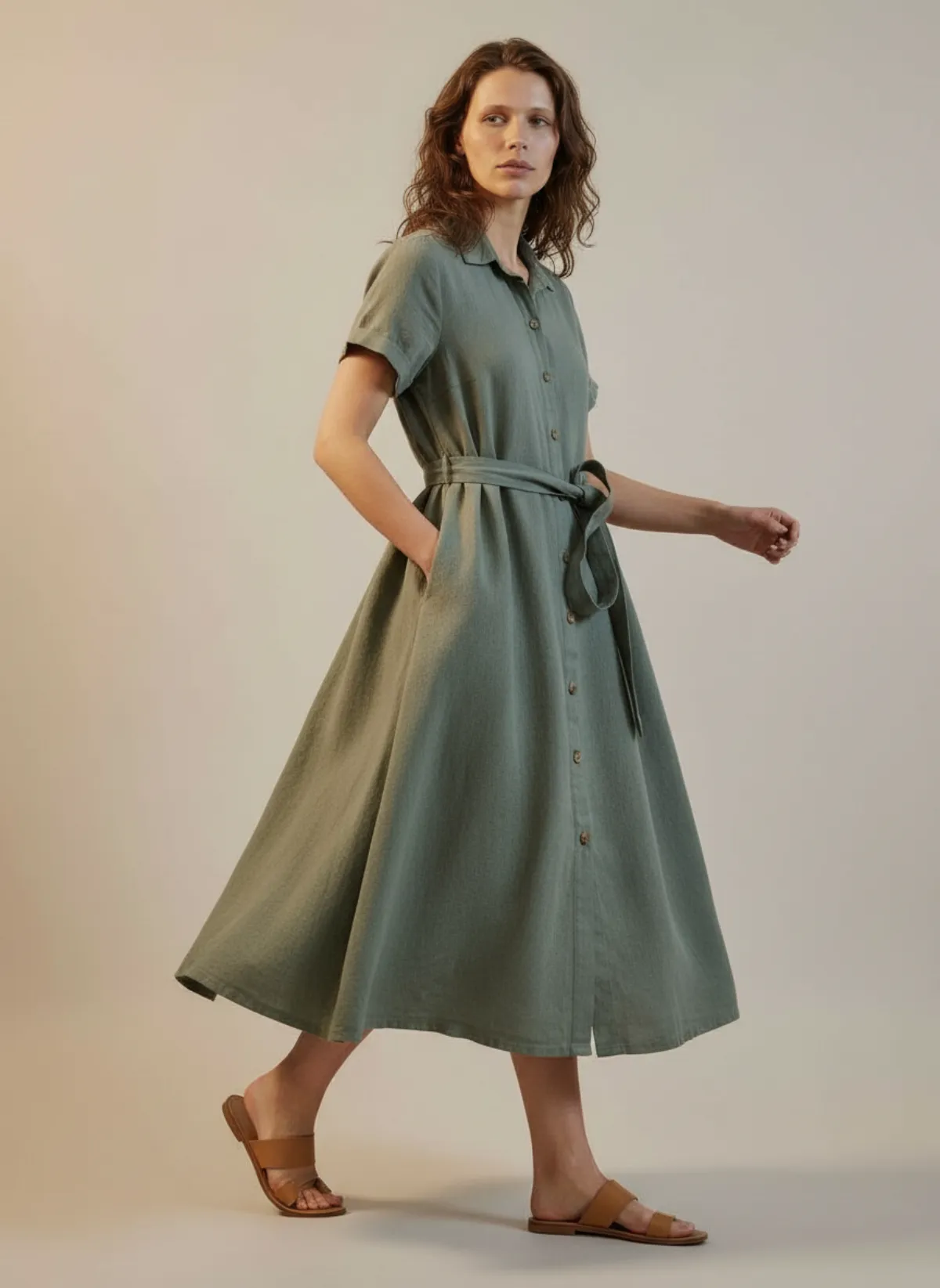
A linen shirt dress from an unmade bed
Shot on a wrinkled duvet. The front, three-quarter and walking frames all keep the whole body inside the frame, so they survive a square or portrait crop.
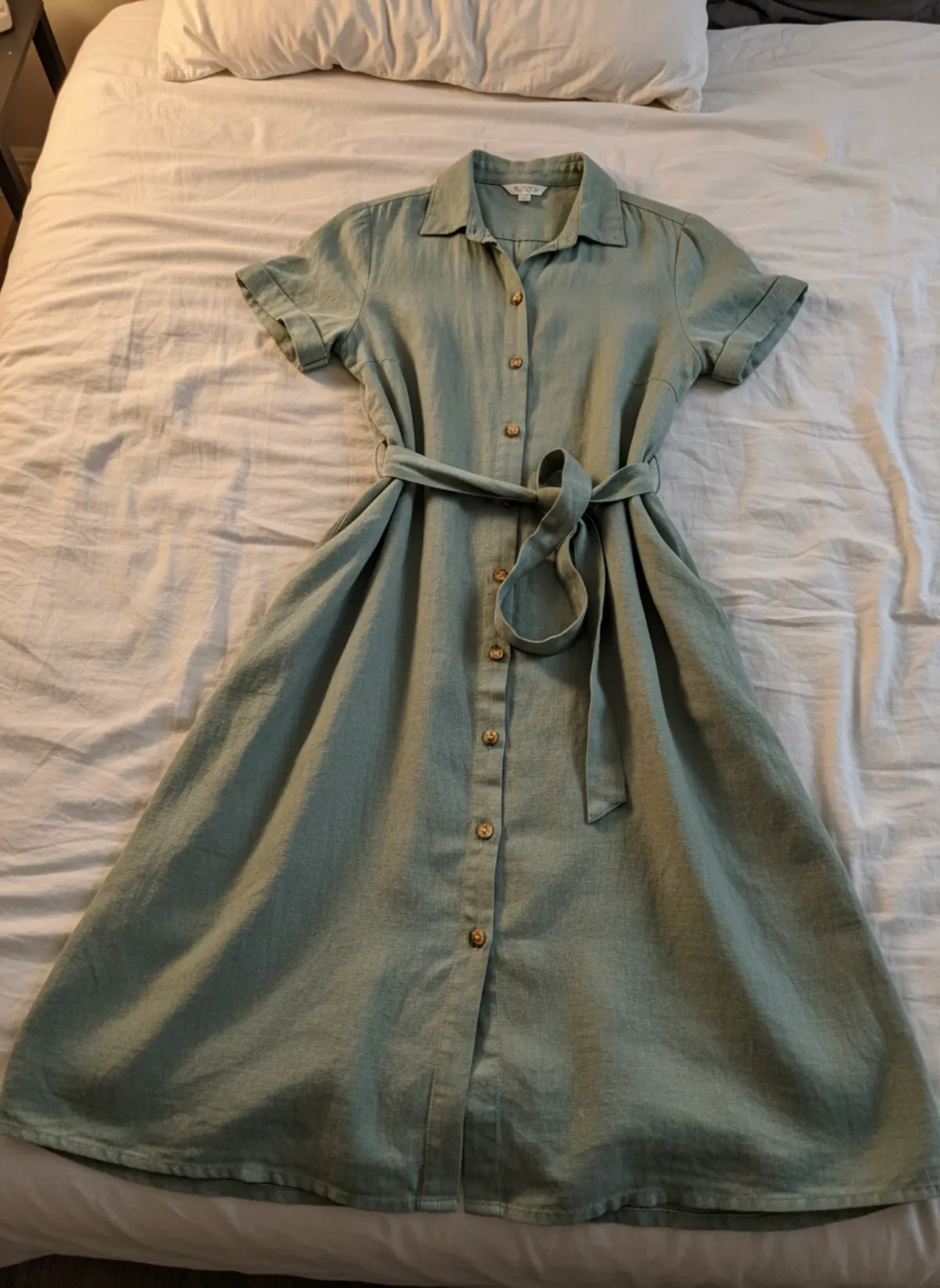 Your photo
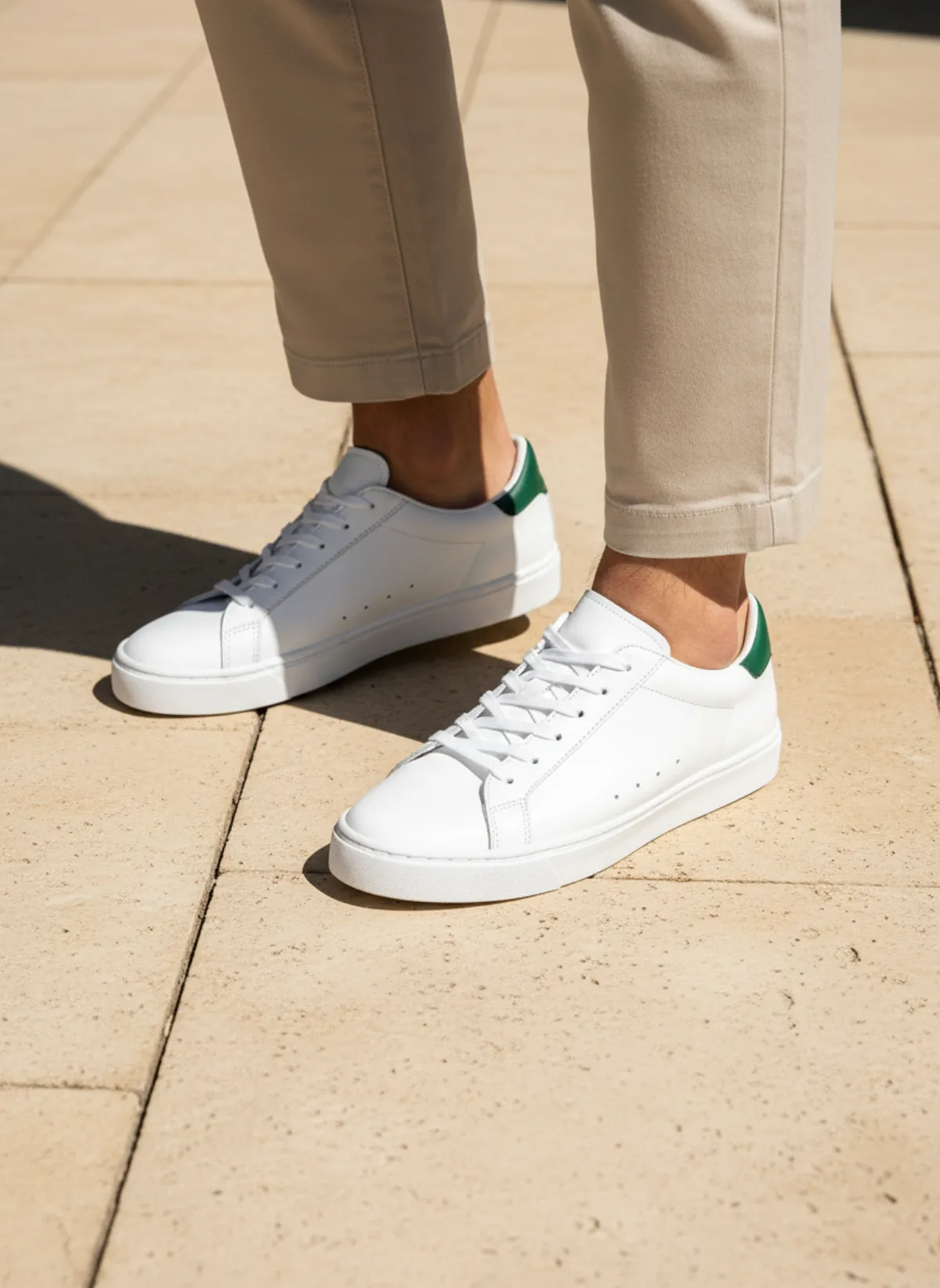
Sneakers from a doormat
A pair on a coir mat by the door. A full look and a low close-up give the catalog and the gallery two consistent frames.
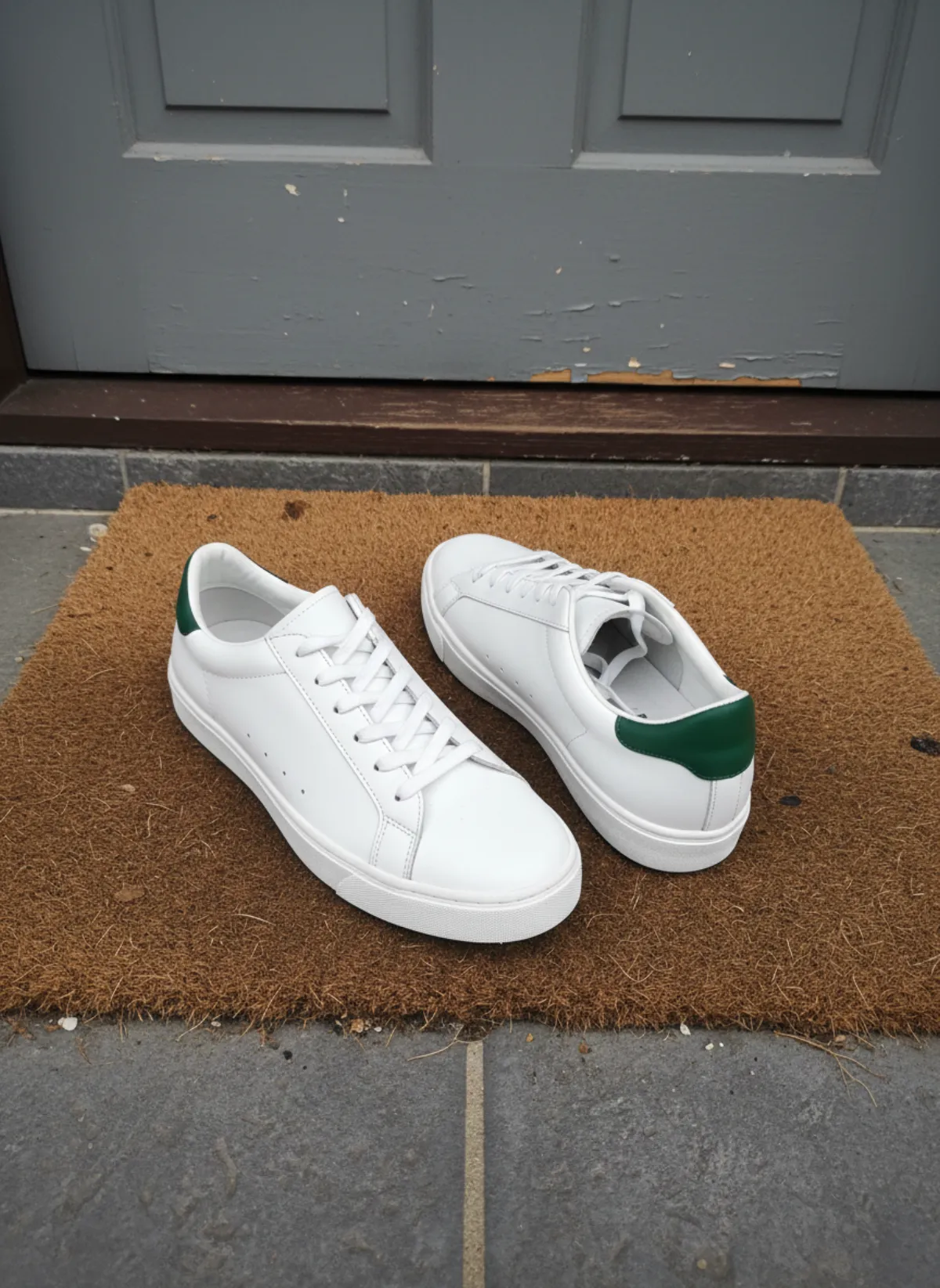 Your photo
WooCommerce product image questions
What is the recommended WooCommerce product image size?
WooCommerce recommends uploading at least 800 × 800 pixels. For sharp zoom and high-density screens, 1600 to 2000 pixels on the long edge is a safer working size, compressed to keep pages fast.
How do I change the WooCommerce product image size settings?
Go to Appearance › Customize › WooCommerce › Product Images, set the widths and the thumbnail crop, and select Publish. Then regenerate thumbnails in WooCommerce › Status › Tools. If the width fields are missing, your theme sets the sizes.
Why is my WooCommerce product image too big?
If it fills the page, your theme's CSS sets the display size; check the theme options. If the page is slow, the file is too heavy: resize to around 2000 pixels and compress before uploading.
What is the WooCommerce product image height?
WooCommerce sets widths, not heights. The height follows the crop: square at 1:1, from your ratio with a custom crop, or the original shape when uncropped. The single product image is uncropped by default.
Do WooCommerce product images have to be square?
No. Square is the default catalog crop, but you can set a custom ratio such as 3:4 or show images uncropped. What matters is that every product's first image uses the same ratio.