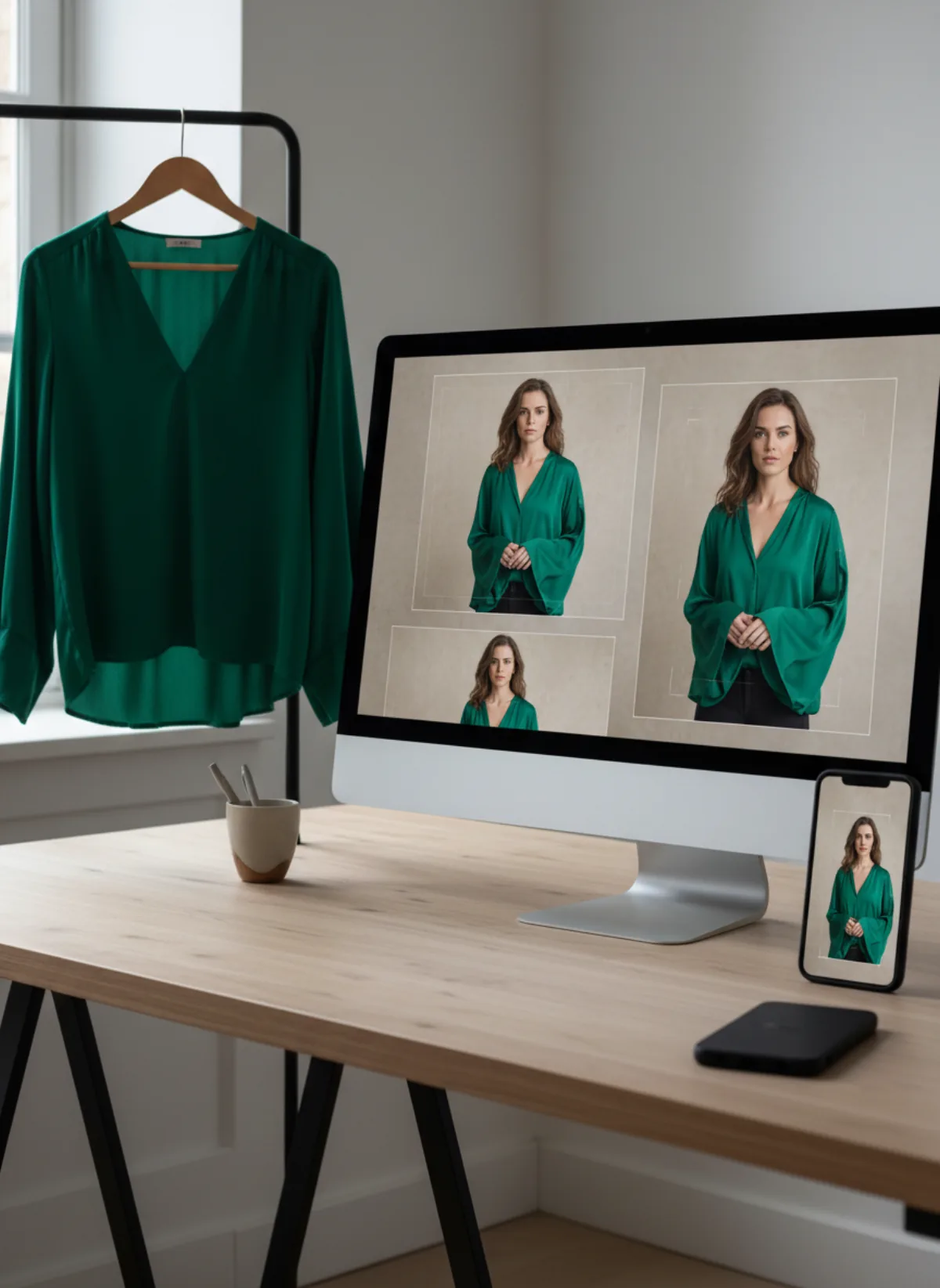
Shopify image limits and recommendation
As checked on 31 October 2026, Shopify's official help page allows product and collection images up to 5000 × 5000 pixels or 25 megapixels, with each file under 20 MB. It says a 2048 × 2048 pixel square usually displays best. Shopify accepts common photographic formats including JPEG, PNG and WebP, then its image service creates versions for different parts of the storefront and serves a suitable format to the shopper's browser. Read the current Shopify product media documentation before a large batch export because platform limits can change.
The 2048-pixel recommendation is a useful baseline, not a mandatory canvas for every theme. A theme can display product cards as square, portrait or adaptive. If one featured image is 1:1 and the next is 3:4, a collection row may appear uneven or crop the subjects differently. Shopify's own guidance therefore emphasises a consistent aspect ratio for featured images shown side by side.
For fashion, choose the ratio from the storefront backwards. Preview the collection grid on desktop and mobile, inspect the product gallery and decide whether social or marketplace exports need the same master. A portrait 4:5 or 3:4 canvas gives a full-body model more usable area; a square is easy to reuse across themes and marketplaces. Neither is automatically correct if the theme crops it unexpectedly.
Resolution and ratio are separate decisions. A 2048 × 2048 file is square. A portrait file can keep a similar long-edge resolution, such as 2048 pixels high, while preserving 4:5 or 3:4. Avoid stretching a file to hit a number. Resize proportionally and crop with intention.
Choose one ratio for the product grid
The first image of every product should follow one system. Secondary images may vary when they serve a clear detail or lifestyle purpose.
1:1 square
The safest all-rounder for flexible themes and marketplace reuse. Leave enough room around tall garments so heads and hems survive thumbnail crops.
4:5 portrait
A strong mobile-first choice for model photography. It gives clothing more height while remaining familiar in social commerce.
3:4 portrait
Useful for full-body fashion catalogs and Garmo exports. Check whether the theme trims the top and bottom on collection cards.
Detail and lifestyle
Use closer or wider secondary frames when they explain material, scale or use. Keep the featured image ratio consistent even if the gallery contains variety.
Crop-safe framing for clothing, jewelry and shoes
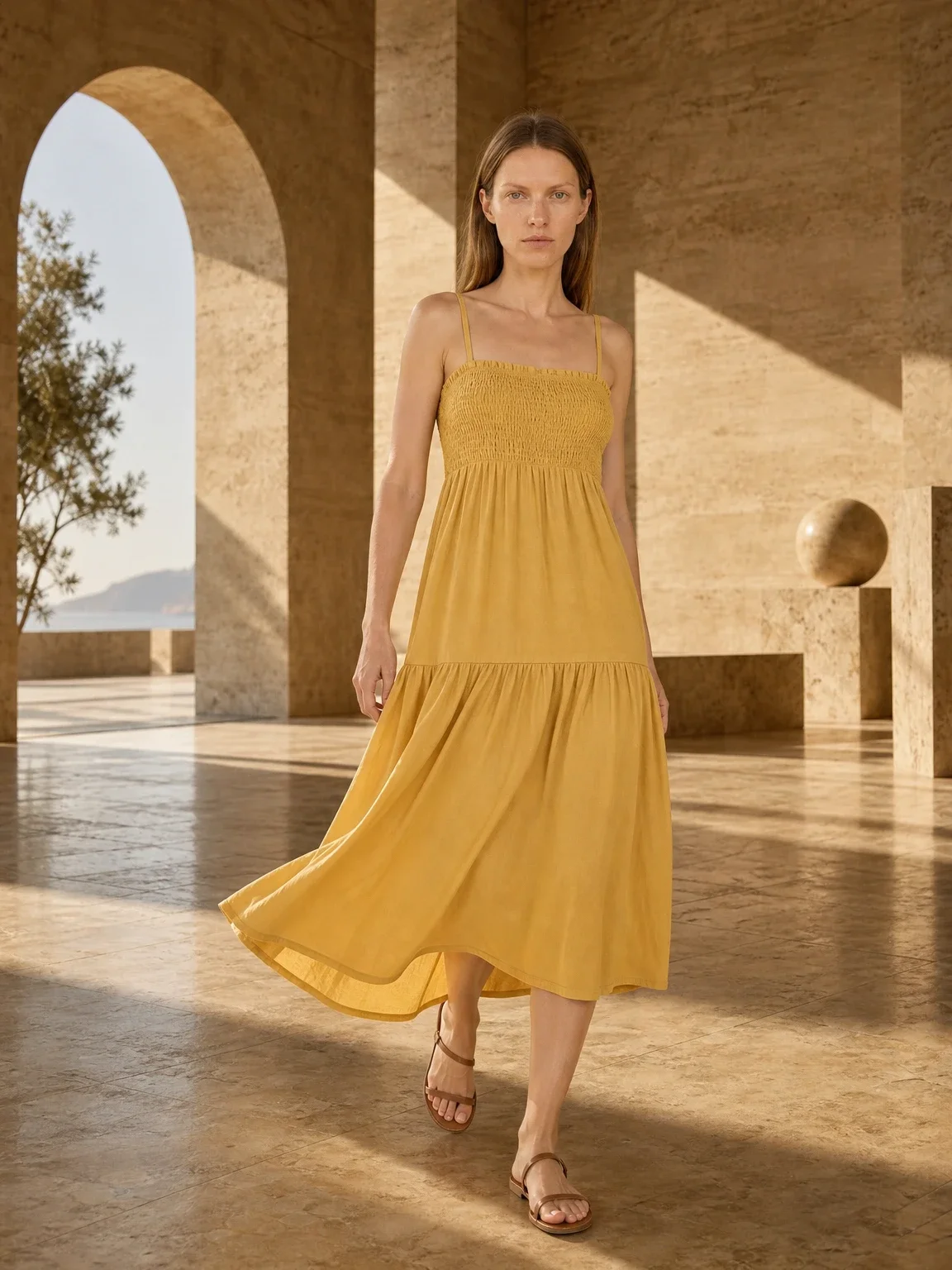
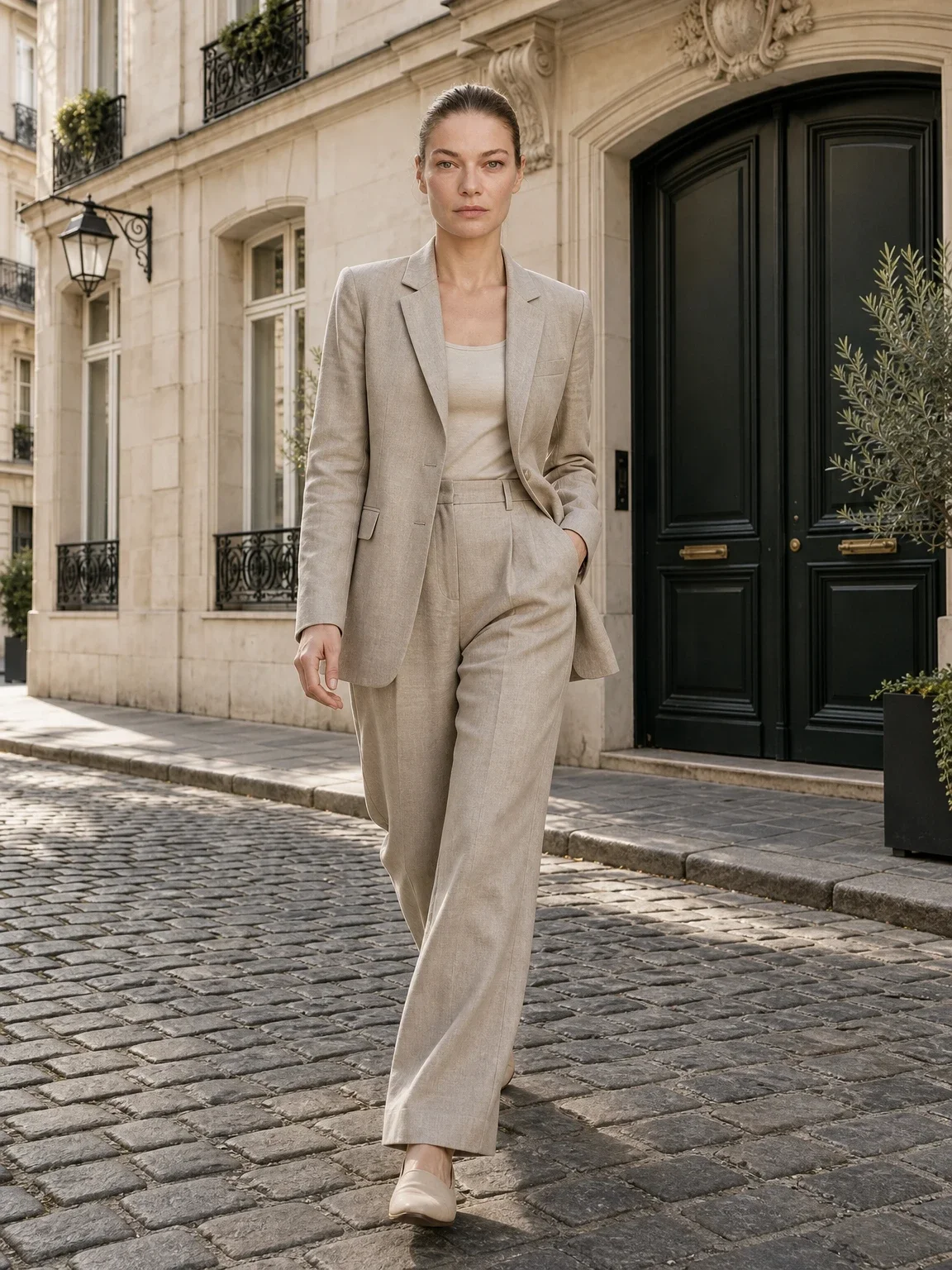
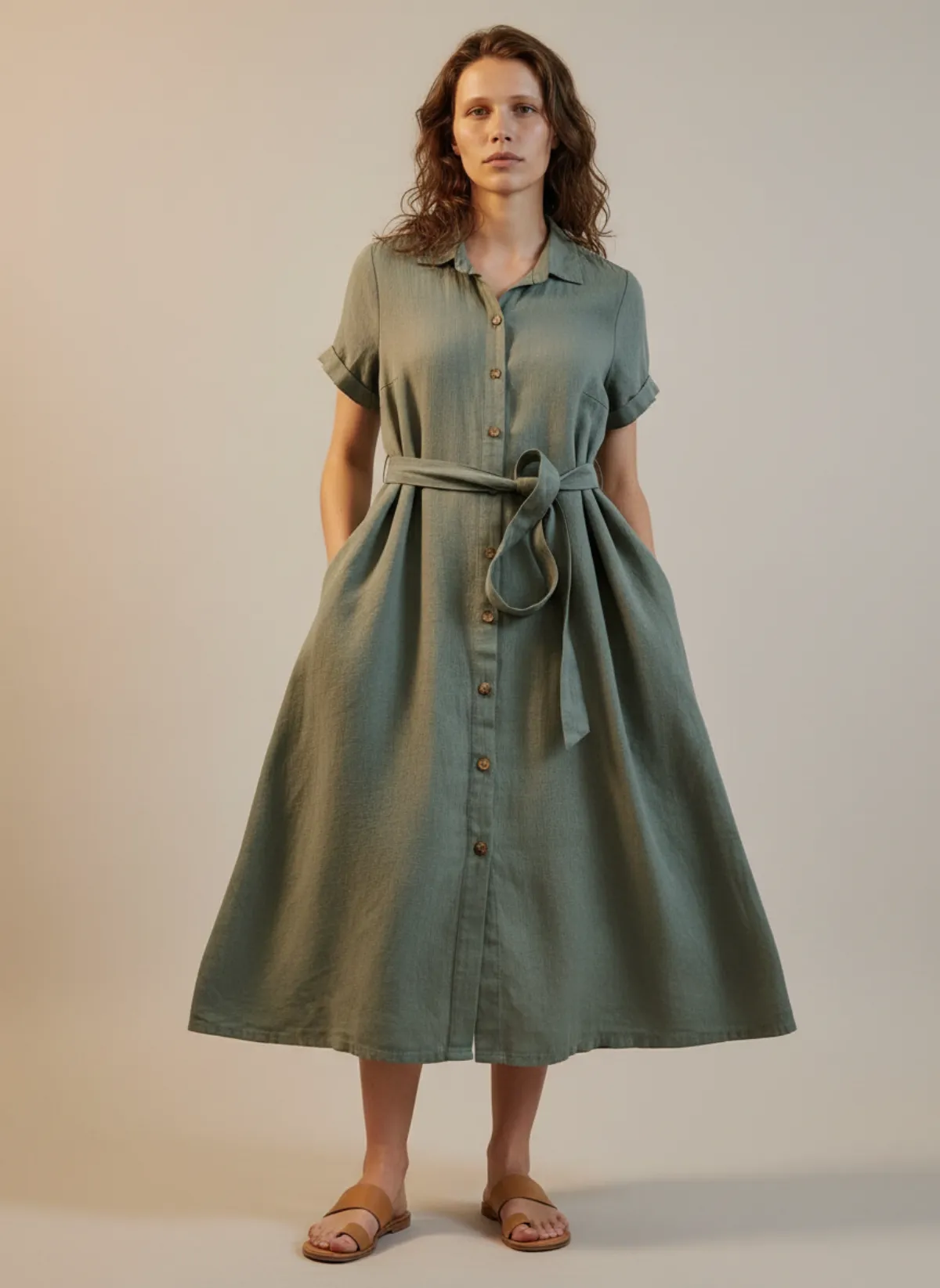
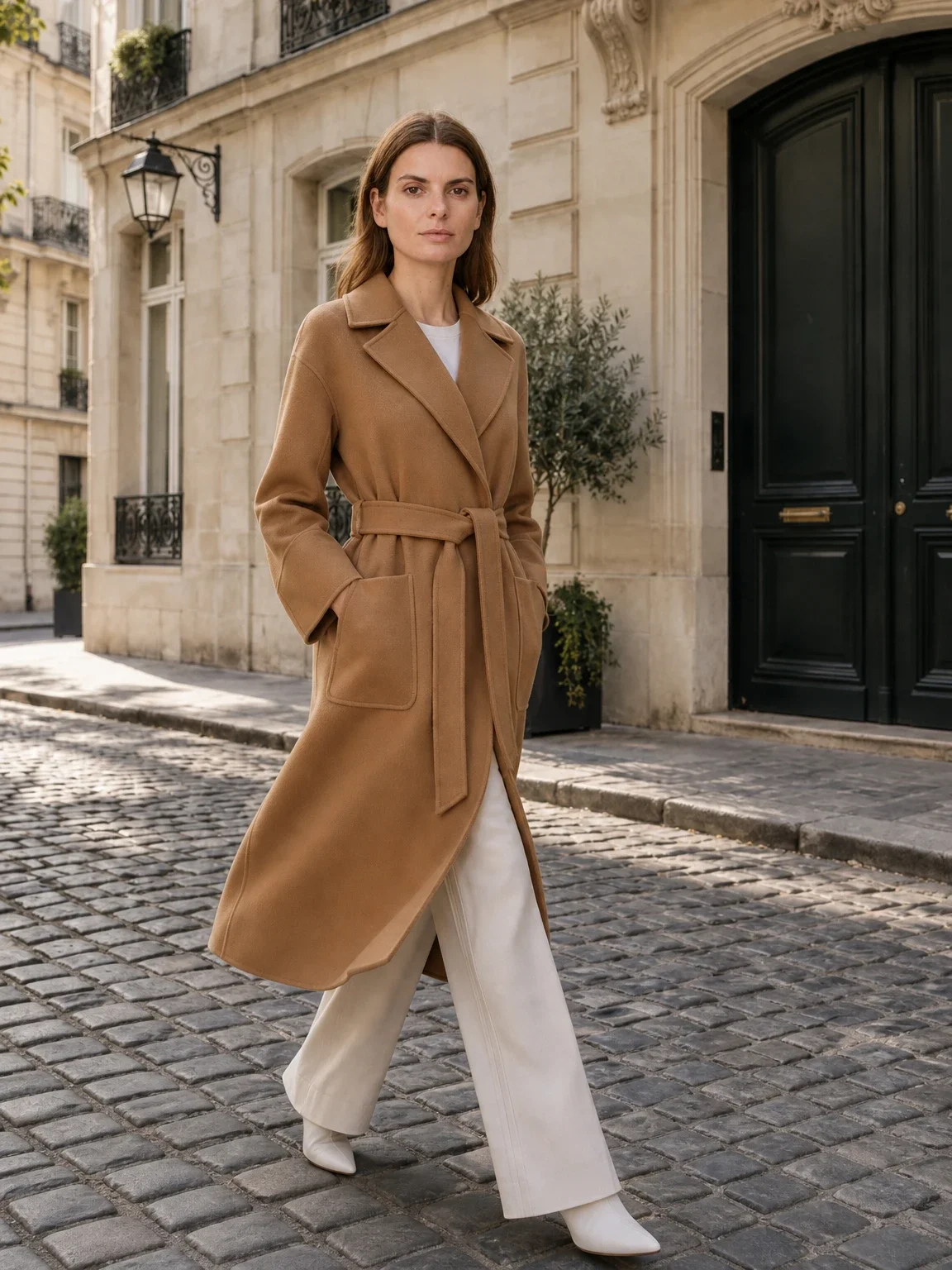
For clothing, set a repeatable body scale. In a full-length image, leave visible breathing room above the hair and below the shoes, and keep hands away from the outer edge. Align faces at a similar height across the collection. If the store sells both dresses and tops, decide whether tops will use a closer crop or whether every category will preserve the same model scale. A deliberate category rule looks better than an accidental mix.
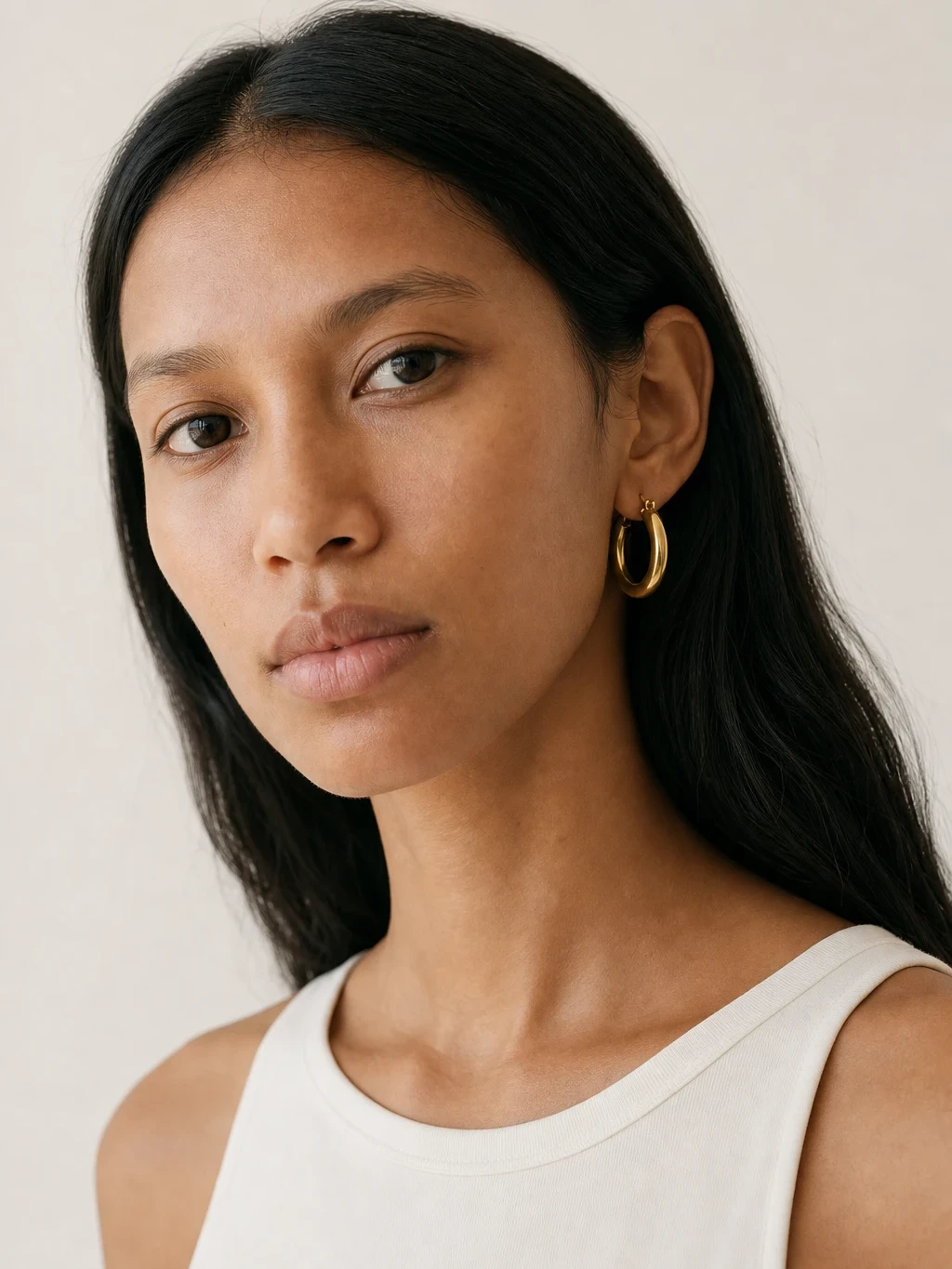
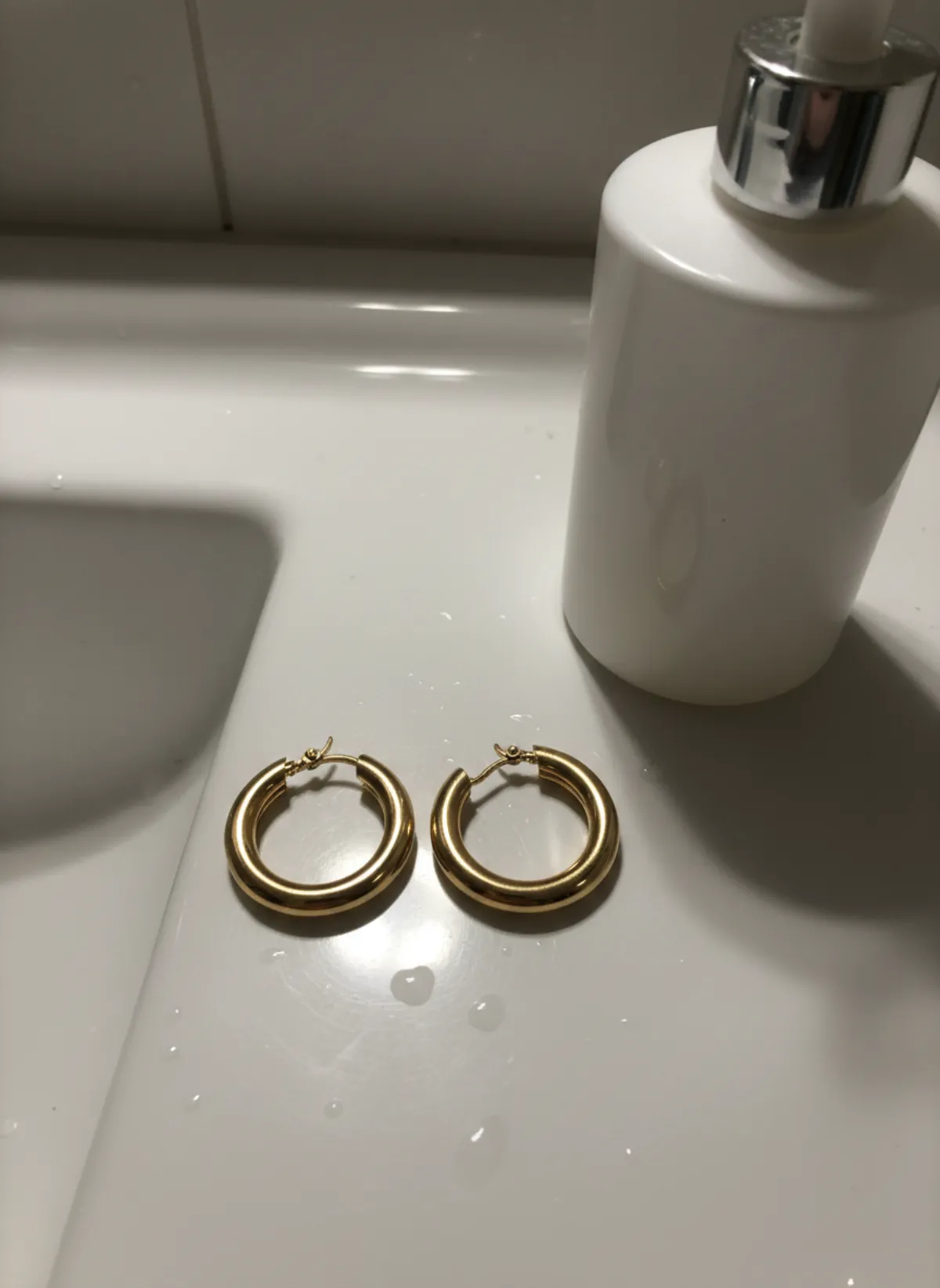
Jewelry needs two different pictures: a clear product or macro image for detail and a worn image for scale. Do not fill the featured square so tightly that earrings or a pendant are clipped in a smaller card. A jewelry on model image should keep the relevant ear, neck, wrist or hand comfortably inside the central safe area. The detail shot can then use more of the canvas in the gallery.
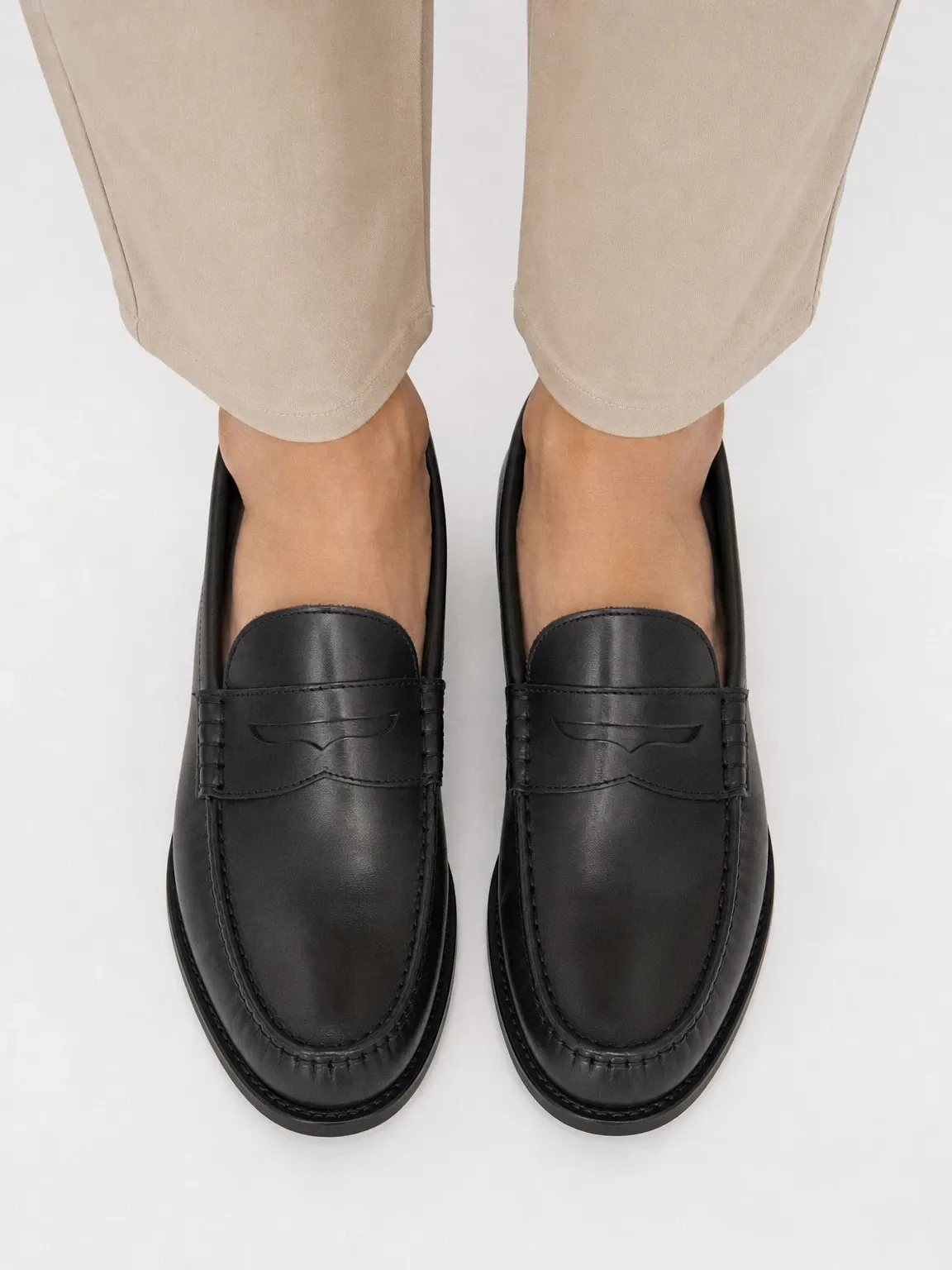
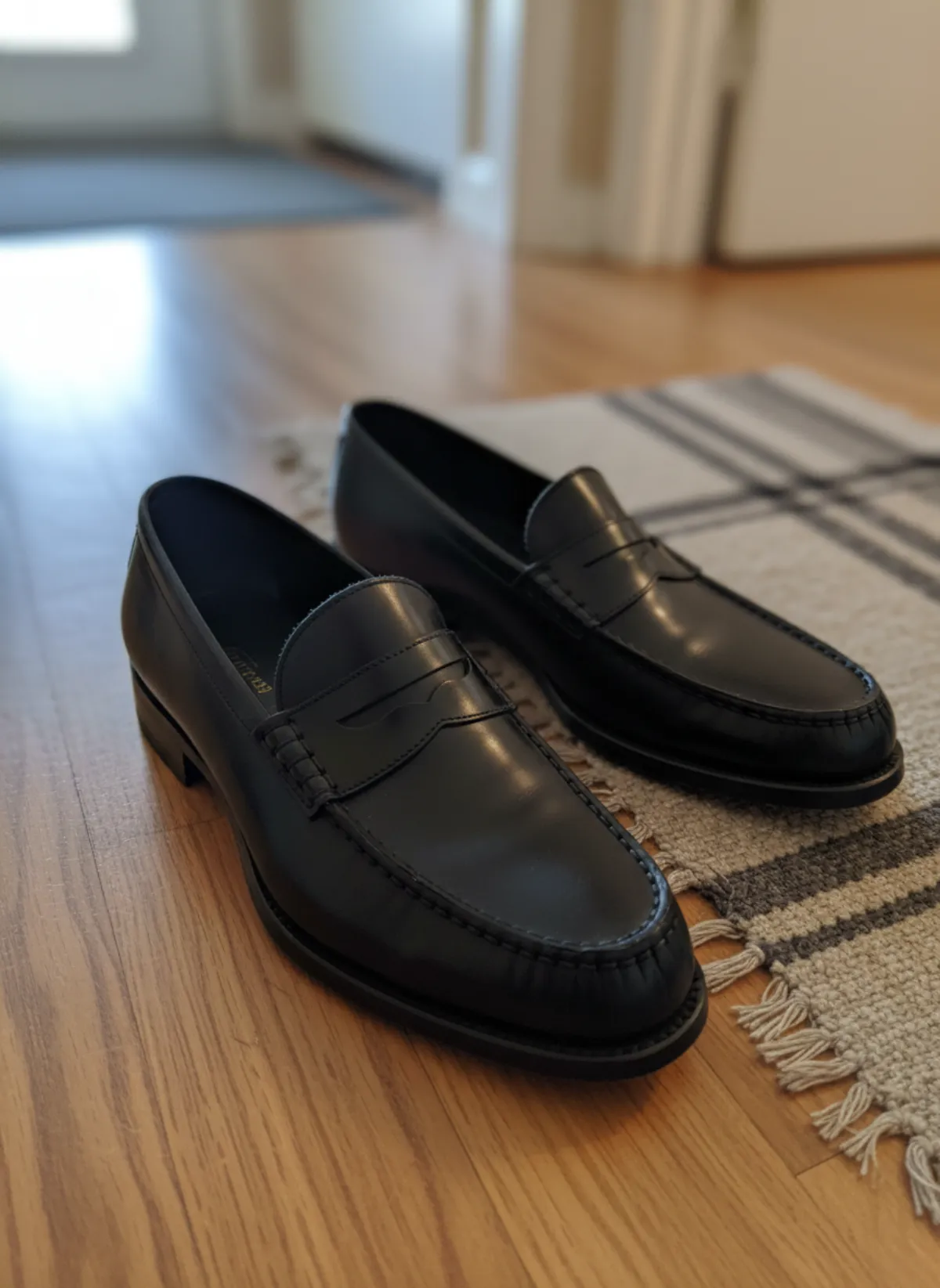
Shoes are often lost at the toe or heel when a wide product is placed in a portrait card. Photograph or generate the pair with padding on all sides, then test square and mobile thumbnails before exporting the whole range. If you also show them worn, keep the ankle and contact shadow visible so the image communicates scale. The AI shoe photography workflow can create on-foot frames, but they still need the same crop test.
Use a safe-zone overlay in the editing file: an inner box that contains every essential product part. Preview a square, your chosen portrait ratio and the narrow mobile card. If the product reads in all three, theme changes are less likely to break the grid. Do not burn guides into the exported file.
JPEG, PNG or WebP for Shopify?
For ordinary fashion photographs, a well-exported JPEG usually gives a small file with smooth colour and no visible loss at normal viewing size. WebP is also accepted and can be compact. PNG is useful when an image contains hard graphic edges or truly needs its format characteristics, but a photographic PNG can be unnecessarily heavy. Transparency is not usually necessary for a complete product photo on a designed background.
Shopify's imagery service can deliver an appropriate format to the browser, so the source should prioritise clean detail and sensible weight rather than chasing one universal extension. Convert the colour profile to sRGB. Check fine fabric texture, jewelry edges and shoe stitching after compression at 100 percent. If they smear, increase quality slightly; if a file remains huge, resize its pixel dimensions before destroying it with very low quality.
File names should describe the product and view without becoming keyword lists: for example, navy-linen-dress-front.jpg and navy-linen-dress-back.jpg. Alt text is not the filename. Write a short description of what the shopper can see, including the product, colour and view when useful. Do not stuff ‘Shopify product image’ into every alt attribute.
Keep the high-resolution master outside Shopify. Export storefront files from that master and preserve the original product reference beside any generated image. When the theme changes or another marketplace asks for a different ratio, you can make a fresh crop without enlarging an already compressed download.
A reliable export workflow for a fashion catalog
Begin with the theme, not an arbitrary Photoshop preset. Upload three representative products privately: a long dress, a cropped top and a wide pair of shoes. Test the collection grid, product gallery, zoom and mobile view. Choose one featured-image ratio and write down the canvas size, safe zone, background colour and model scale.
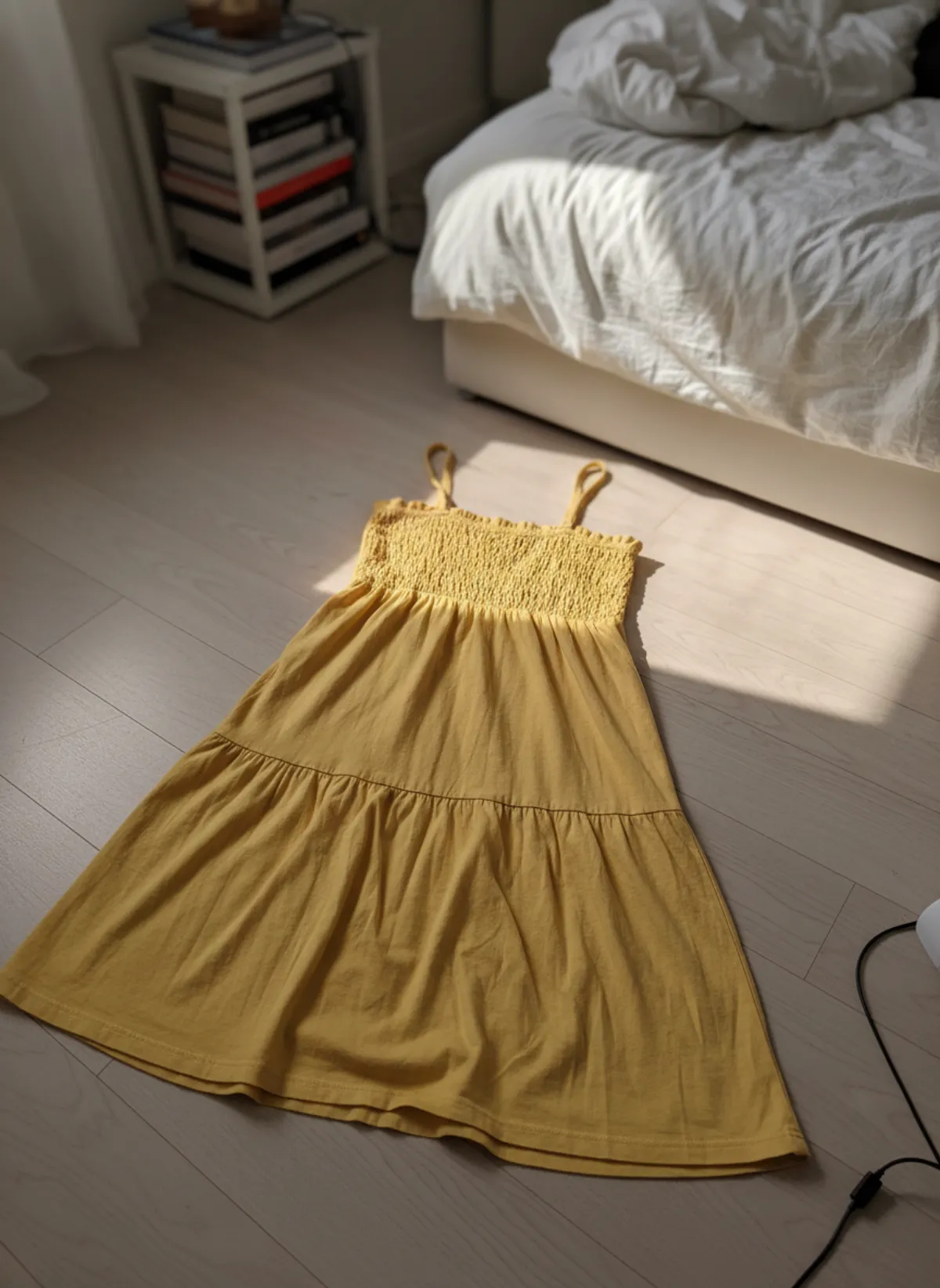
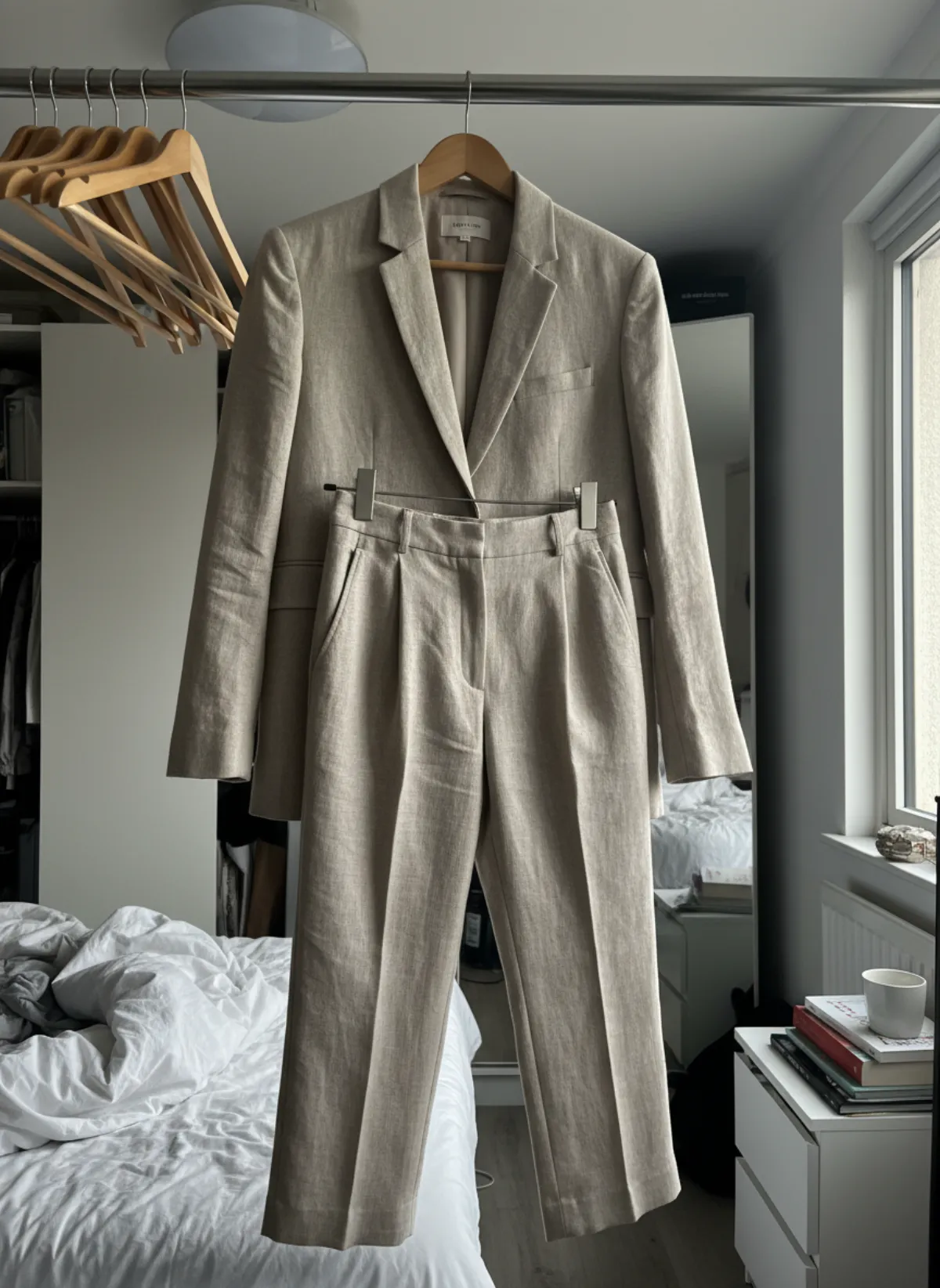
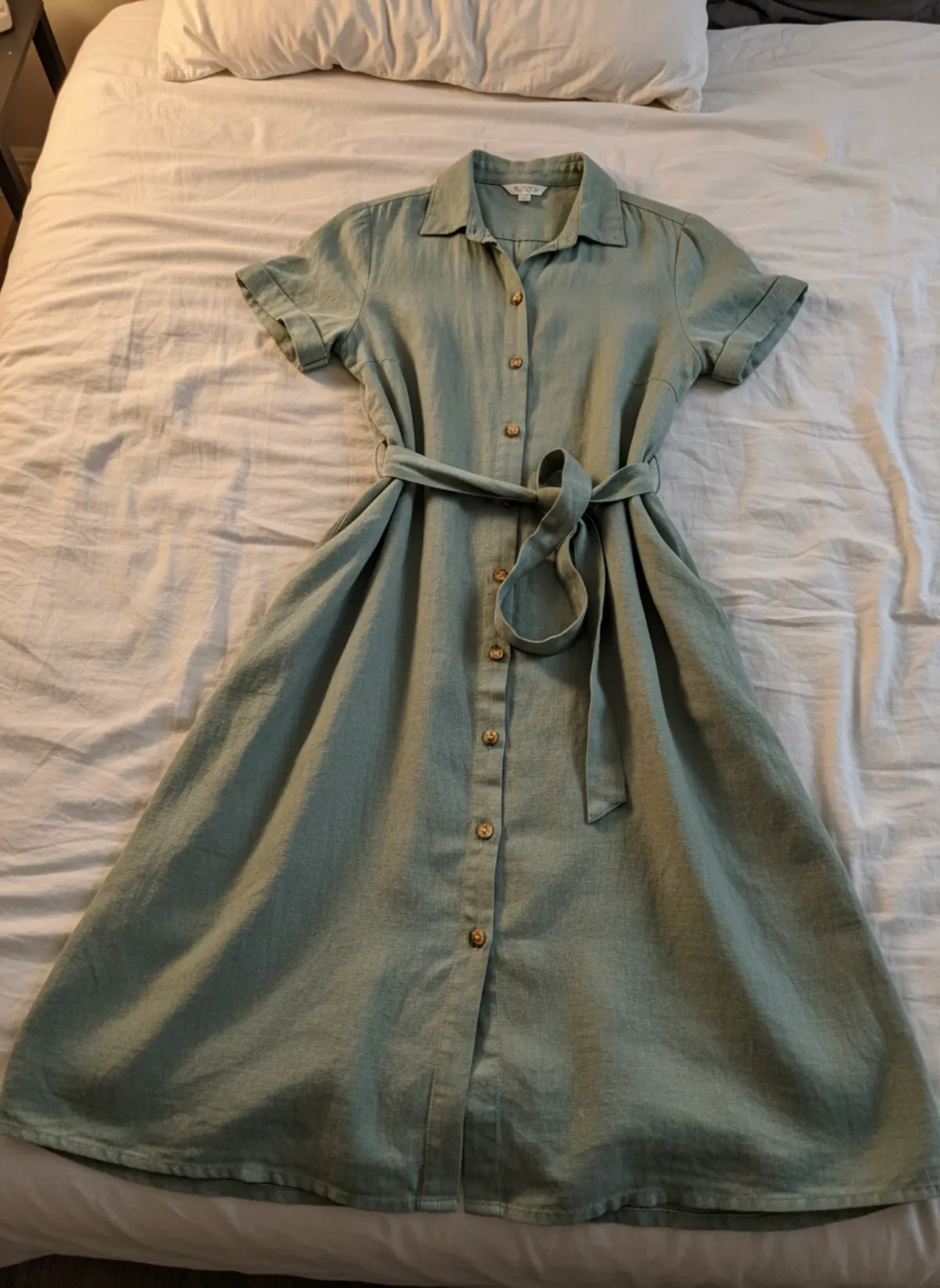
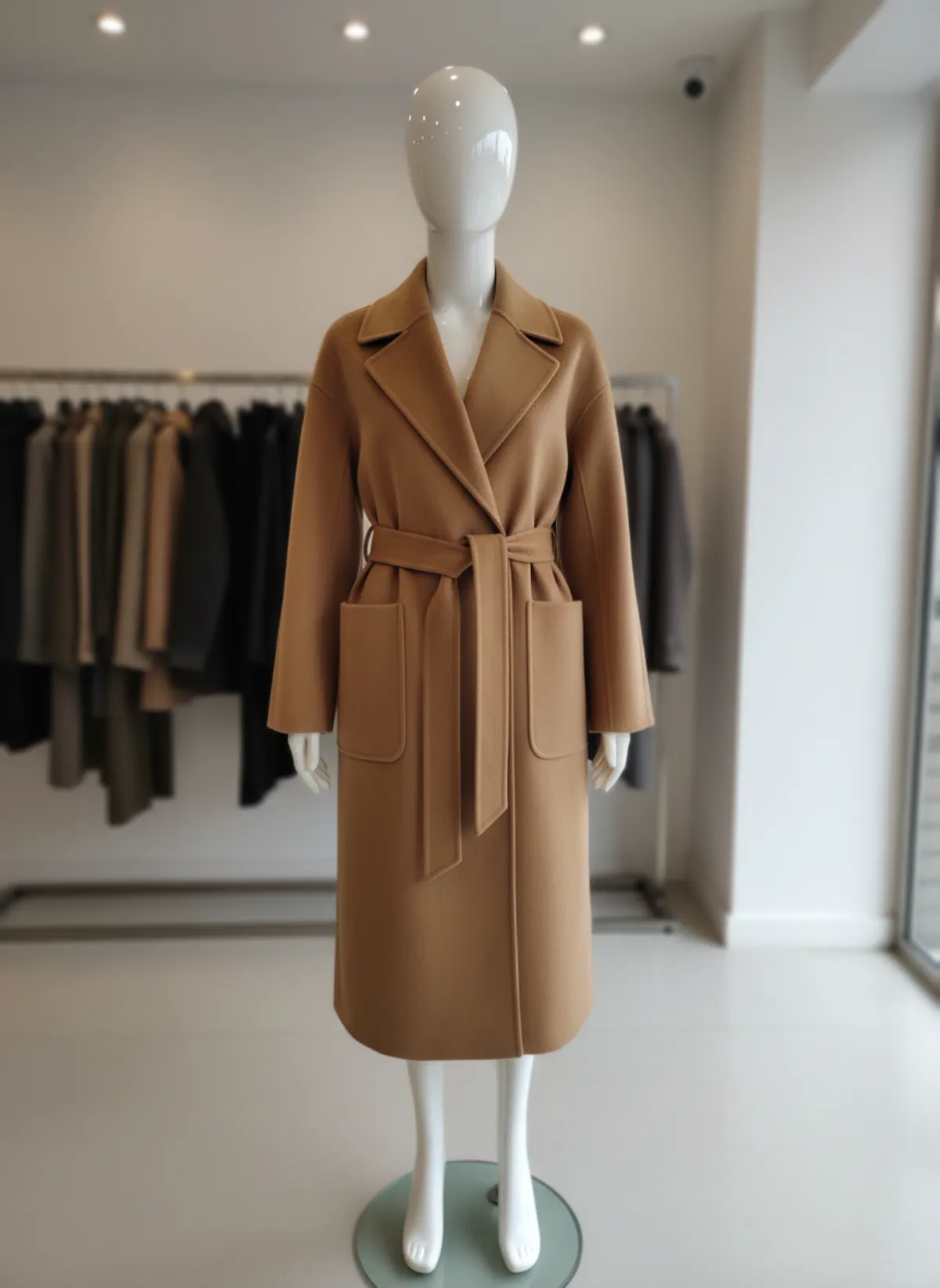
Prepare or generate the catalog with that specification. If a flat garment needs a worn image, use flat lay to model with the intended ratio from the start. Exporting the right composition is better than cutting feet or sleeves off later. Keep a factual flat, hanger or product photo in the gallery alongside the model view.
Export a small test batch, upload it and let Shopify create its derivatives. Check the live result on a real phone over an ordinary connection. Zoom into texture, swipe the gallery and scan a collection page quickly. File weight matters because shoppers load several cards before opening a product. The goal is not the smallest possible file; it is the smallest file that still represents the product honestly.
Once approved, batch the remaining SKUs with the same preset and naming pattern. Do not resize mixed source files blindly: a low-resolution original cannot gain detail by being enlarged to 2048 pixels. Flag those products for a new photograph or a careful regeneration. Recheck the system whenever the theme or featured-card setting changes. Running a WordPress shop instead? The same decisions are explained for WooCommerce product image size.
Shopify image export checklist
Within current limits
No more than 5000 × 5000 pixels or 25 megapixels, and under 20 MB, based on Shopify's current documentation.
One featured ratio
Every product's lead image follows the same square or portrait system and has safe space around the subject.
True colour
sRGB export checked against the real garment, jewelry or shoe; no scene lighting that changes the apparent product.
Tested in the theme
Collection card, product gallery, zoom and mobile layout reviewed before the preset is applied to the whole catalog.
Shopify product image questions
What is the recommended Shopify product image size?
Shopify says 2048 × 2048 pixels usually displays best for square product images. Product and collection images can be up to 5000 × 5000 pixels or 25 megapixels and must be under 20 MB. Check the current official documentation before a large export.
Do Shopify product images have to be square?
No. The display depends on the theme. Square is versatile, while 4:5 or 3:4 can suit fashion model images. Use one consistent ratio for featured images and test collection cards on desktop and mobile.
Is JPEG, PNG or WebP best for Shopify?
JPEG is efficient for most photographs, WebP is accepted and compact, and PNG can suit graphics or specific transparency needs. Shopify's image service serves browser-appropriate versions. Use sRGB and inspect detail after compression.
Why are my product photos cropped on collection pages?
The theme's card ratio differs from the uploaded image or products use mixed ratios. Set a consistent featured-image ratio, leave a central safe zone and review the theme's image-fit setting.
Should every gallery image use the same dimensions?
Using one canvas makes the gallery feel stable, but secondary detail or lifestyle images can differ if the theme handles them well. The featured image should remain consistent across products because it builds the collection grid.