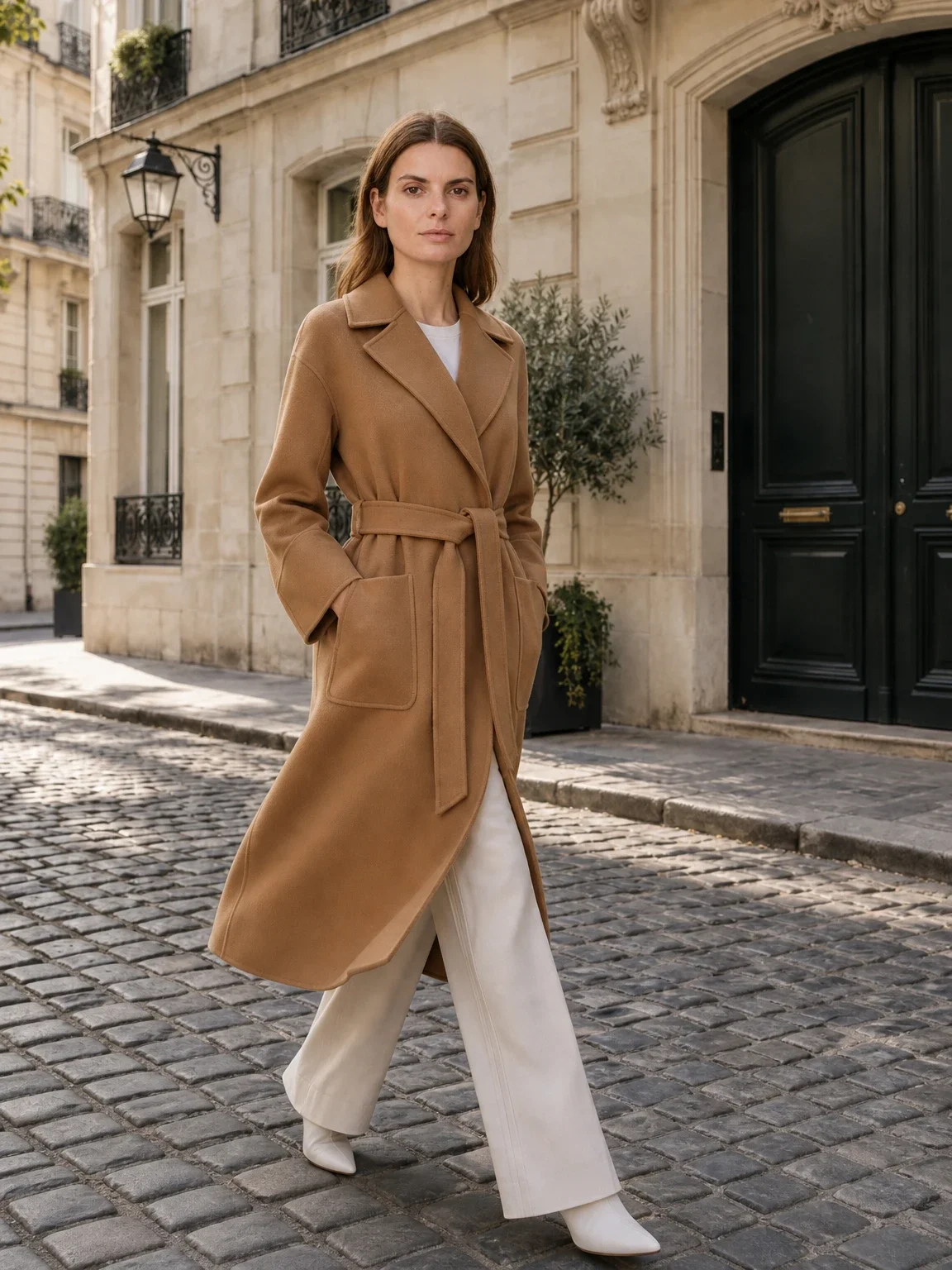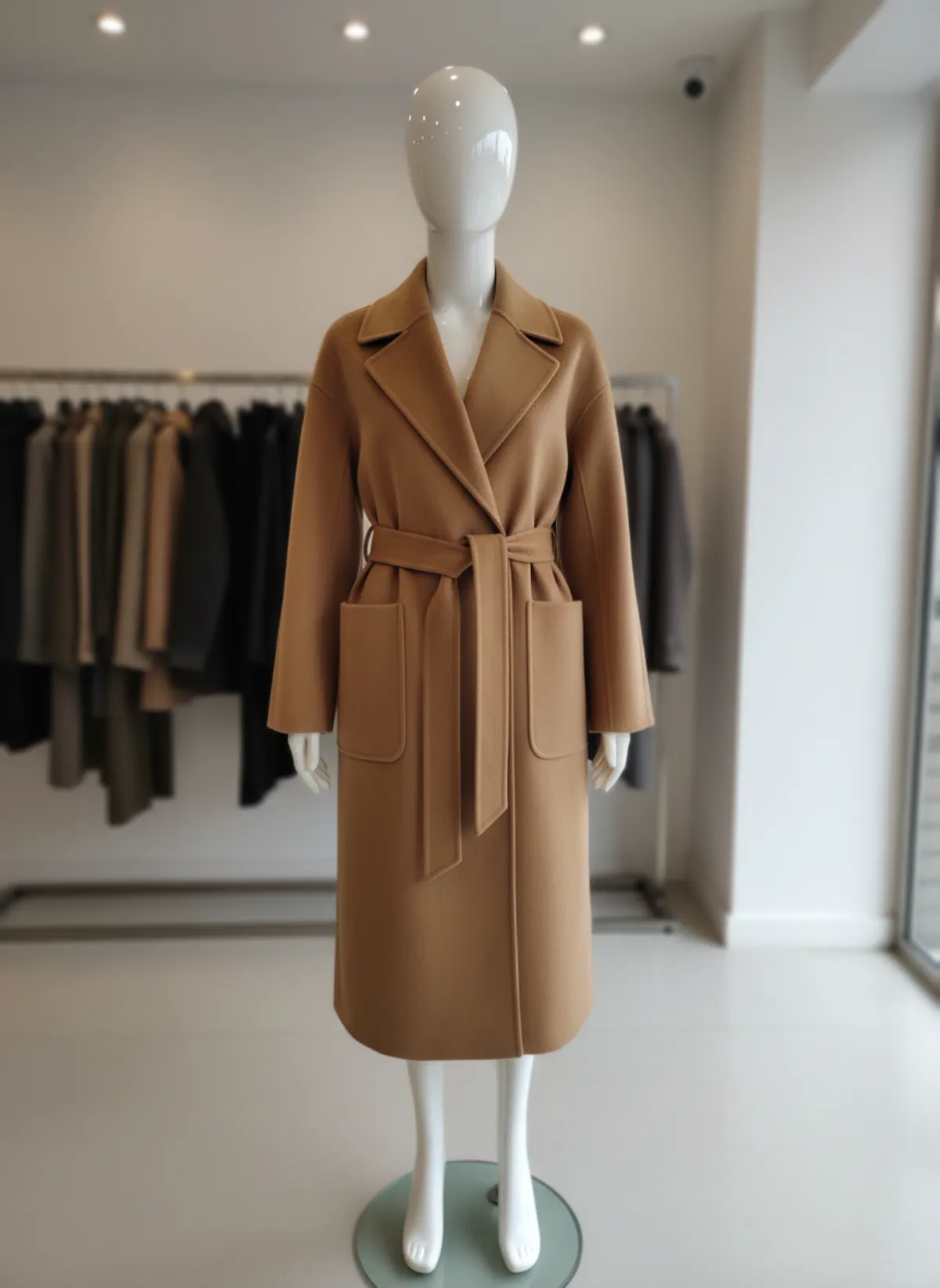
What a prompt for clothing photos has to control
Brands searching for AI prompts usually want one thing: their real garment on a believable model, ready for a product page. A general image tool cannot see what you want, so the prompt has to say everything. In practice that means seven decisions, written out in words for every single image.
First the garment: type, colour, fabric, cut, closures and every detail you could count, from buttons to pockets. Then the model: gender, age, build, hair. The shot: front, three-quarter, walking, seated or a close detail. The setting: a plain background or a location. The light: soft daylight, studio light or something more dramatic. The framing: full length from head to shoes, waist up, a close crop, and the aspect ratio your shop uses. Last, the constraints: keep the garment exactly as it is, no text, no logos, no extra people.
Miss one and the image goes wrong in a predictable way. Leave out the framing and the feet are cut off. Describe the mood instead of the garment and a pocket appears that your shirt does not have. That is why so many brands end up with a long document of prompts that still has to be edited for every product.
Every part of the prompt, as a choice in Garmo
The same seven decisions, without writing them out.
Garment: your photo
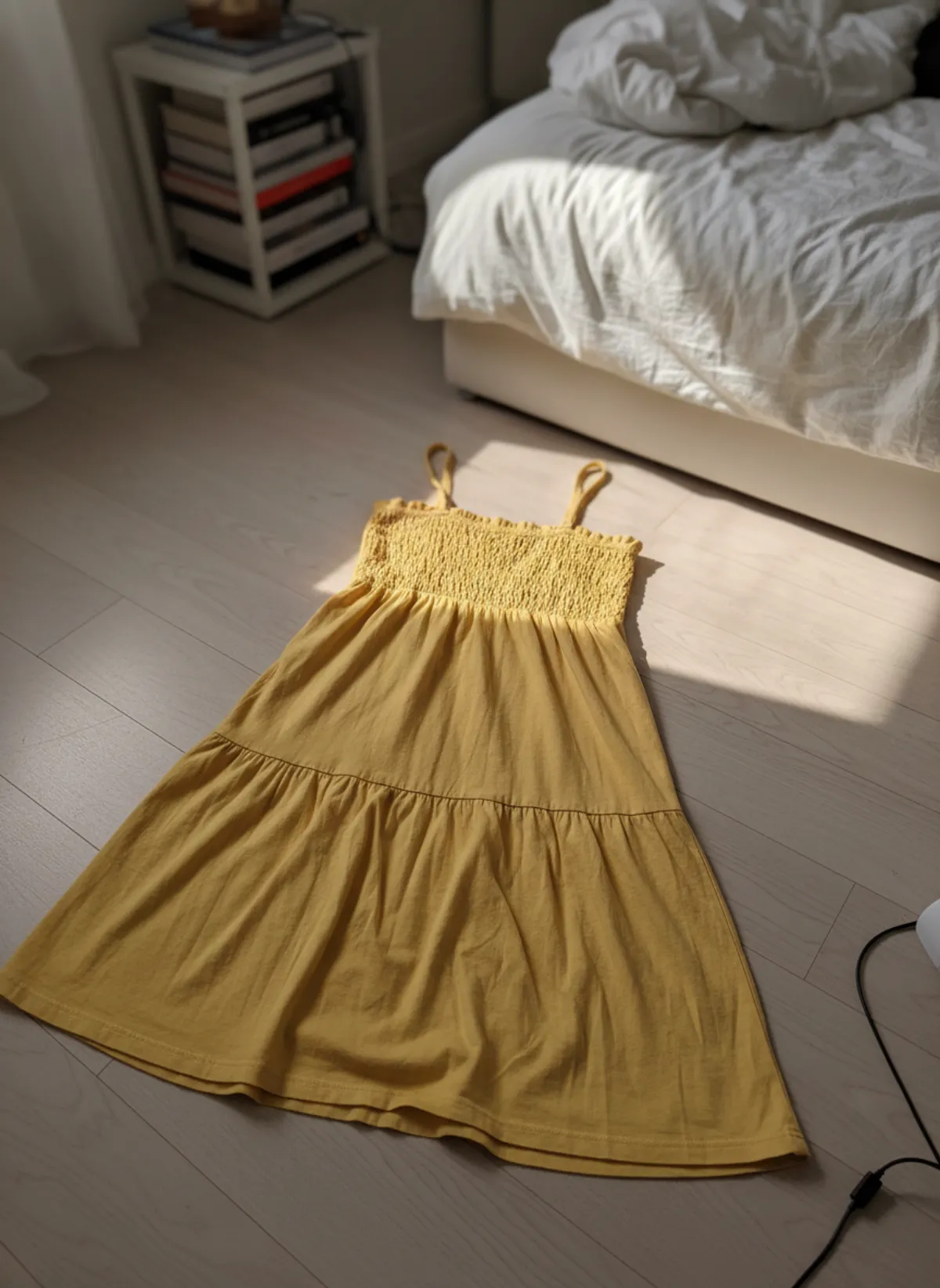
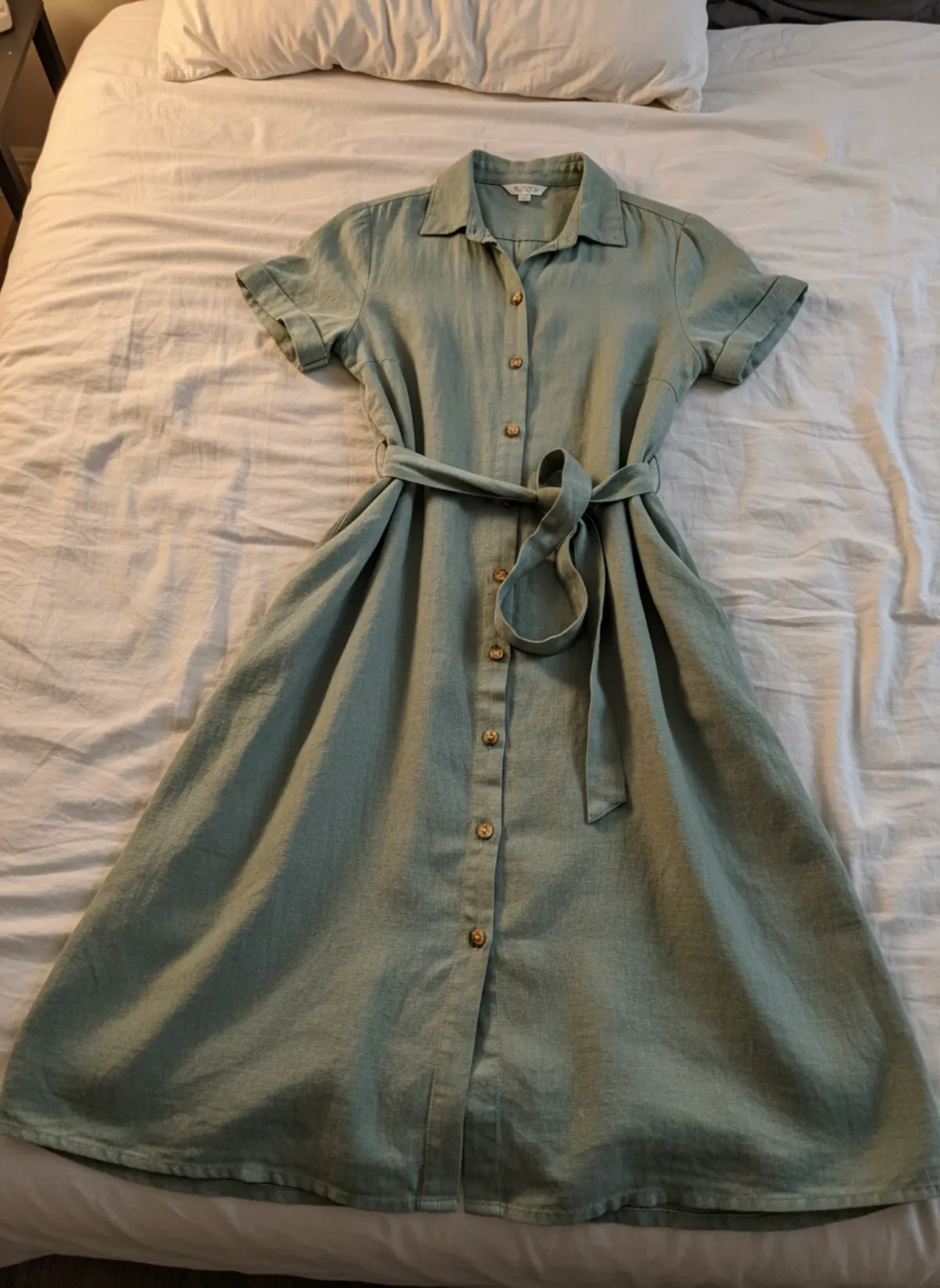
Upload one clear product photo. Garmo reads the item and its type from the photo, so you never describe colour, fabric or buttons.
Model: pick one
Choose from 42 ready models, 22 women and 20 men, or add your own. The same face can wear your whole collection.
Shot: tick the frames
Front, three-quarter, walking, back, side, seated and detail. One to six frames per shoot, or let Garmo pick the right ones for the garment.
Setting: studio, street or editorial
Three built-in settings, plus your own scene made from a short description and reference photos.
Light and mood: one tap
Optional suggestions such as warm light, outdoors in daylight, minimal and clean, or moody, dramatic light.
Framing: five ratios
3:4, 2:3, 1:1, 4:5 or 9:16, matched to your shop, marketplace or social feed.
Constraints: built in
Garmo keeps the product from your photo and adds no text, watermark or extra people. Nothing to remember.
Why hand-written prompts break product photos
A campaign image can be loose; a product image cannot. If the collar is wrong or the colour has shifted, the image describes a garment you do not sell, and returns follow. Hand-written prompts are weakest exactly here, because words are a poor way to describe a specific piece of clothing. "Olive overshirt with two pockets" fits thousands of garments; only a photo fits yours.
Prompts also drift. The model's face changes between images, the light changes between products, and a collection shot over three weeks no longer looks like one brand. Every new product means copying the prompt, editing the garment part and hoping nothing else moved. Image tools also garble lettering, so a prompt that mentions a slogan or a label tends to produce fake text.
Then there is time. Writing, testing and fixing a prompt can take longer than the shoot it replaces, and it has to be done again for every colourway. A product page needs the same handful of frames for every item; that is a job for a fixed process, not for creative writing. Our AI product image accuracy test shows how to check any tool's results against the real garment.
From product photo to finished set, without a prompt
1. Upload the product photo
A flat lay, a hanger shot, a mannequin or a garment worn by someone else. JPG, PNG or WebP up to 12 MB. Garmo reads what the item is and shows what it saw.
2. Choose the model
Pick a ready model or your own, or leave it to Garmo. For a collection, keep the same model so every product page matches.
3. Choose the setting and frames
Studio, street, editorial or one of your scenes; then the frames you need, or the recommended set for that type of garment.
4. Pick the ratio
Square for marketplaces, portrait for your shop, 9:16 for stories. One choice instead of a line in every prompt.
5. Generate and compare
A set of three renders in under a minute, side by side. Check colour and details against the real item before you publish.
When you want to add your own direction
Sometimes you know exactly what you want: a warmer light, the belt tied, a crop above the ankle. For that, Studio has an optional notes step of up to 500 characters, with one-tap suggestions you can add or remove. It is for small adjustments, not for describing the product; the photo already does that.
For a location that is not built in, create a scene: give it a name, describe the place and add up to four reference photos, and Garmo makes an empty location you can reuse across shoots. For people, add your own model from one clear photo, or choose from the ready ones in the AI fashion model generator and keep them consistent, as our guide on consistent AI fashion models explains.
If you just want your garment on a person, start with put clothes on an AI model. For a full set in studio, street or editorial settings, use AI model photoshoot. To decide which frames every product needs, follow the AI fashion photography shot list.
One garment, different results, no prompt
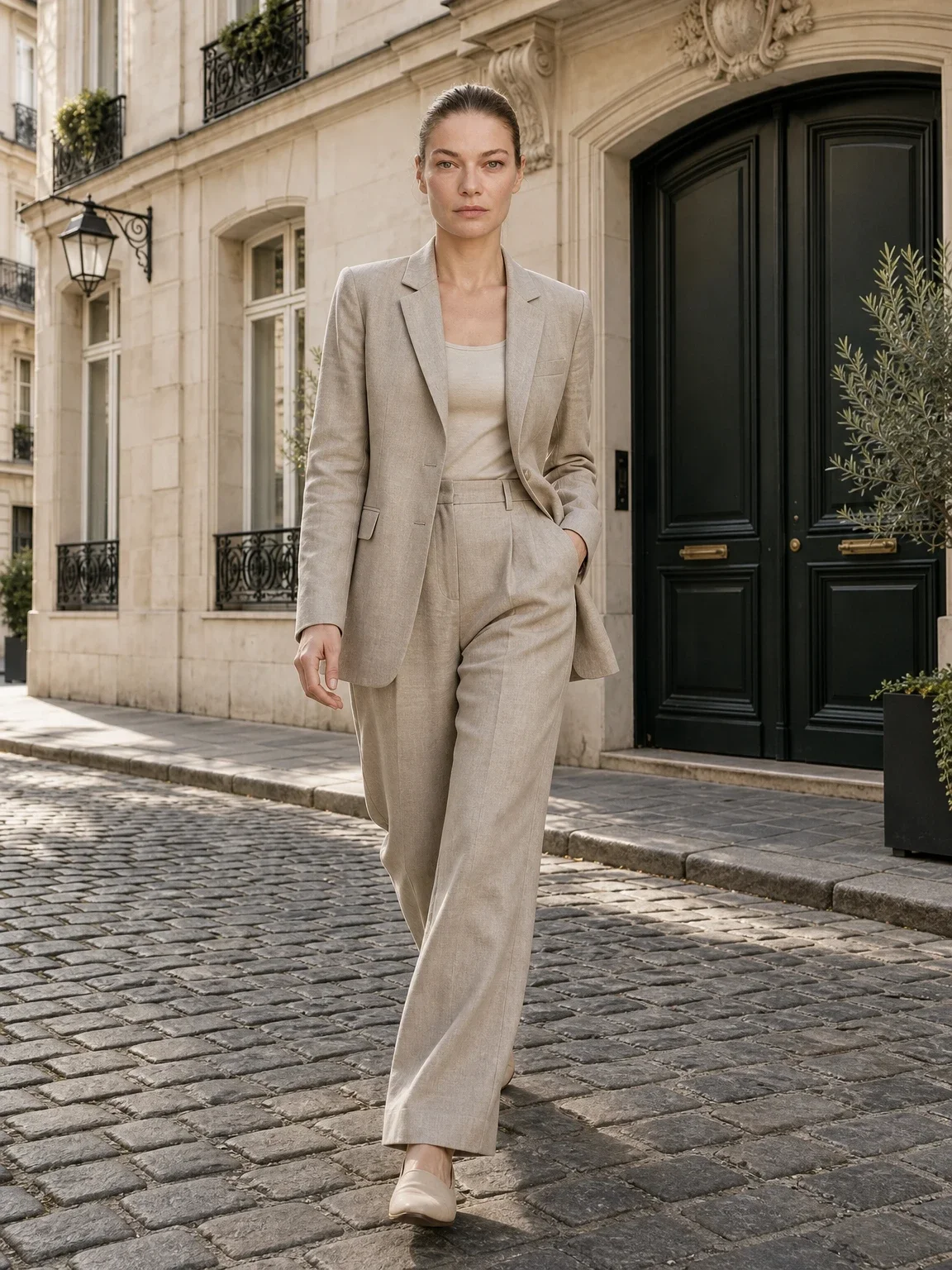
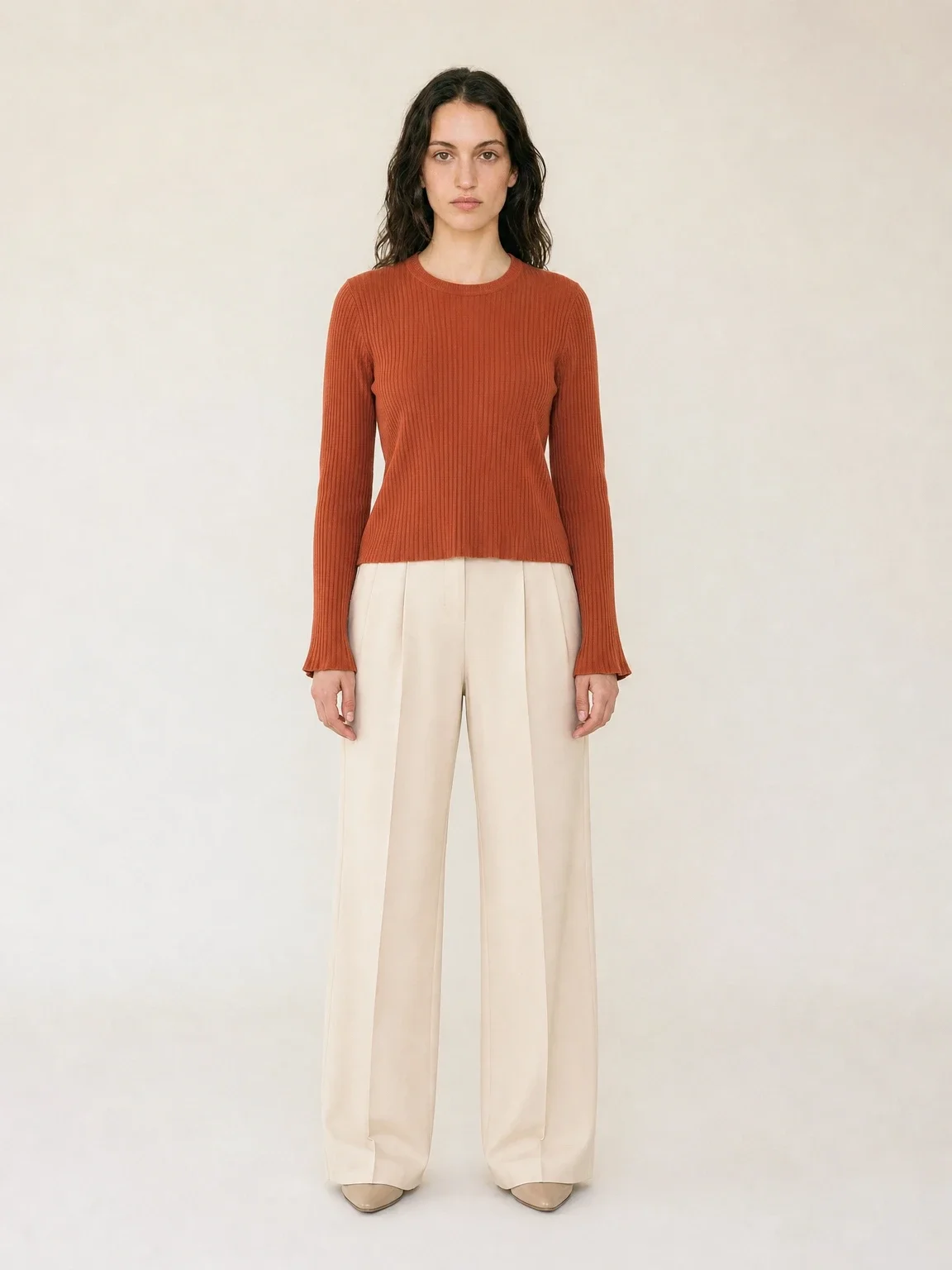
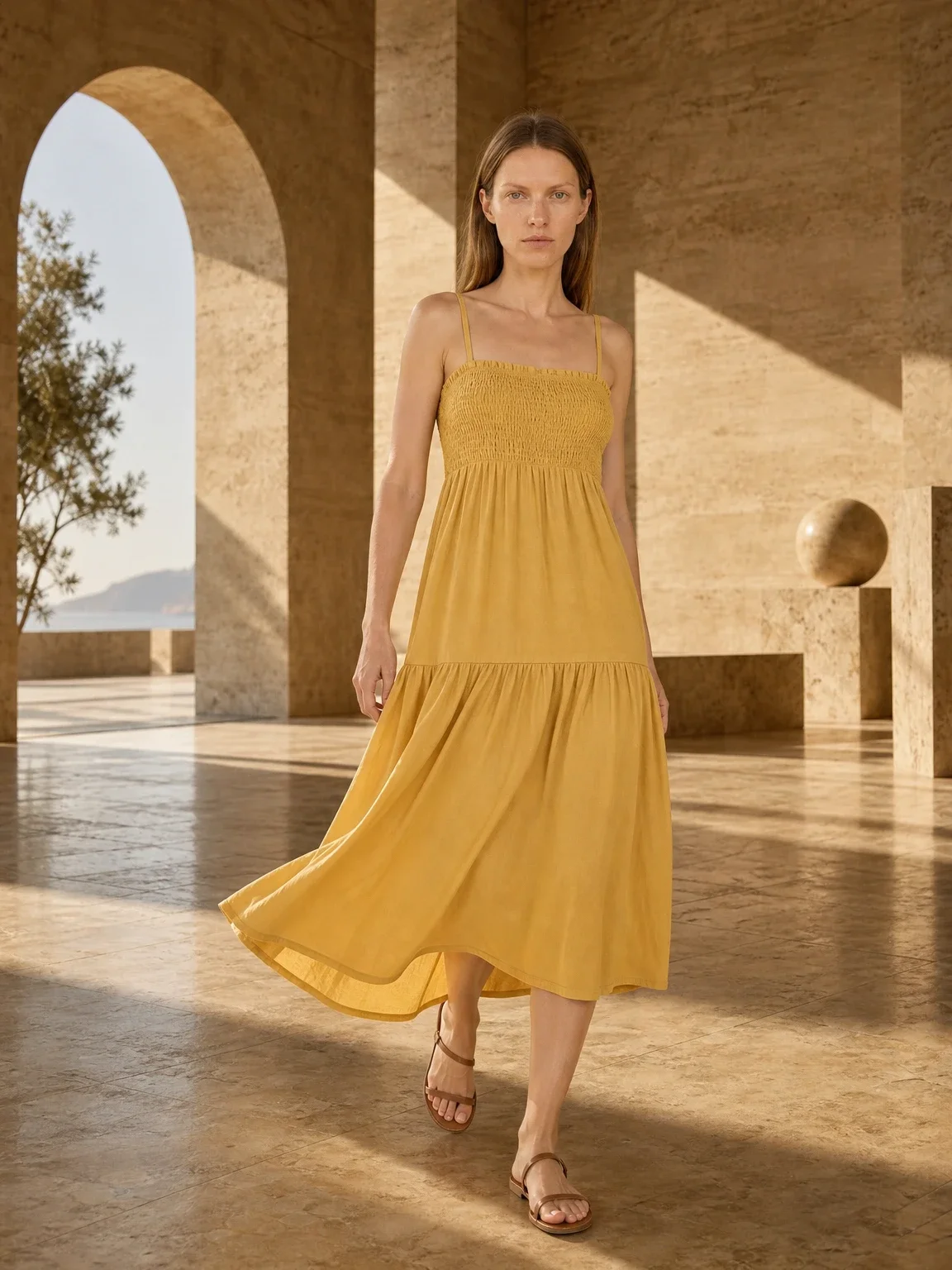
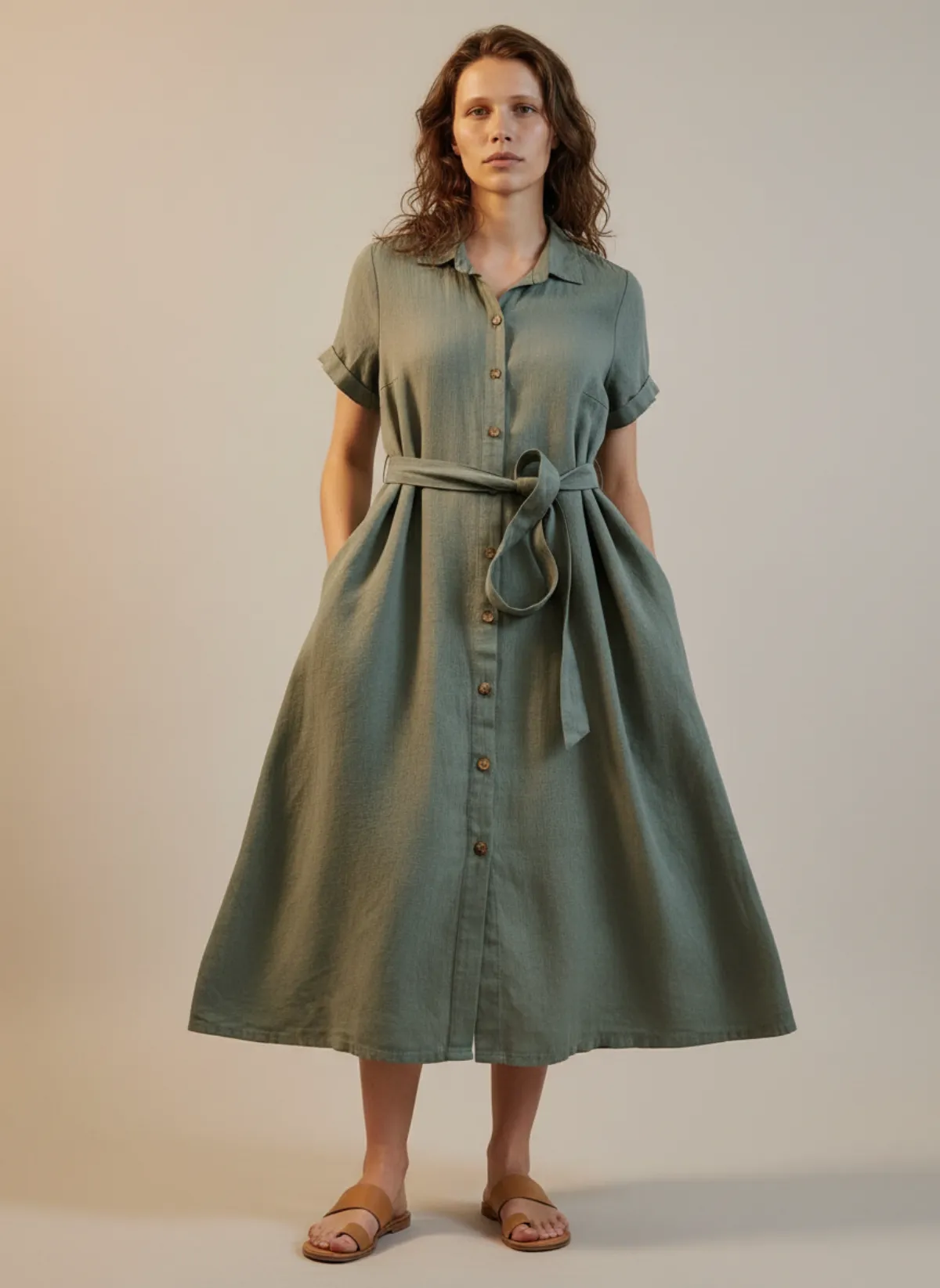
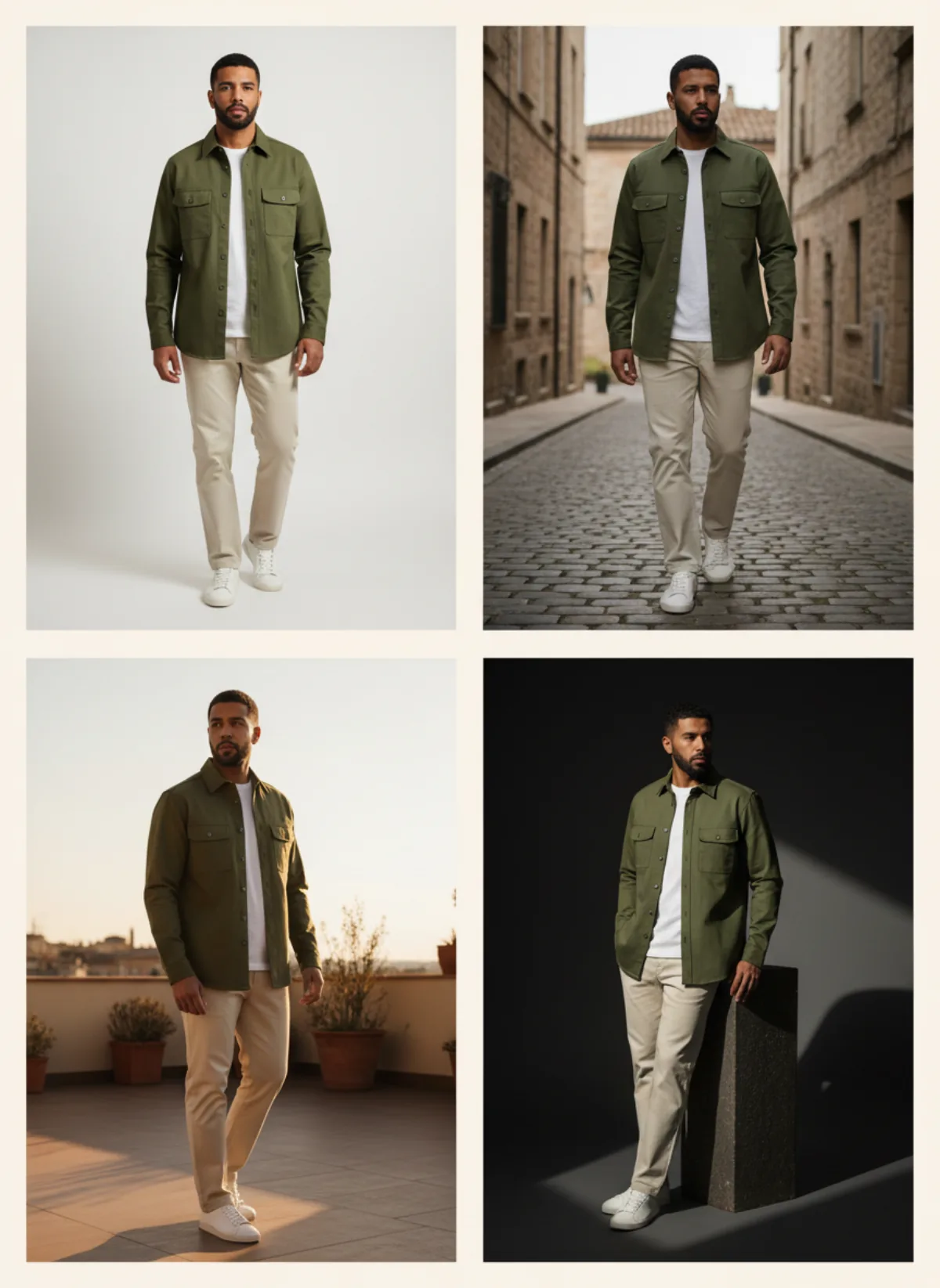
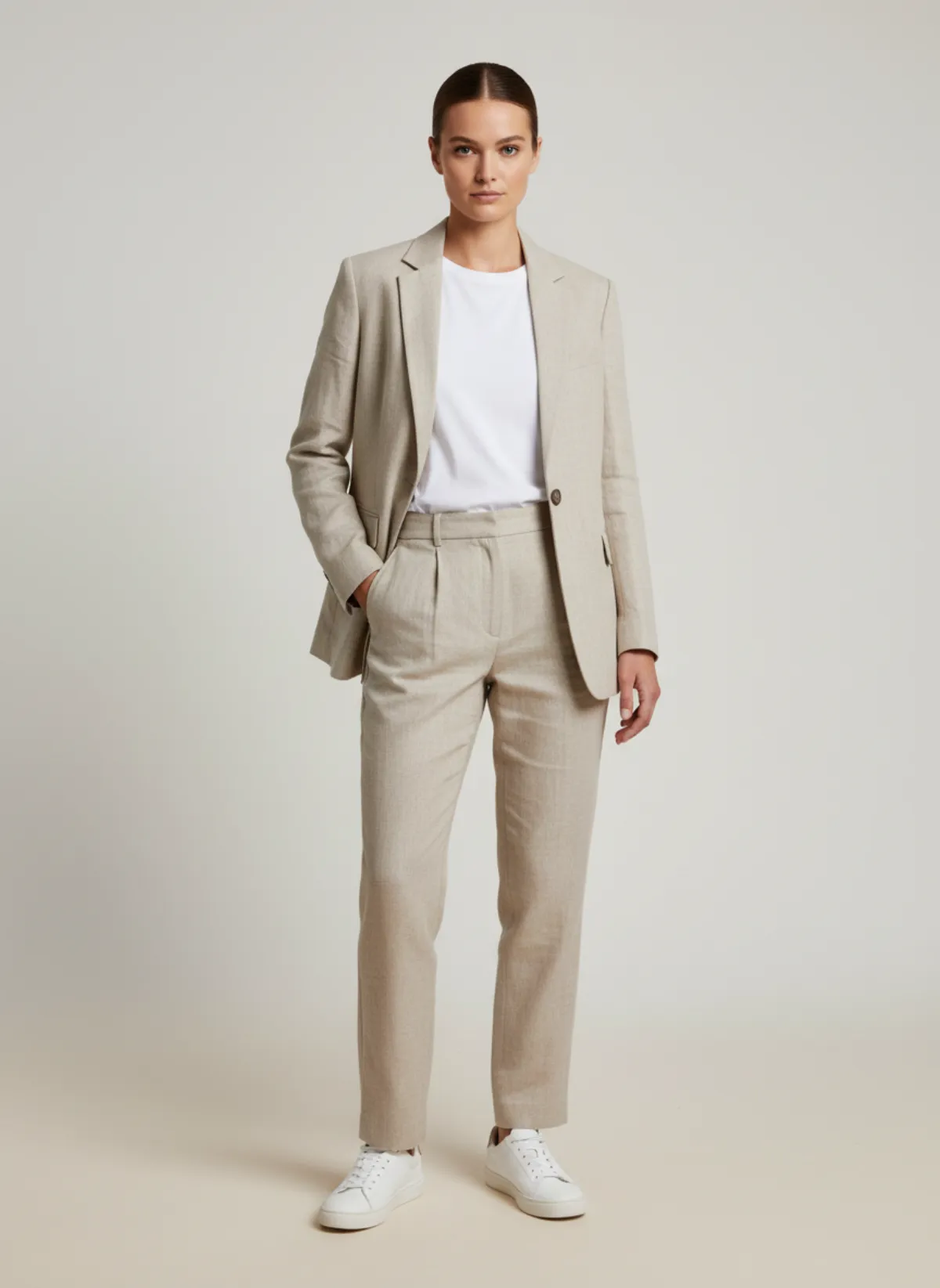
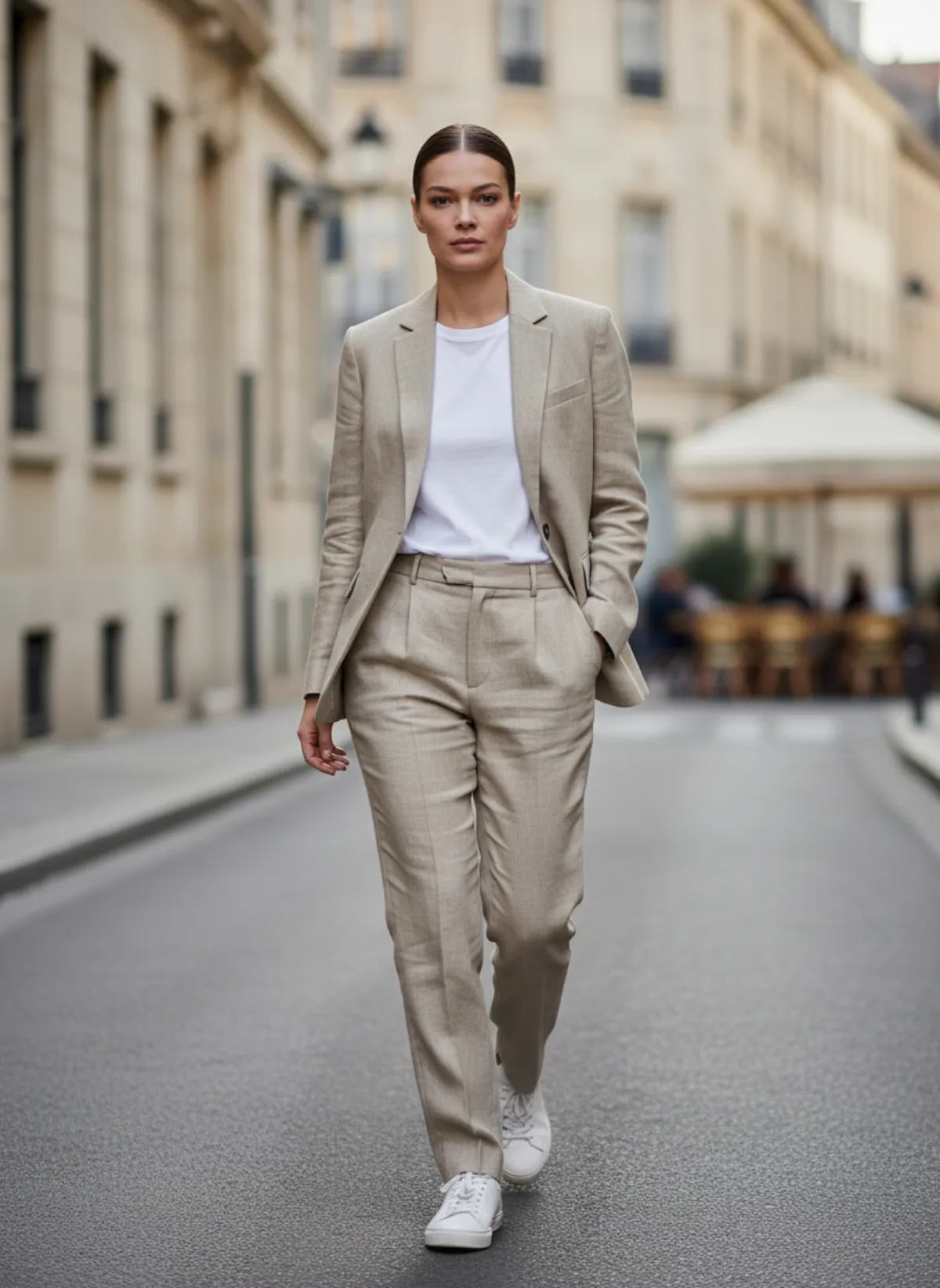
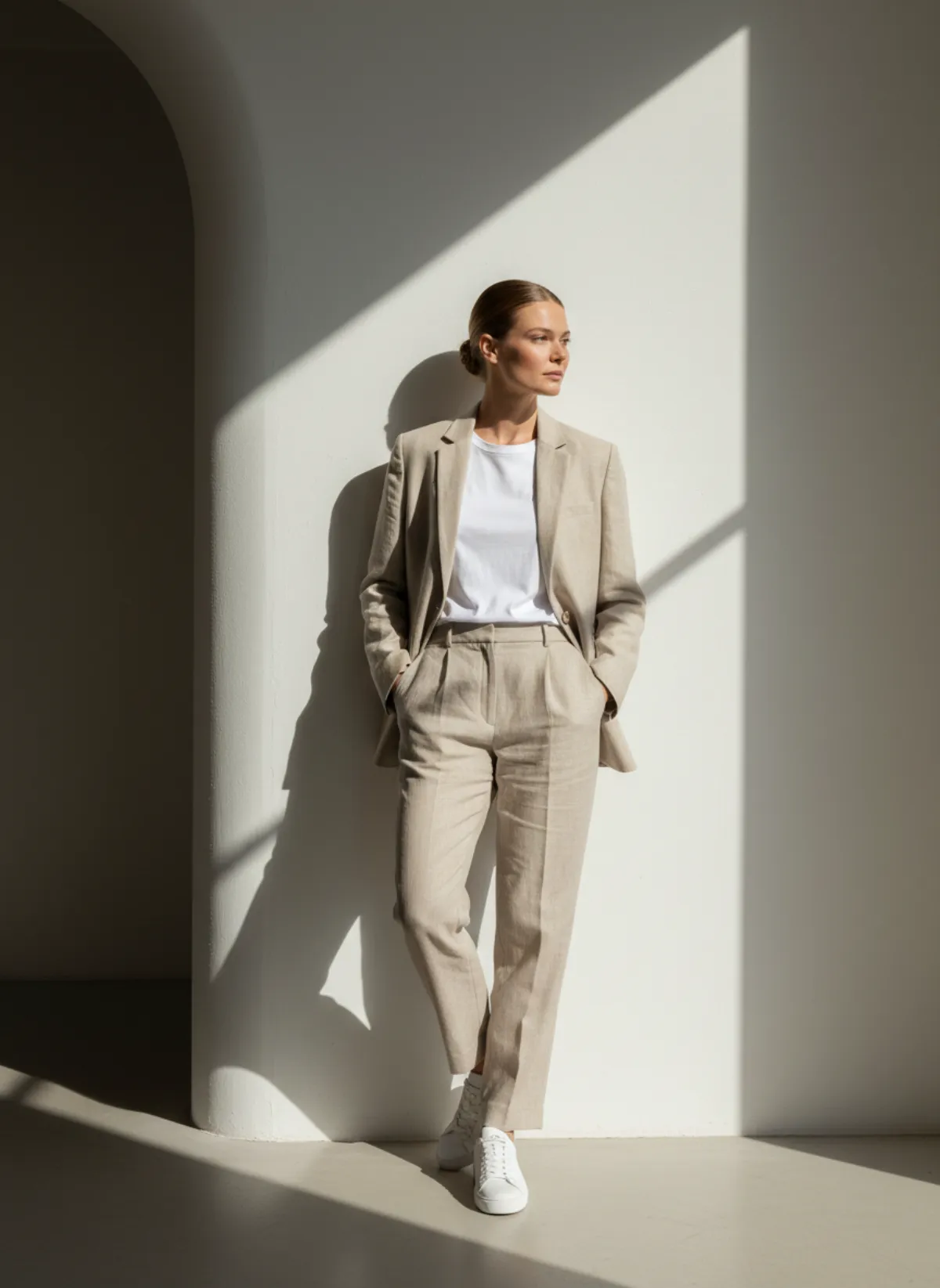
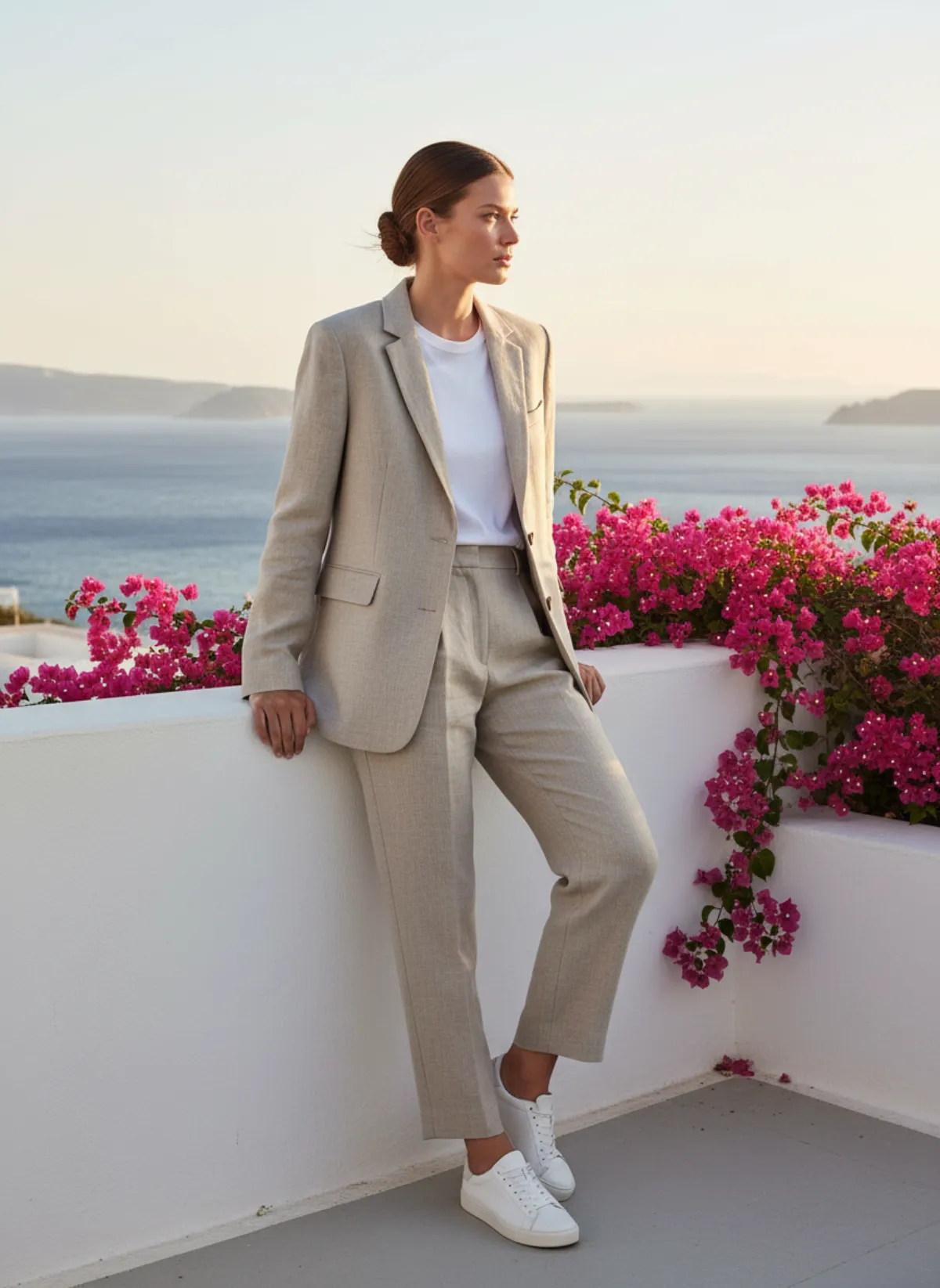
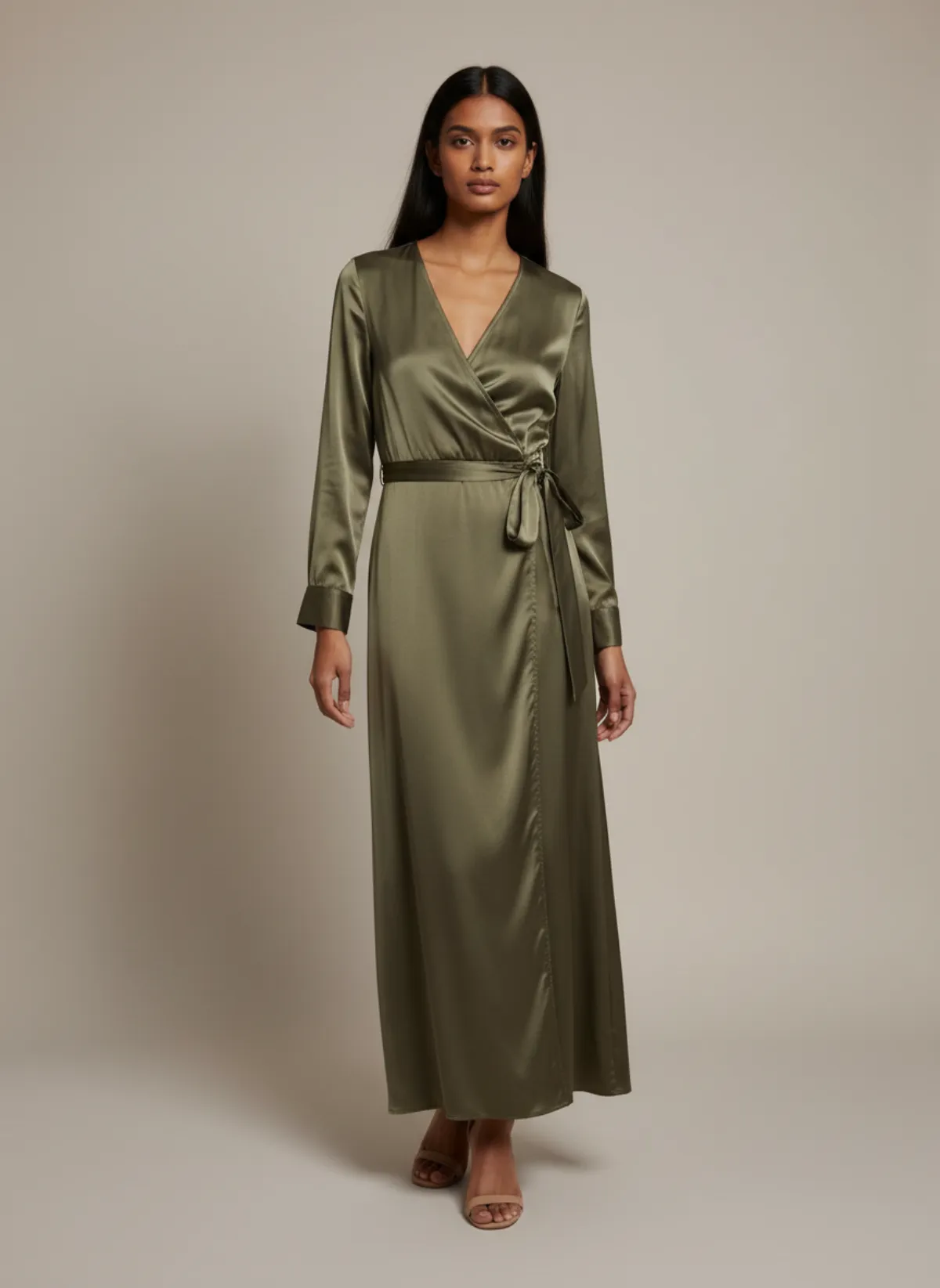
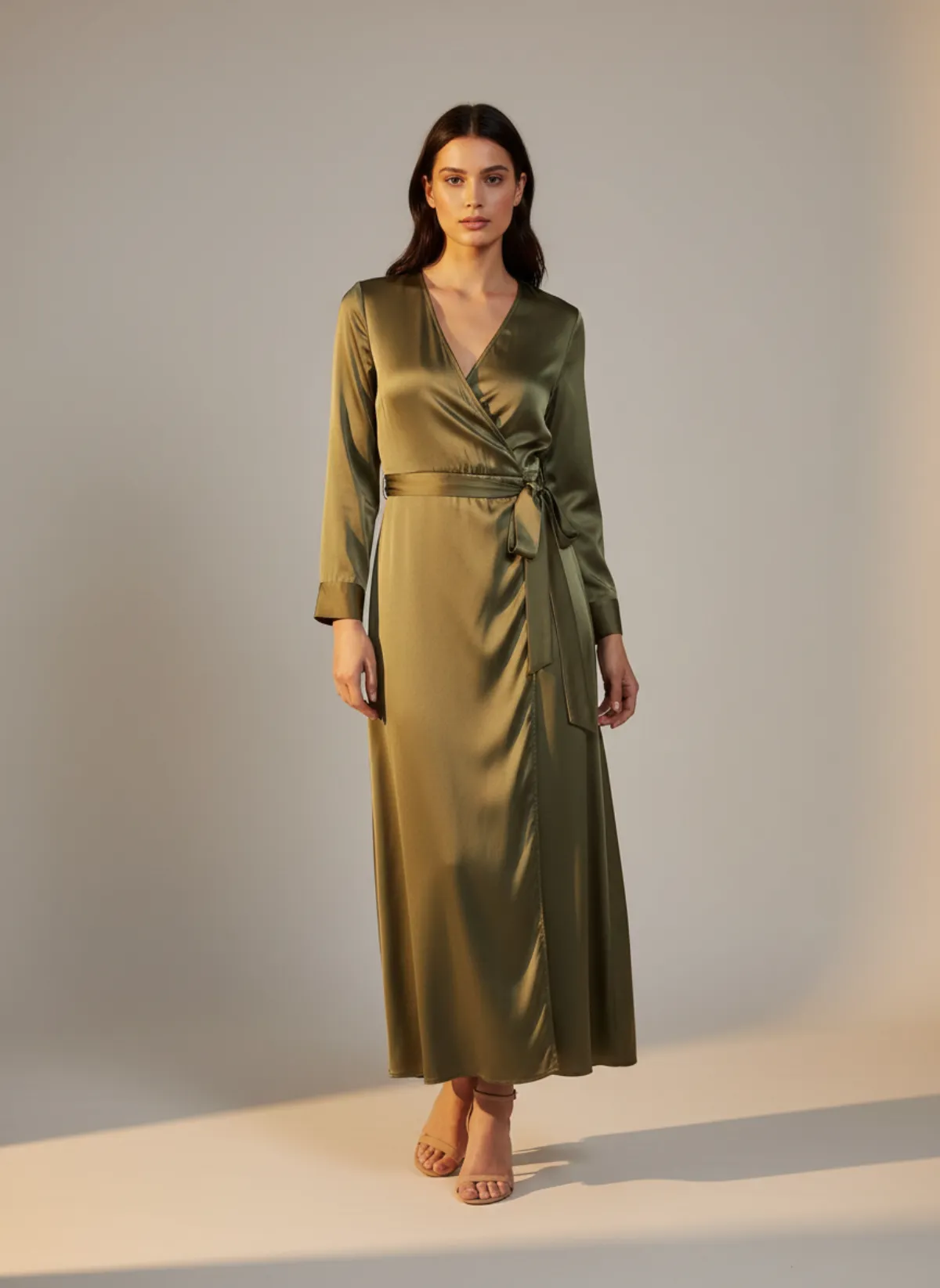
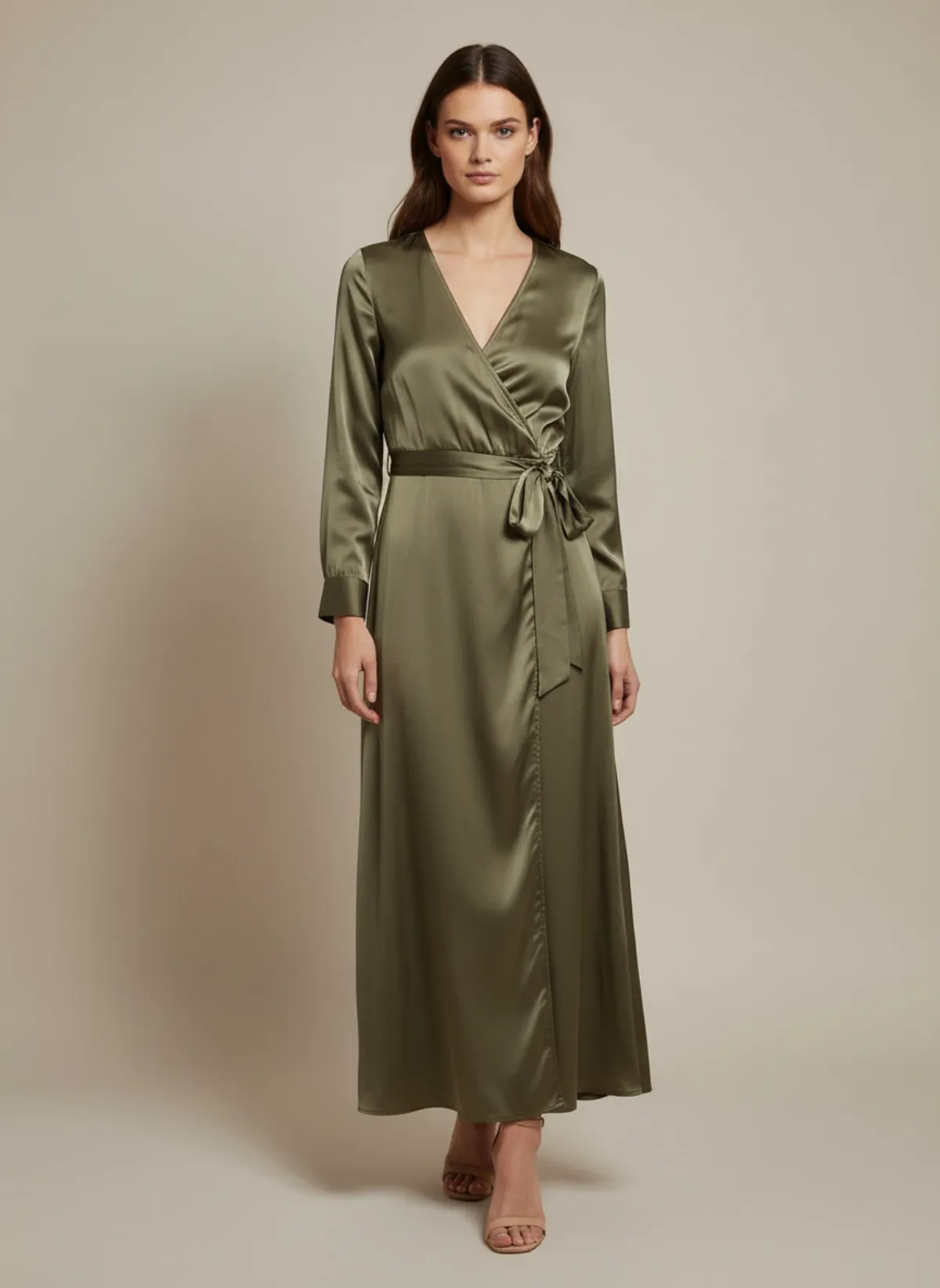
The same suit photo in four settings, and one dress on three models. Each change was a single choice.
Four settings from one photo
Switching the setting replaced what would have been a whole location prompt. The suit stays the same in every frame.
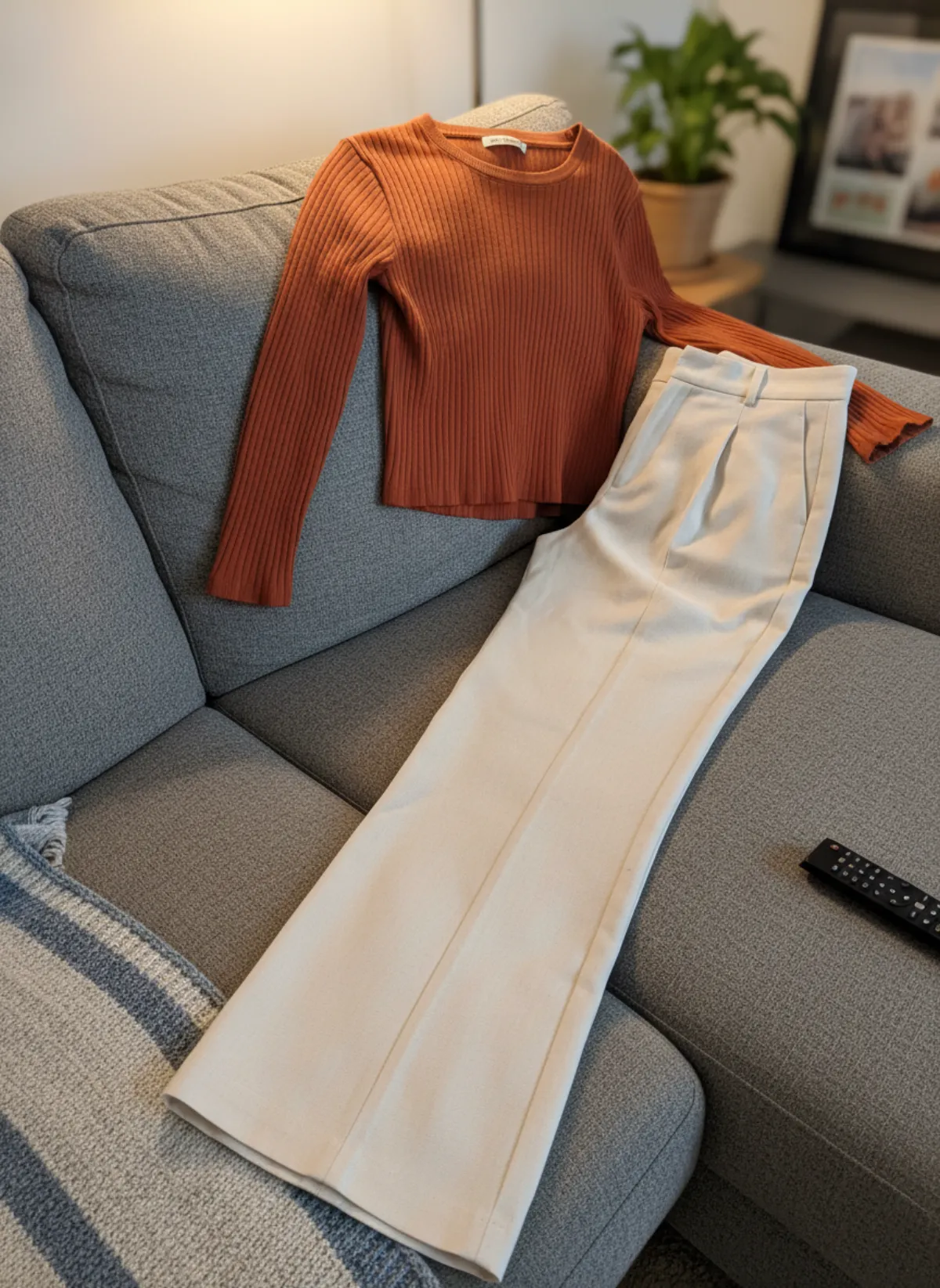
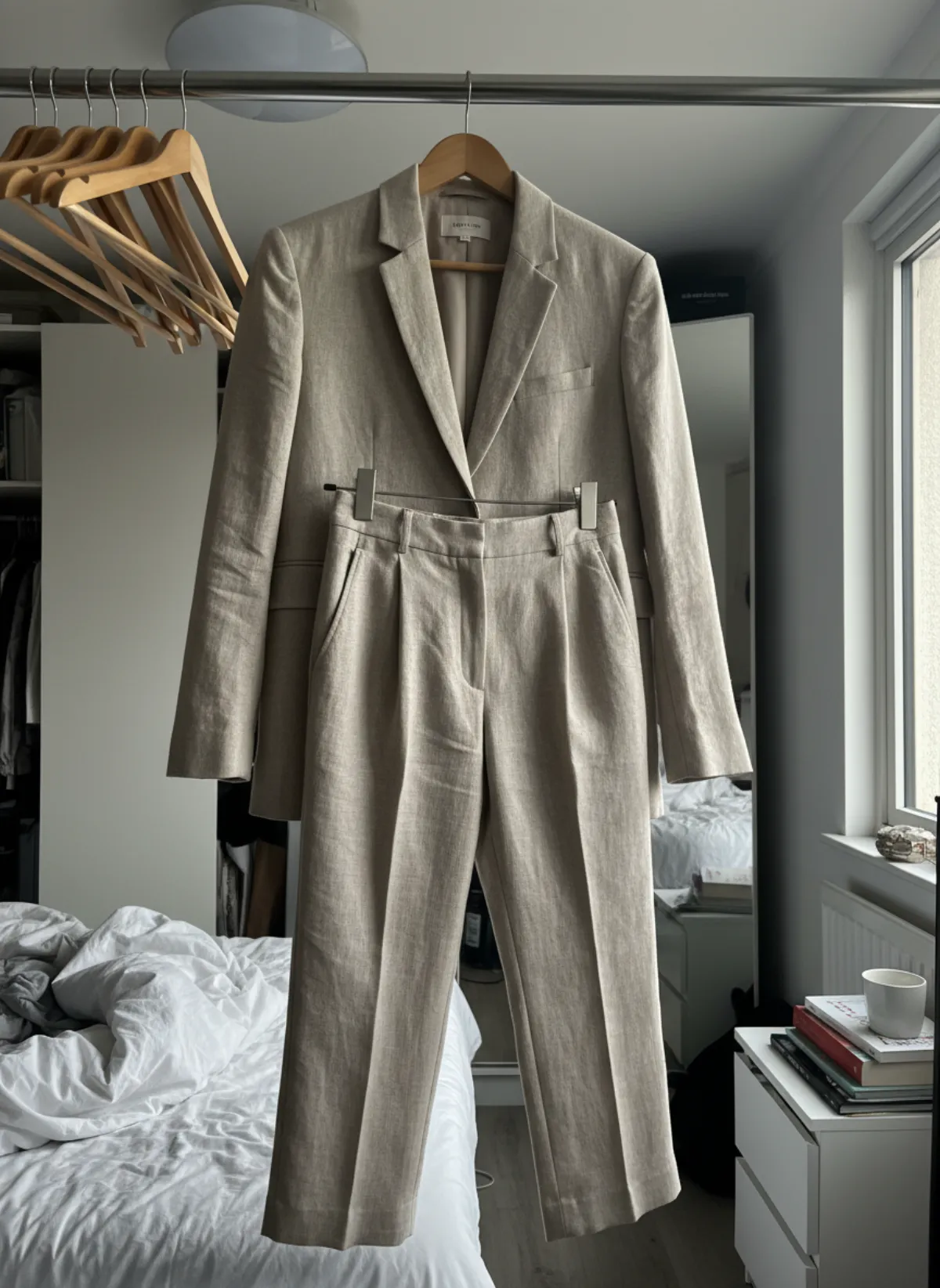 Your photo
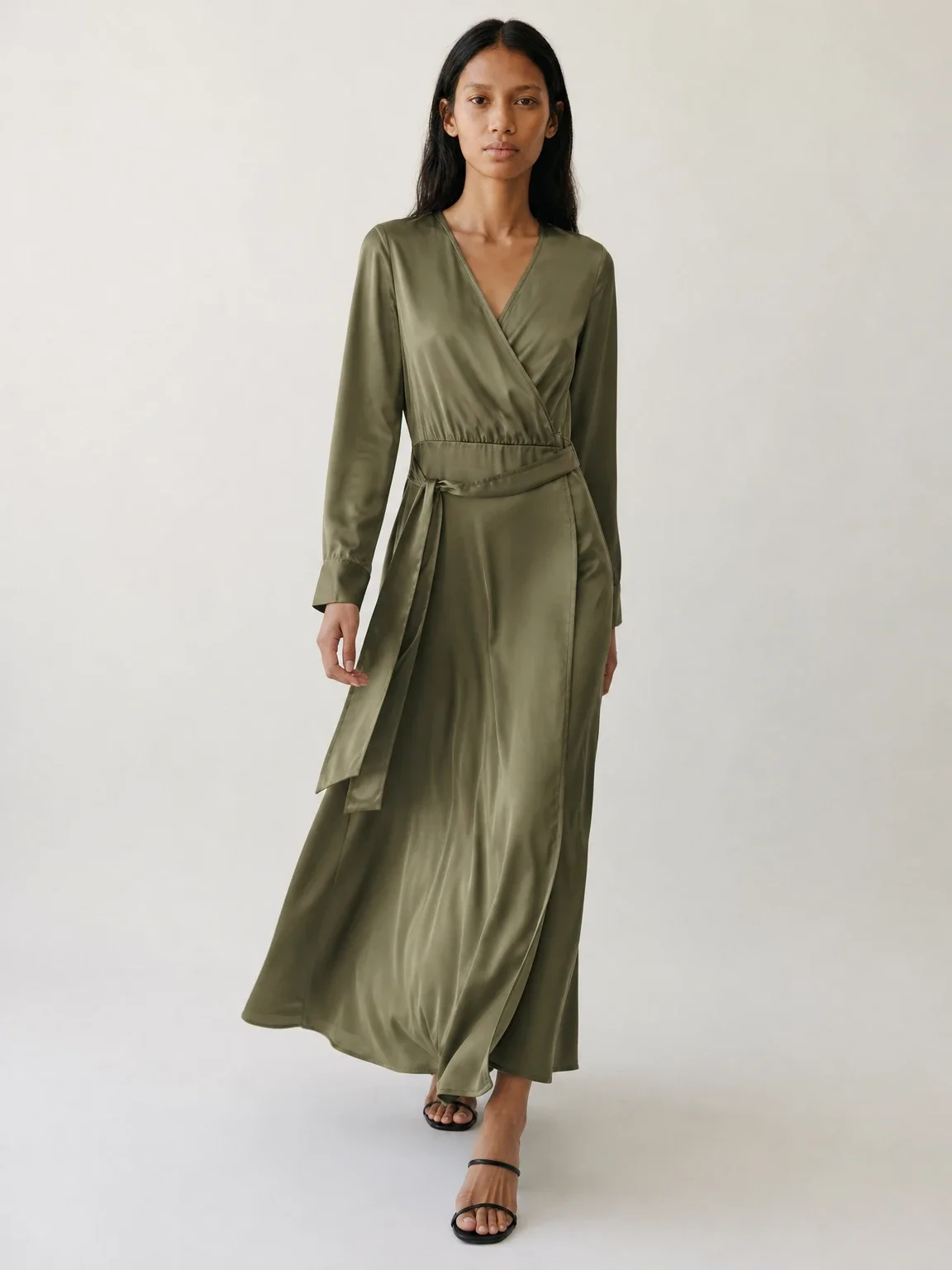
One dress, three models
Changing the model is one click, not a rewritten paragraph. The dress keeps its colour and cut on each.
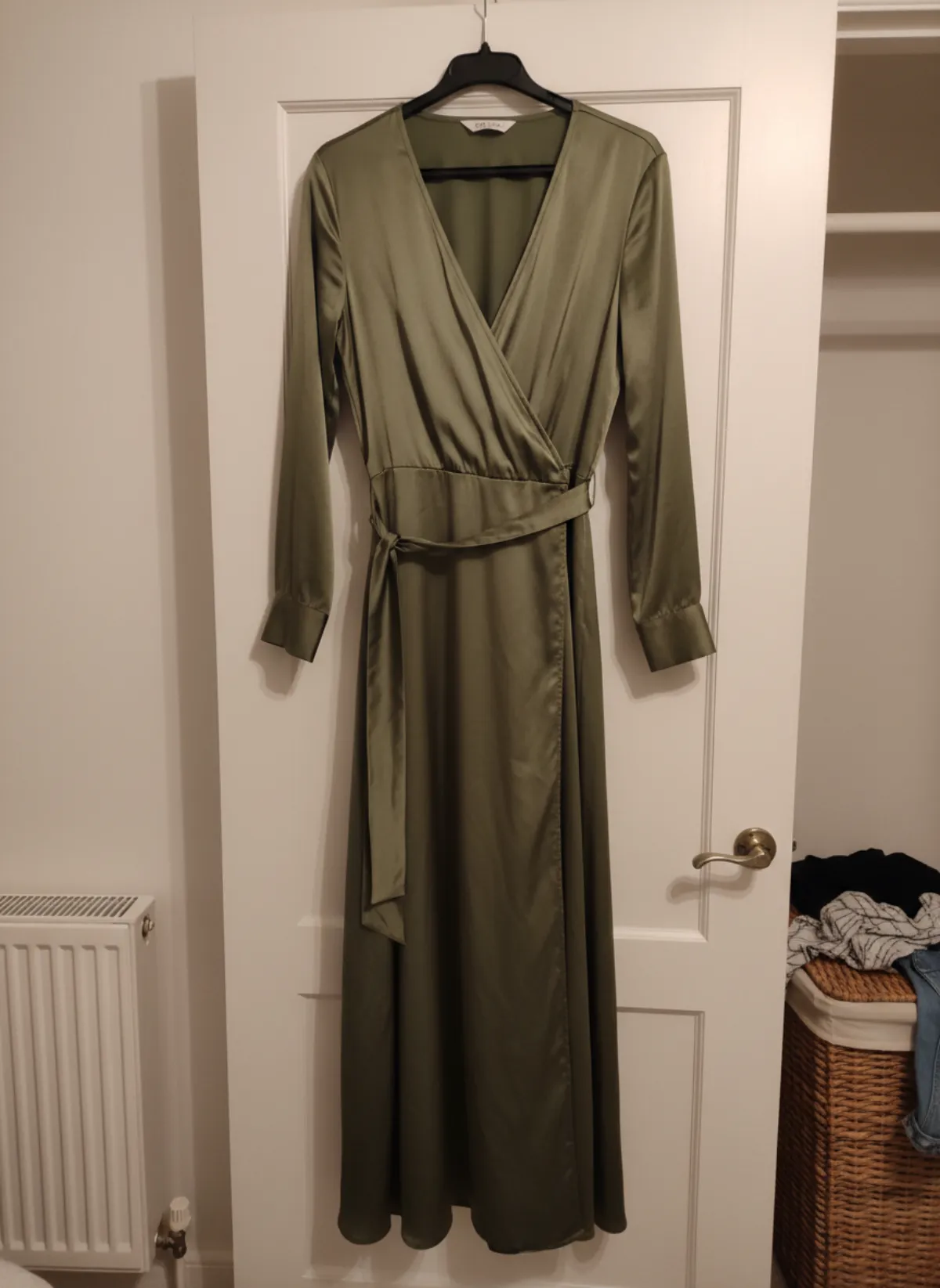 Your photo
Questions about AI prompts for clothing brands
Do I need to write prompts to make AI clothing photos?
Not with a tool built for products. In Garmo you upload a photo and choose the model, setting, frames and ratio; the product description and the rules that keep it accurate are handled for you.
Can I use ChatGPT or Gemini prompts instead?
You can, but you have to describe the garment and every setting yourself for each image, and check that nothing was changed. That works for mood boards; for product pages a photo-based workflow is faster and more reliable.
How does Garmo keep the garment accurate without a prompt?
It works from your product photo rather than a written description, so colour, pattern and details come from the real item. Always compare the results with the garment before you publish.
Can I change the light or location without writing a prompt?
Yes. Pick studio, street or editorial, tap a suggestion such as warm light, or create your own scene from a short description and reference photos.
Can I keep the same model across a whole collection?
Yes. Choose one of the 42 ready models or add your own, and use the same one for every product so your catalog looks like one brand.