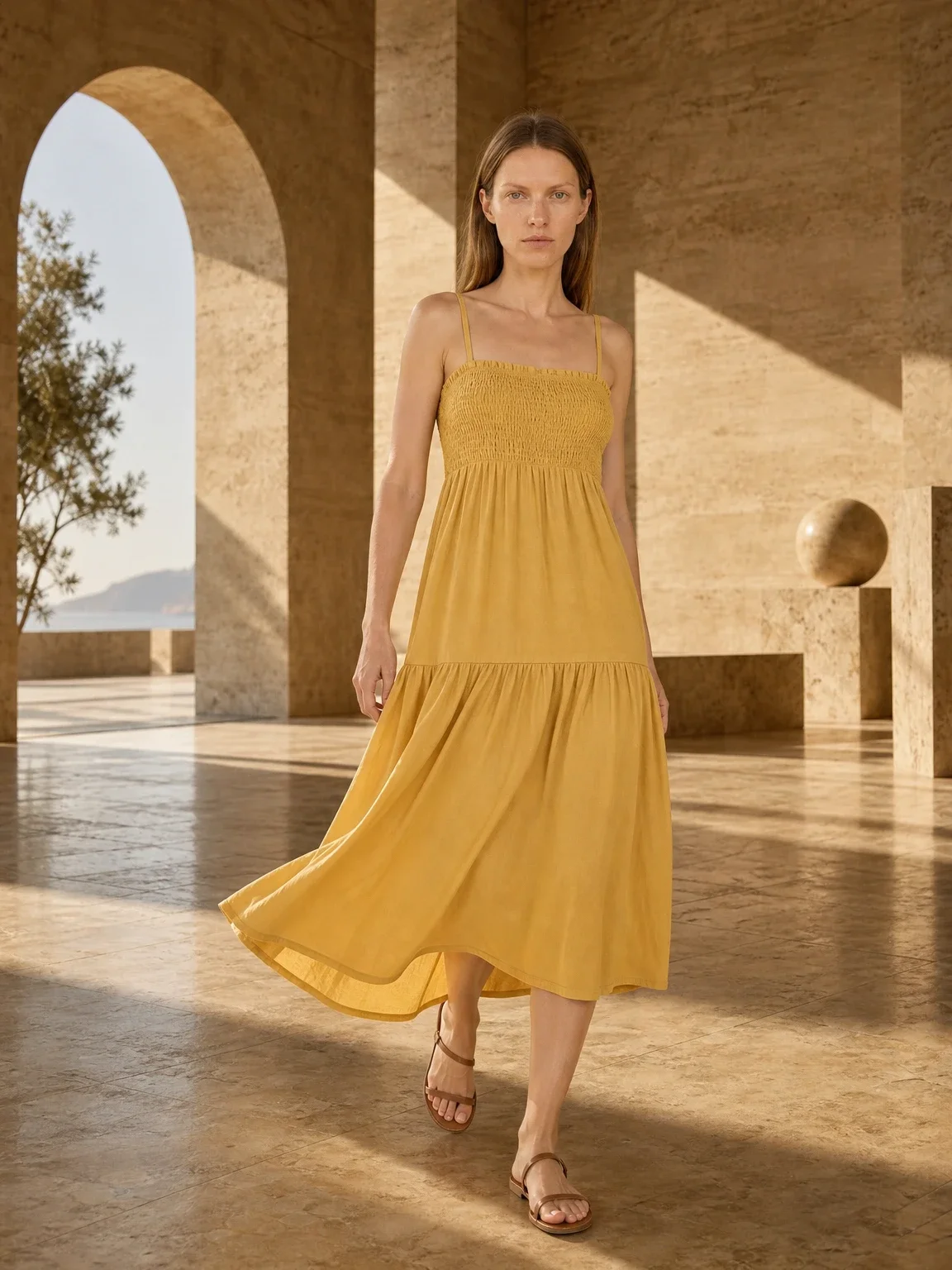
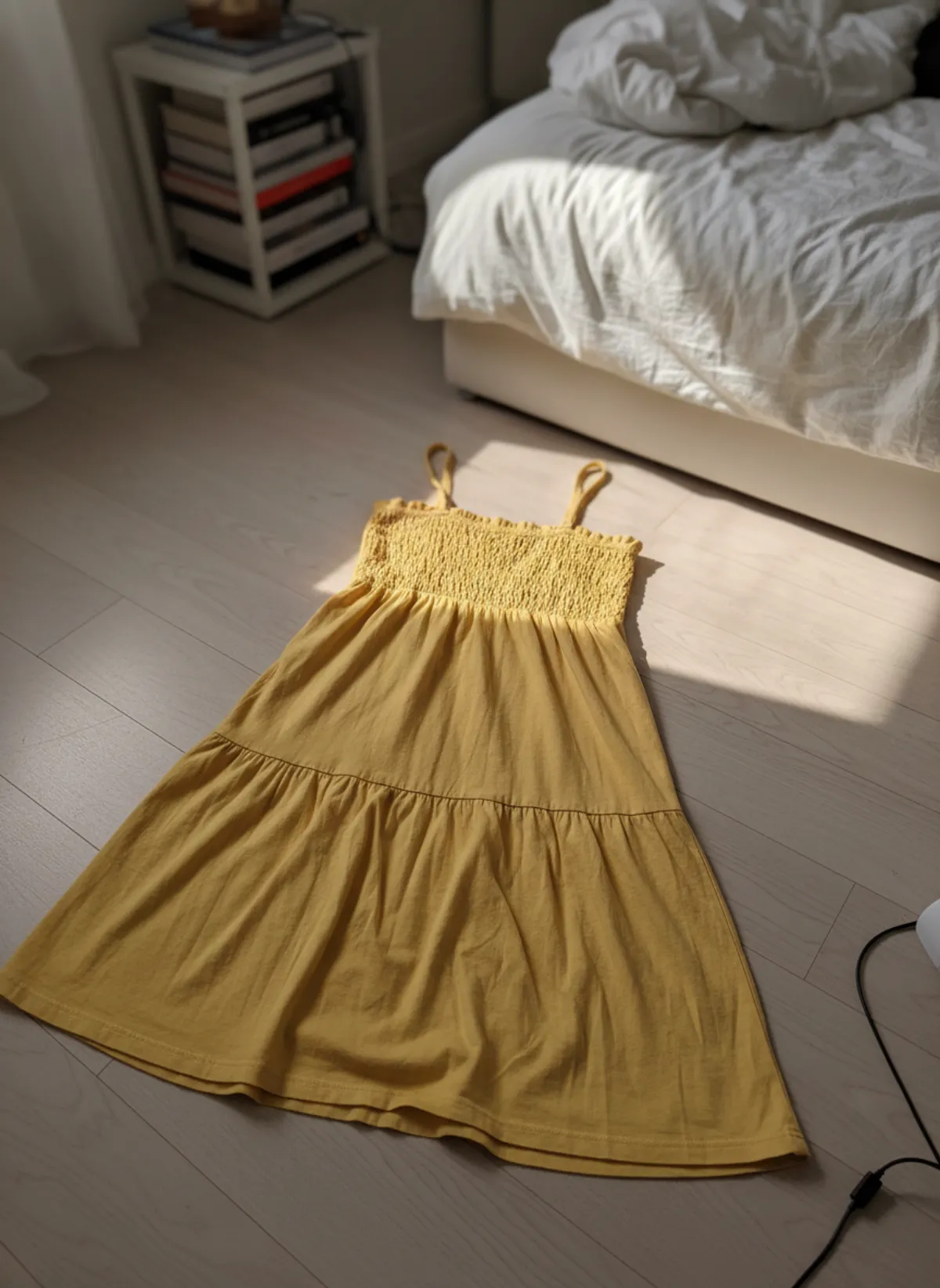
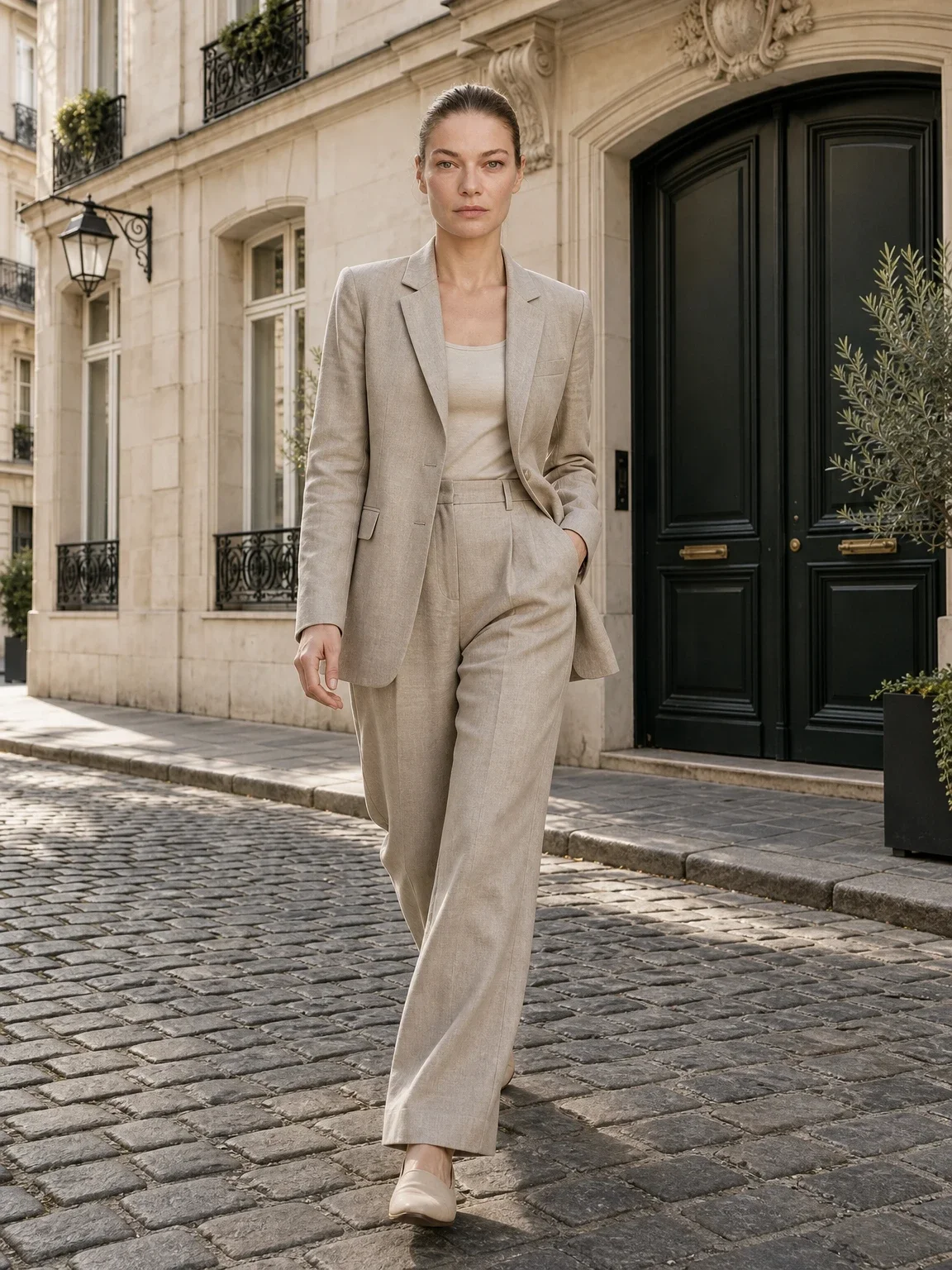
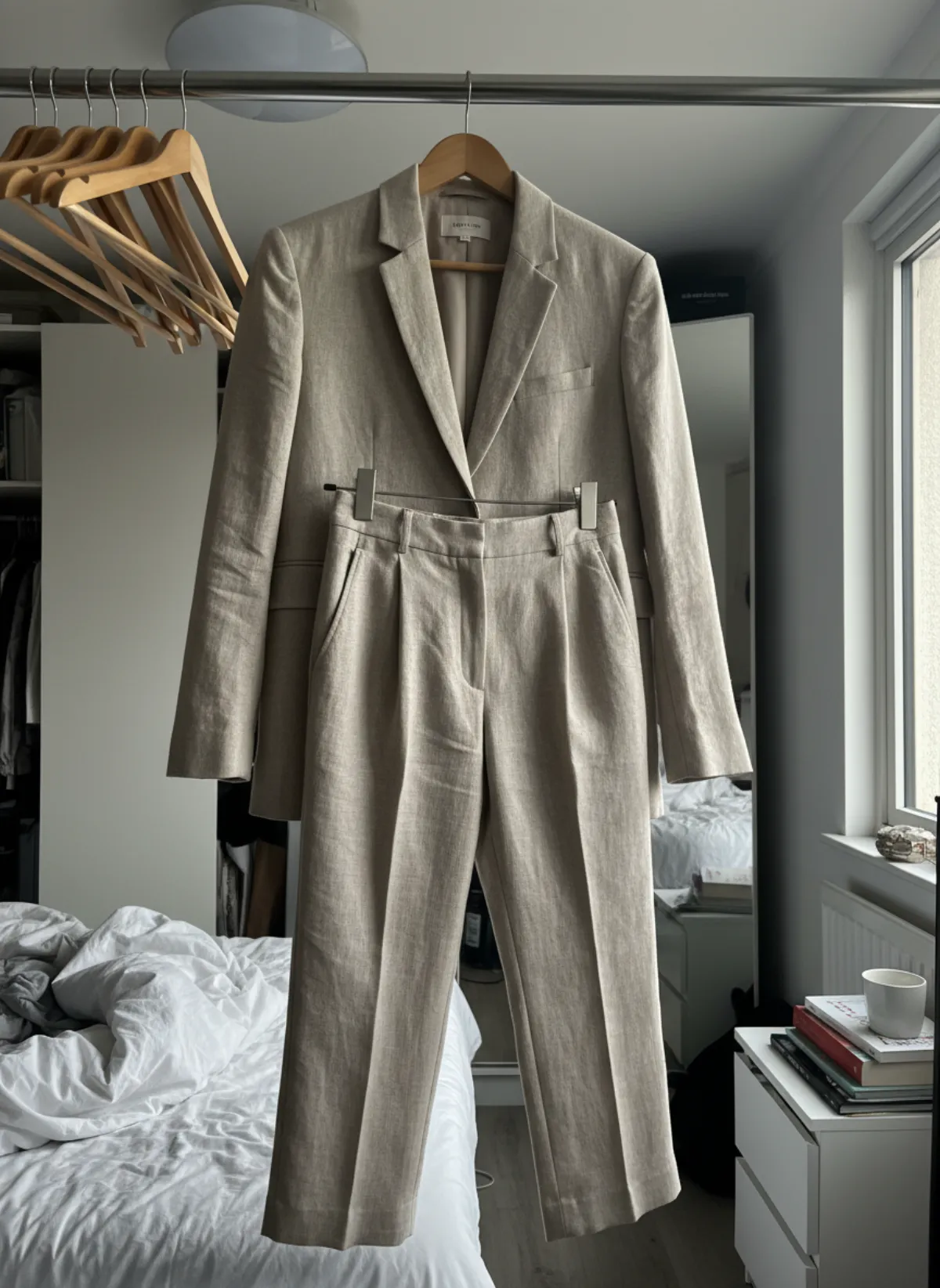
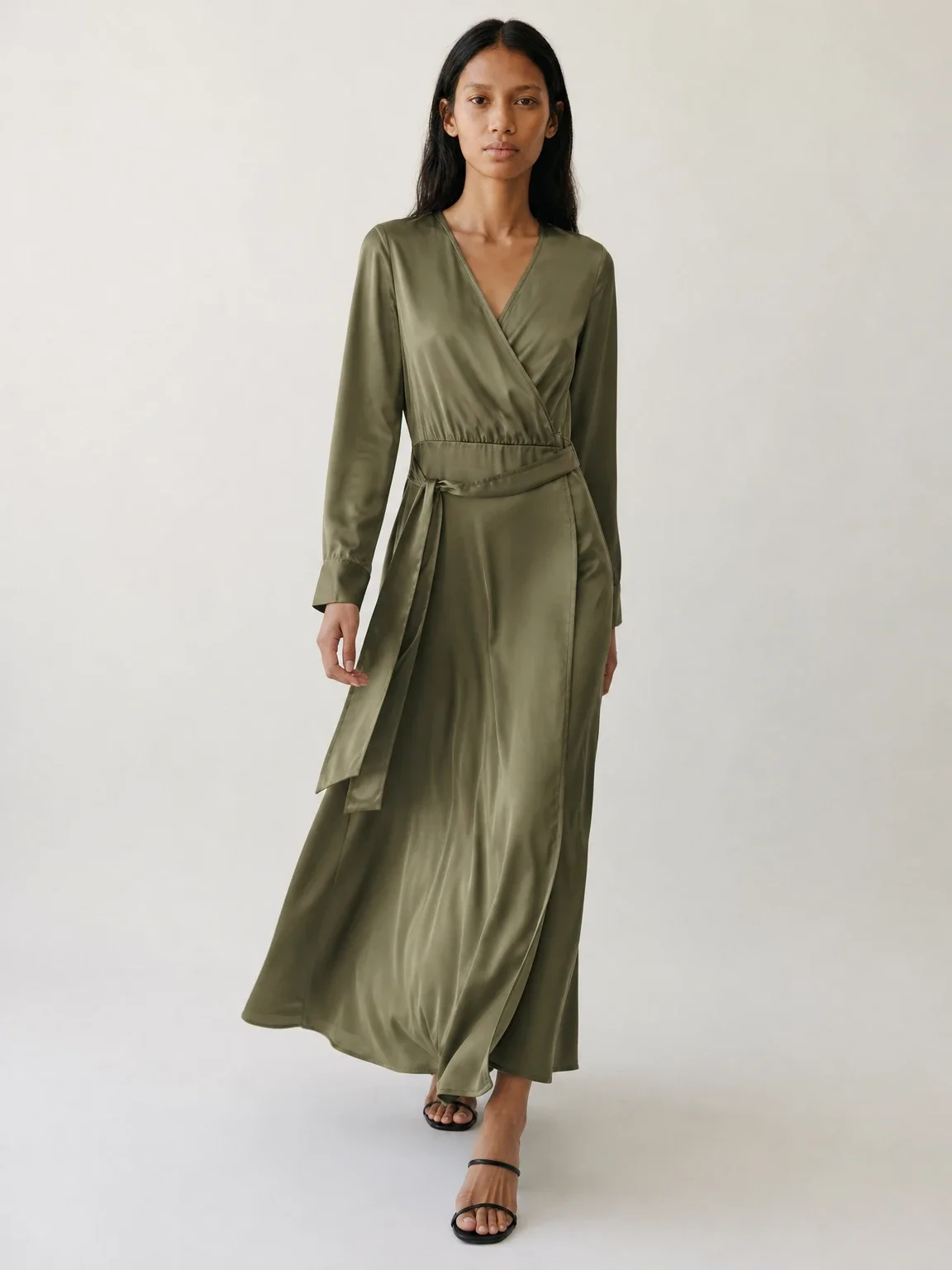
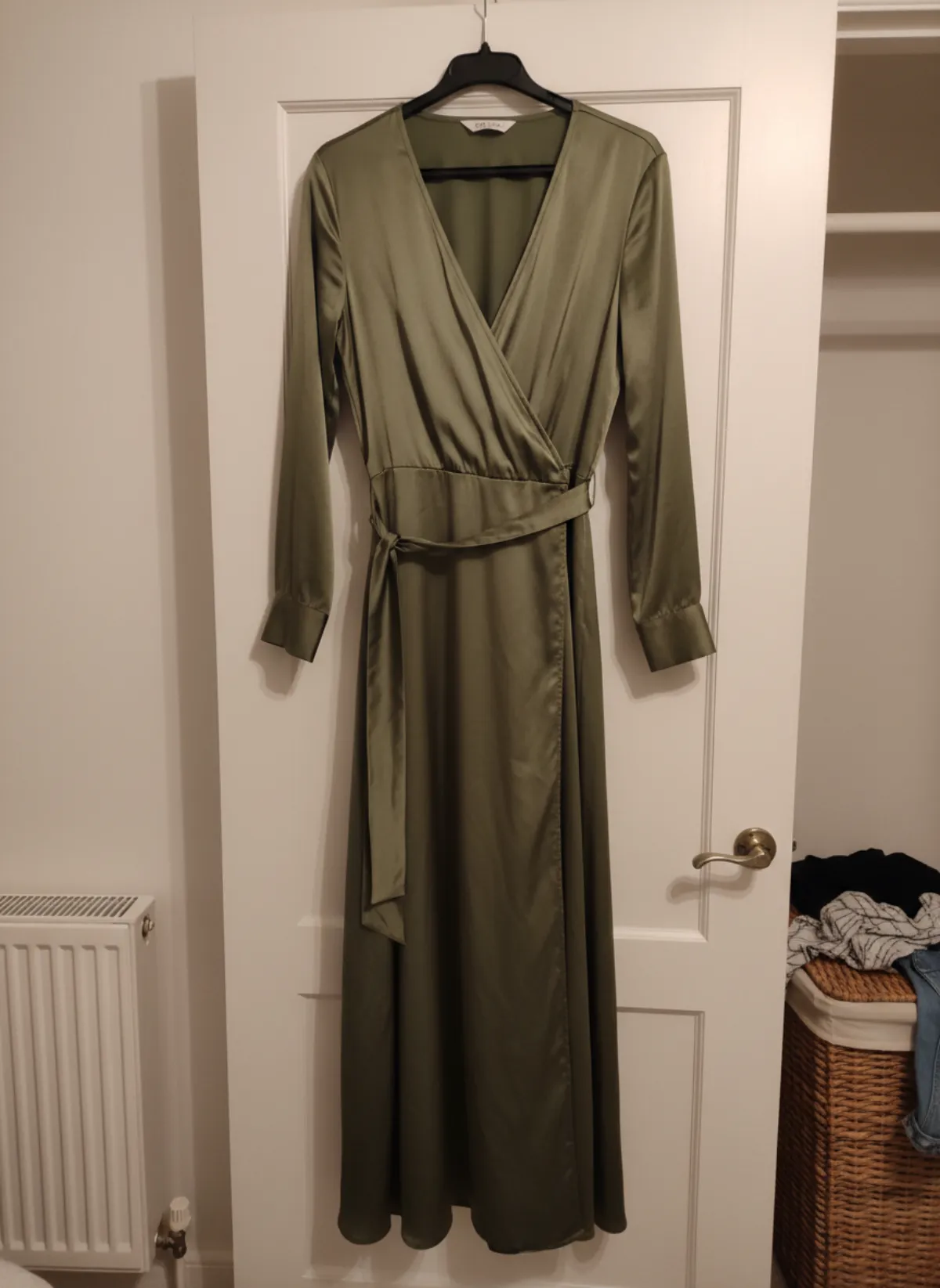
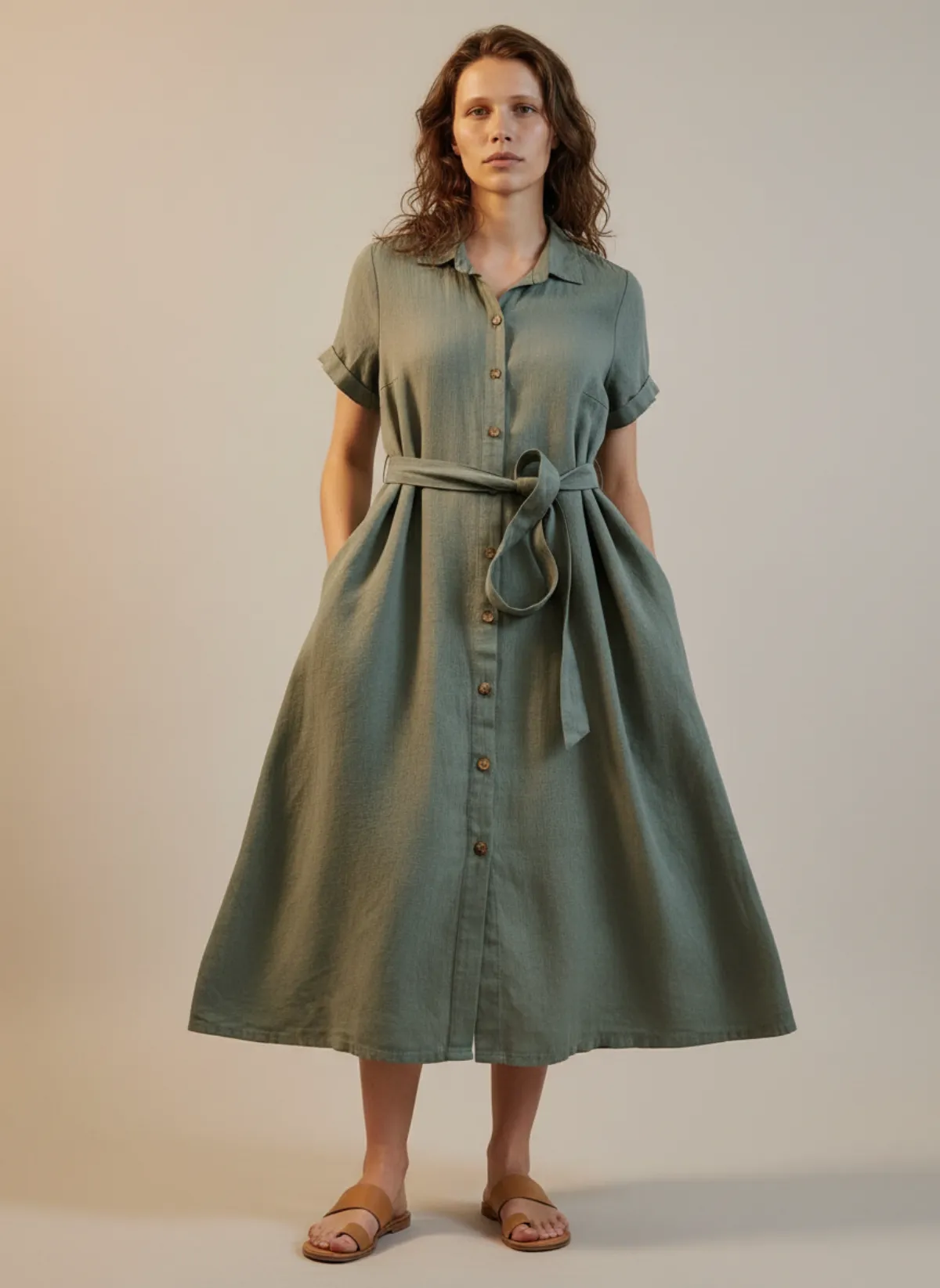
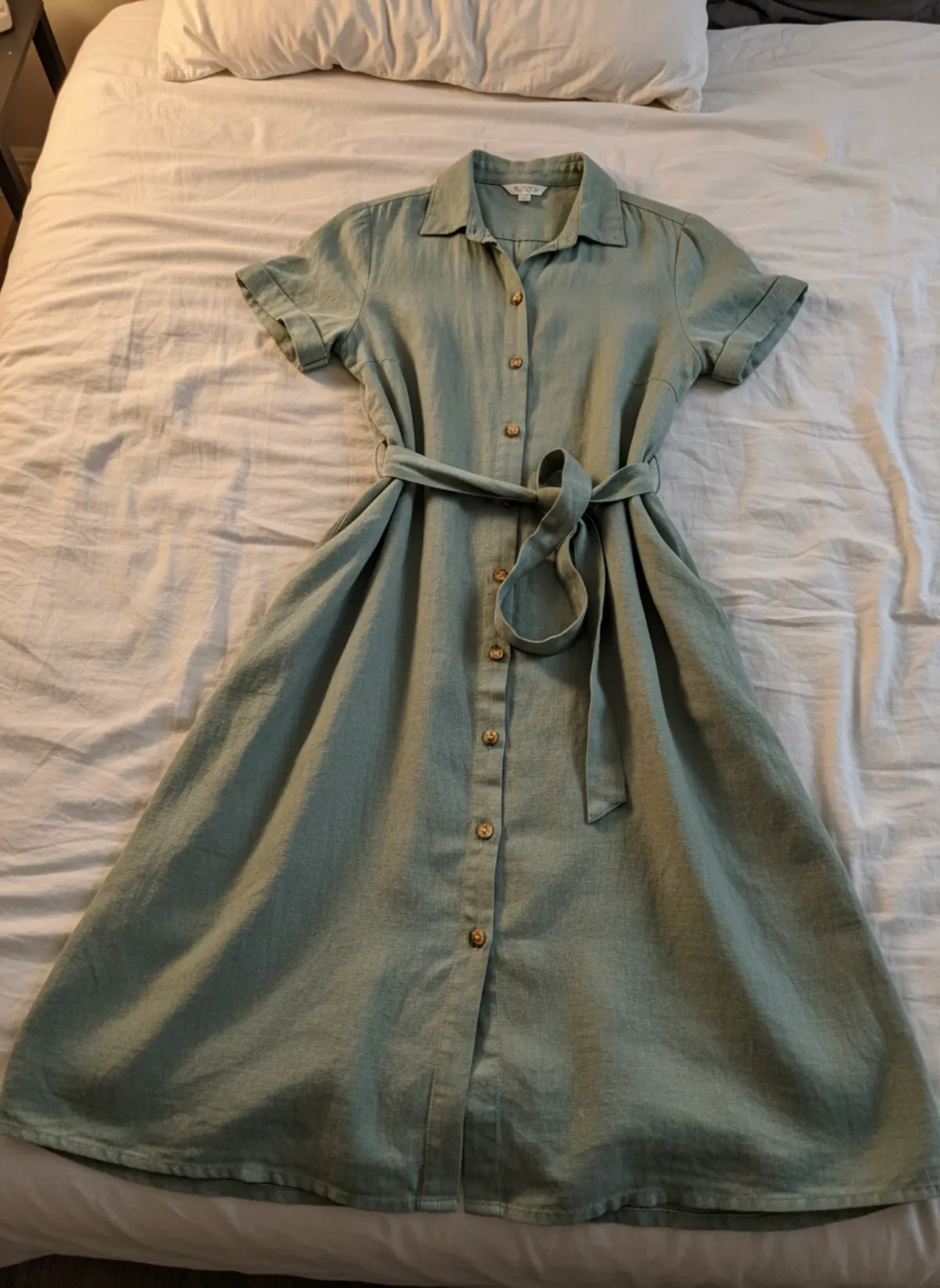
Start with Shopify's actual image requirements
Shopify's official product-media guidance, checked on 2 November 2026, accepts common formats including PNG, JPEG and WebP. Product and collection images can be up to 5000 by 5000 pixels or 25 megapixels and must be below 20 MB. Shopify says 2048 by 2048 pixels usually displays well for square product images.
Those limits are not a creative brief. Your theme decides how images appear, and collection cards may crop differently from product pages. Choose one featured-image ratio, test it on desktop and phone, and leave enough space around the subject. Our Shopify image size guide covers the technical choices in detail.
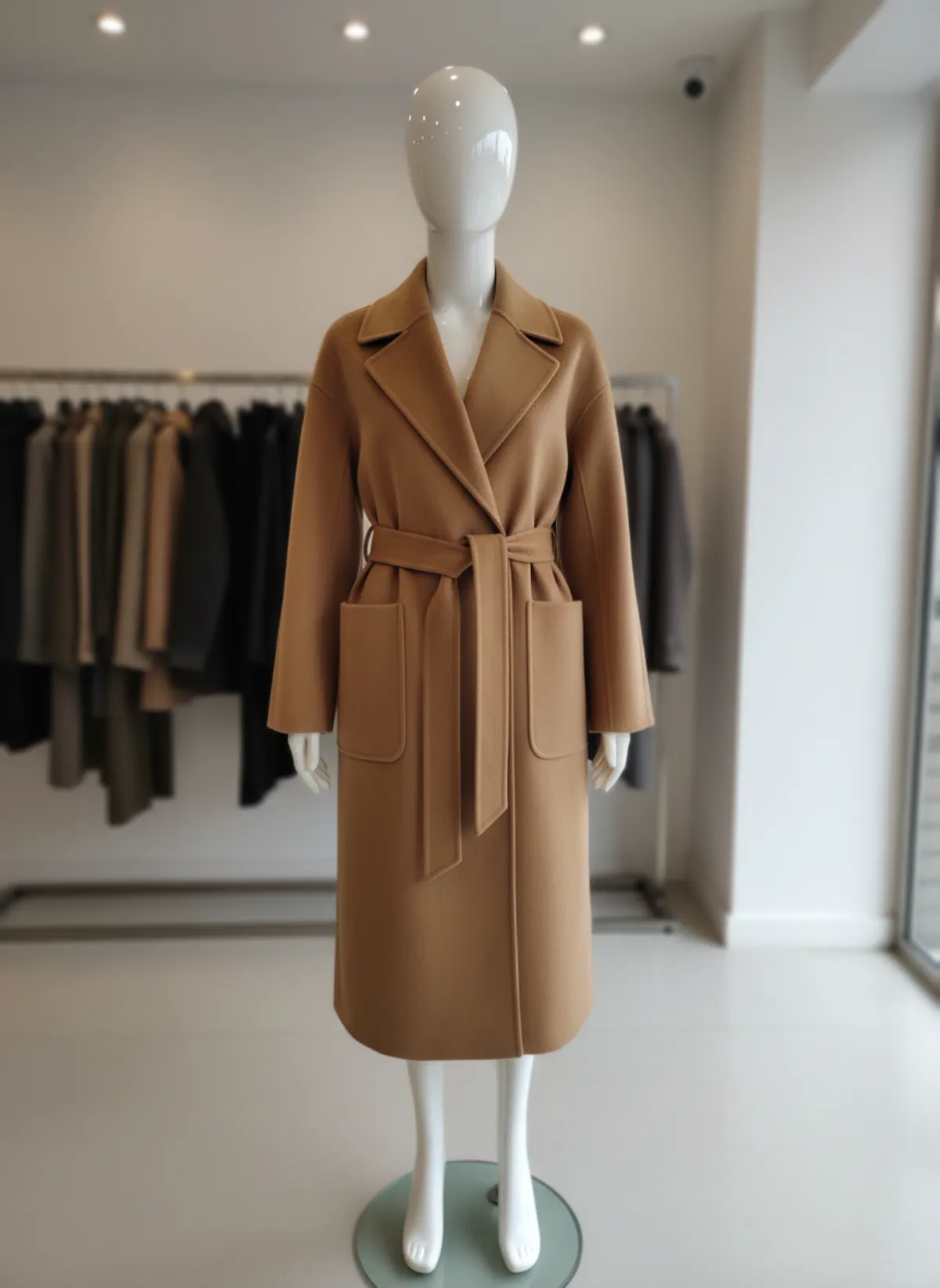
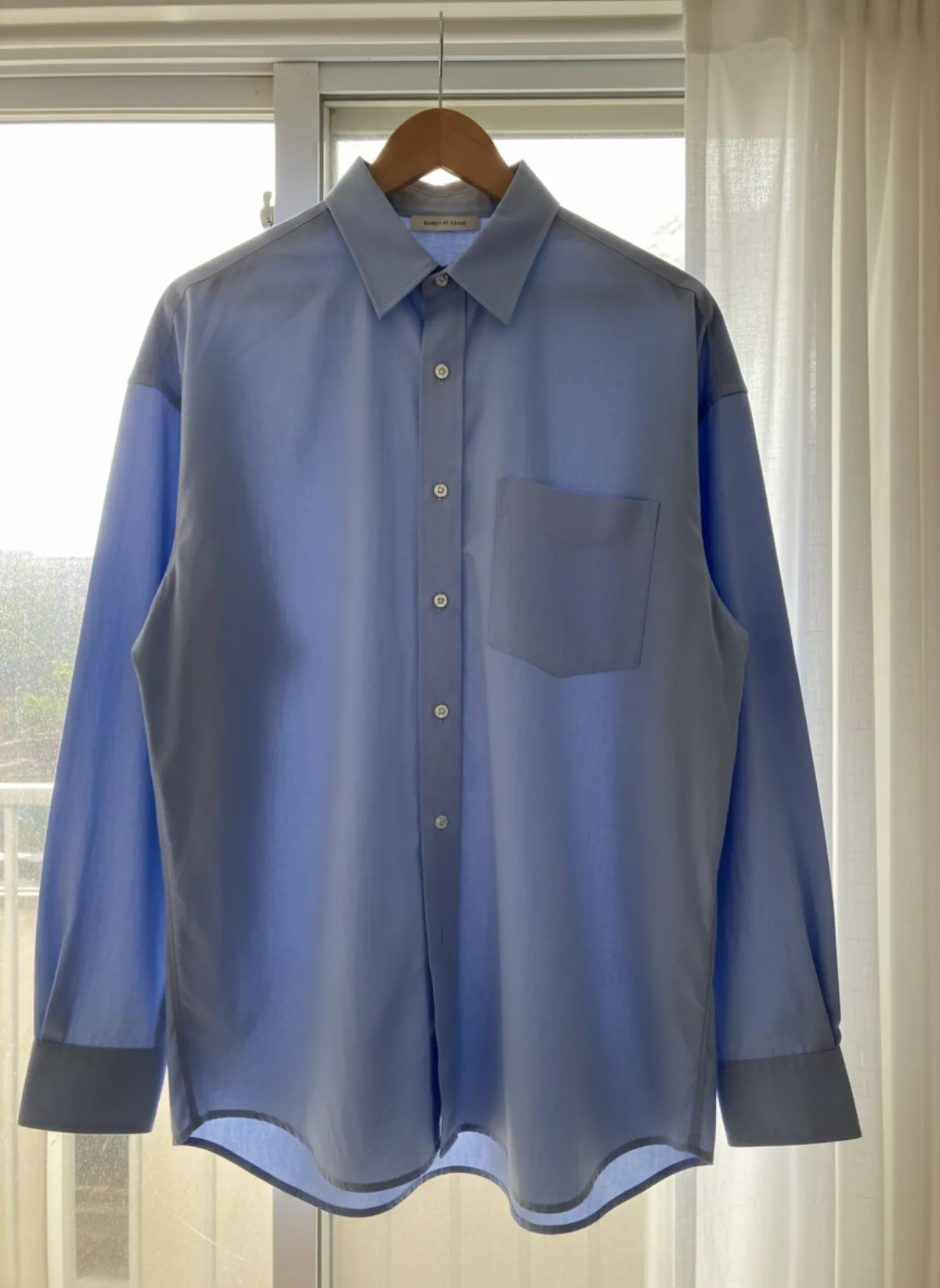
AI does not remove the need for a real source. Keep at least one accurate product frame and use it to verify colour, shape, print, seams and hardware. Generated views should expand the gallery, not become the only record of what ships.
The minimum Shopify image stack
Featured image
A clean, product-led frame with the same ratio and visual scale across the collection.
On-model view
A clear front or three-quarter image that explains silhouette without hiding construction.
Evidence frames
Real close-ups of fabric, print, fastenings, back and any feature that affects the purchase.
Lifestyle image
One contextual frame after the essential product questions have been answered.
Create a source-photo standard
Use a plain contrasting surface, soft even light and a camera parallel to the product. Show the full item without cropped sleeves, straps or hem. Add detail references for logos, patterned fabric, jewellery settings, shoe soles or unusual closures. Name the files by SKU and view before generation so the approval trail remains clear.
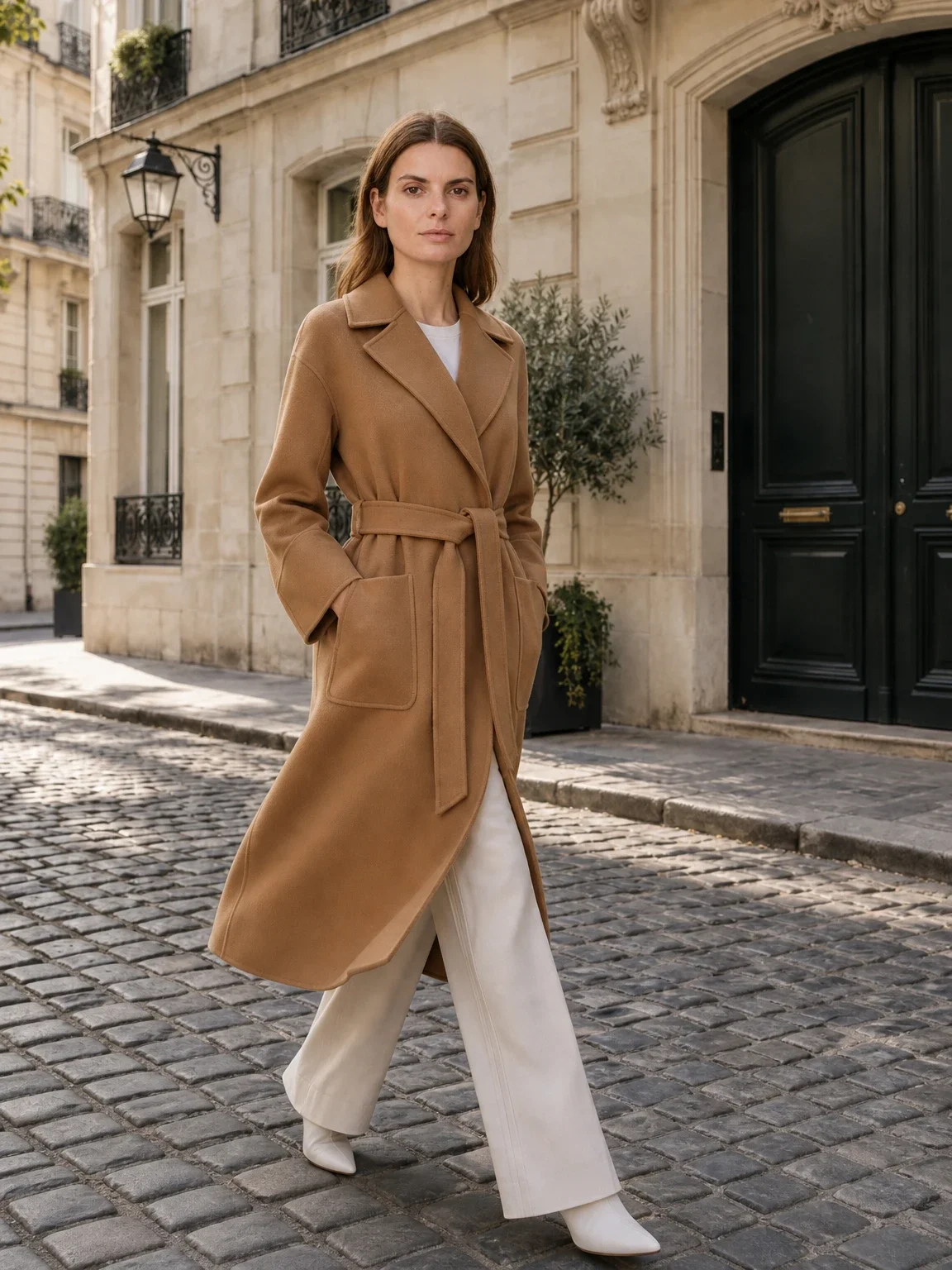
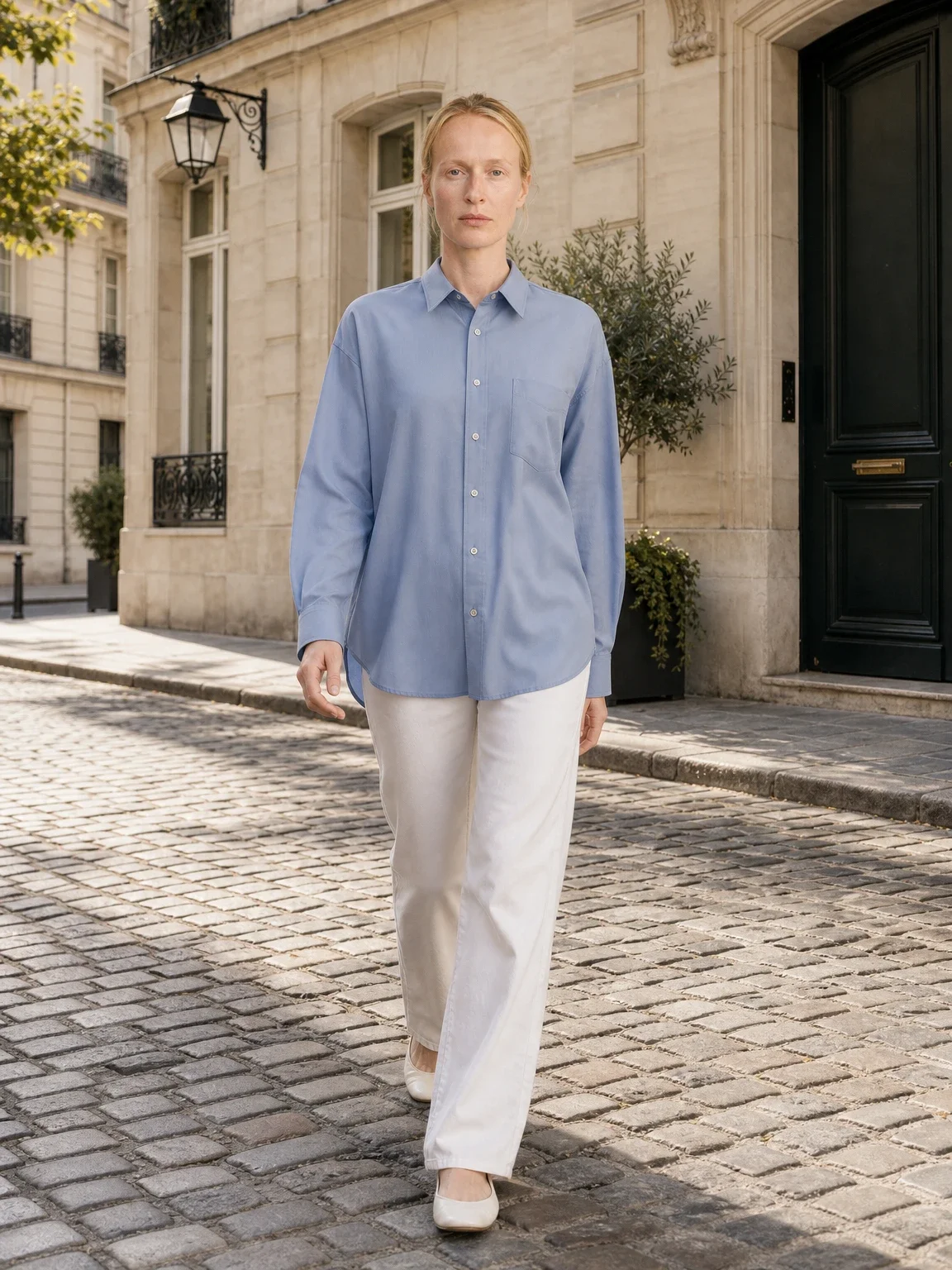
For clothing, begin with AI product photography with models and approve a simple front view before lifestyle scenes. Use an AI fashion model generator when the same identity should connect a collection. Change one variable at a time: first garment, then pose, then background.
Build a small pilot using one basic, one typical product and one difficult product. If the hardest item repeatedly changes, route that category to a physical shoot. A Shopify setup is complete only when the team knows which products should not use the automated path.
Set the gallery order and crop once
Use the featured image first, then a clear model view, back or side, detail, scale and lifestyle. Variants should follow the same order. If red begins with a front model but blue begins with a flat lay, comparison becomes harder. Keep the subject size and camera level stable across colourways.
Shopify recommends a consistent aspect ratio for images displayed together. Open the actual collection grid and product template rather than trusting the source file. Check that mobile cropping does not remove heads, shoes, handles or shadows. The theme may request responsive sizes automatically, but it cannot restore content outside the crop.
An AI model photoshoot can produce supporting poses after the master frame is approved. Limit each frame to one job. Five similar walking poses add less value than front, back, fabric detail, scale and one lifestyle image.
Prepare filenames, alt text and performance
Rename files before uploading. Shopify's SEO guidance recommends descriptive filenames because existing product-image filenames cannot simply be renamed in place. Use readable names such as olive-linen-shirt-front rather than an export number.
Add brief alt text that describes what is visible, not a pile of keywords. Shopify recommends around 125 characters or less. A useful example is ‘woman wearing olive linen shirt, front view’; it helps accessibility and explains the media when it cannot load. Each view deserves its own description.
Compress the final export and avoid uploading a much larger file than the design needs. Then inspect collection speed on mobile. Keep the high-resolution master outside Shopify so later crops or marketplace exports come from the best source rather than a downloaded compressed version.
Use a pre-publish quality gate
Compare every AI result with the source at full size. Check colour, neckline, seams, pockets, logos, pattern repeat, dimensions and included quantity. Review the complete product gallery and its variant selector. A correct individual image can still be assigned to the wrong colour or SKU.
Preview desktop and mobile, zoom each detail, then ask whether the gallery answers fit, scale, material and construction. The AI product image accuracy test provides a reusable audit. Save approved source, output and rejection reason together so later products follow the same standard.
Finally, monitor support questions and returns. If customers repeatedly misunderstand a hem, size or finish, add a real evidence frame and revise the generation brief. A good Shopify workflow learns from the store after publication.
Shopify AI product photography FAQ
Does Shopify allow AI product photography?
Shopify supports AI media editing and common image uploads. You remain responsible for rights, accuracy and a gallery that represents the product honestly.
What size should Shopify product images be?
Shopify allows up to 5000 x 5000 pixels or 25 megapixels under 20 MB and says 2048 x 2048 usually works well for square images. Test your theme.
Should every Shopify image be square?
No. Use the ratio that suits your theme and product, but keep featured images consistent across a collection.
How many product images should a Shopify listing have?
There is no universal count. Include enough distinct frames to show front, back or side, details, scale and context without repeating the same information.
Do AI images need alt text?
Yes. Describe the visible product and view concisely for accessibility and search; avoid keyword stuffing.